
Ask an AI about this page
 ChatGPT
 Claude
 Perplexity
 Google AI Mode
 Microsoft Copilot
 Grok
 Mistral Le Chat
Manage the subscribers in a list
The Subscribers page shows all the subscribers in one list. On this page, you can find and filter subscribers, sort the table and open the profile of each subscriber.
Open the Subscribers page
Section titled “Open the Subscribers page”Each subscriber is in one list. Do these steps to see the subscribers in one list.
- Log in to the Mail Niaga console.
- Click Audience → Subscribers. This page opens the oldest list in your account.
- For a different list, click the list name at the top right of the page, then choose that list.
Another method: click Audience → Lists, then click the number of subscribers of that list. In each list, the Subscribers tab has the View all, Add, Import and Export menu.
Search & filter subscribers
Section titled “Search & filter subscribers”The bar above the table has these options:
| Option | Use it to |
|---|---|
| Select | Choose subscribers for bulk actions: Clear selection, Whole page or All subscribers. |
| Sort by | Sort by Date added, Sort by email or Recently updated. Click the arrow button next to it to change between ascending and descending order. |
| All statuses | Filter by status: Subscribed, Unsubscribed, Unconfirmed or Blacklisted. |
| All verification | Filter by the result of the email verification: Deliverable, Risky, Undeliverable, Unknown or Unverified. |
| Columns | Choose the columns that show: each list field except Email, and also Created and Updated. Tick the columns, then click Apply. |
| Search box | Find a subscriber by email address or name. |
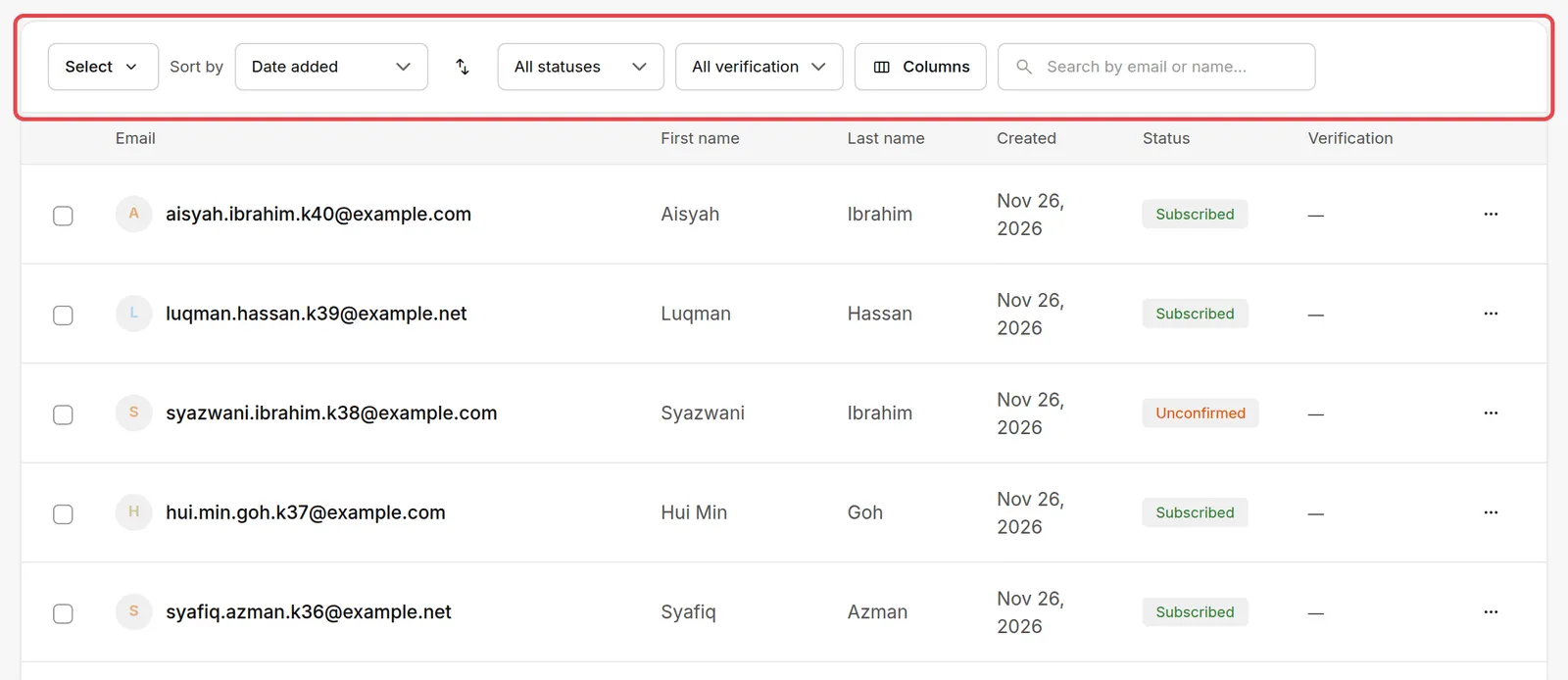
If no subscriber matches, the page shows No subscribers found. Change the search words or the filter, then try again.
Understand the subscriber status
Section titled “Understand the subscriber status”The Status column shows if the subscriber receives your campaigns.
| Status | Meaning |
|---|---|
| Subscribed | An active subscriber. This subscriber receives your campaigns. |
| Unsubscribed | The subscriber unsubscribed. This subscriber does not receive campaigns now. |
| Unconfirmed | The subscriber signed up through a double opt-in list, but did not confirm the subscription. |
| Blacklisted | This address is in the blacklist. The address is blocked in all your lists. |
The Verification column shows the result of the email address verification, for example Deliverable or Unknown. If nobody checked the address, this column shows a dash (-).
Use the menu of each subscriber
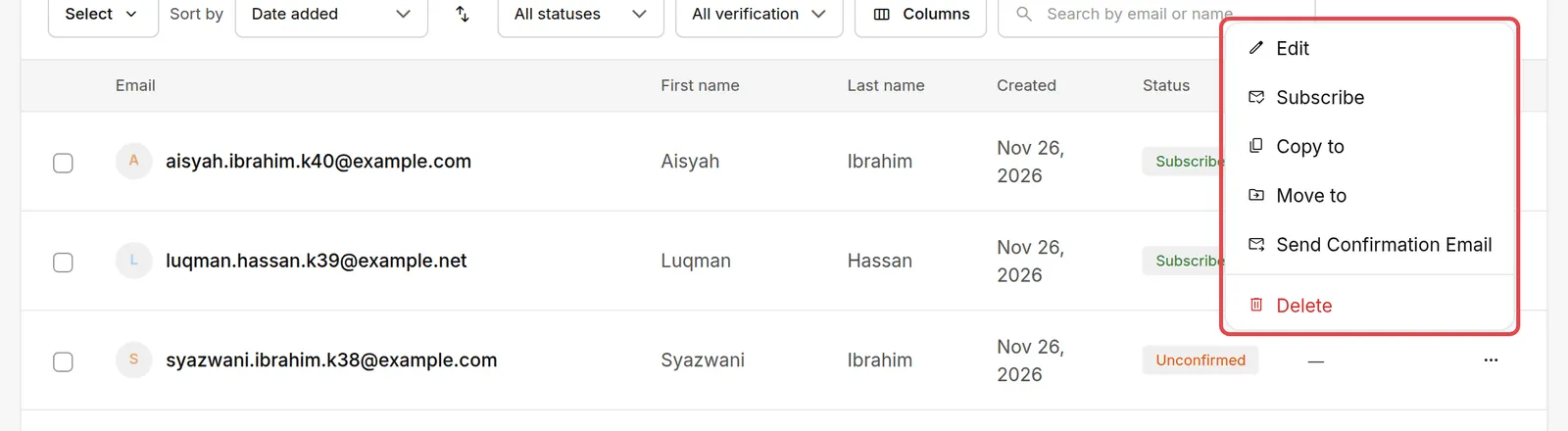
Section titled “Use the menu of each subscriber”Click the … icon at the end of the subscriber row to open its menu. The items in the menu change with the status of the subscriber.
| Item | When it shows | What it does |
|---|---|---|
| Edit | Always | Opens the subscriber profile. |
| Subscribe | The status is not Subscribed | Changes the status of this subscriber to Subscribed. |
| Unsubscribe | The status is Subscribed | Changes the status of this subscriber to Unsubscribed. |
| Copy to, Move to | Always | Copies or moves the subscriber to a different list. See Bulk actions for subscribers. |
| Send Confirmation Email | The status is Unconfirmed | Sends the subscription confirmation email again. |
| Delete | Always | Deletes the subscriber from this list. |
See the subscriber profile
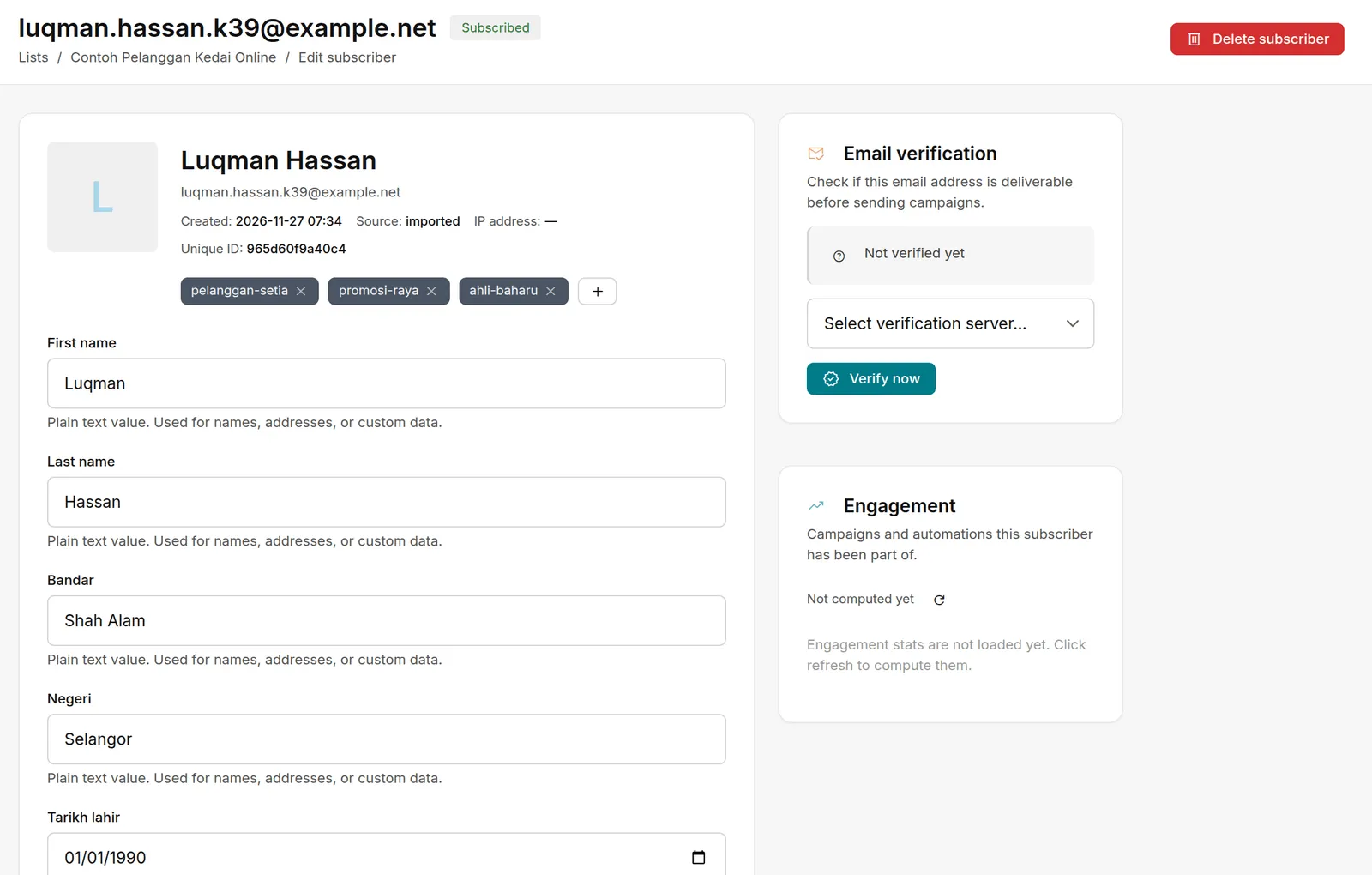
Section titled “See the subscriber profile”Click the email address of the subscriber in the table, or click Edit in the row menu. The profile page shows these parts:
| Part | Description |
|---|---|
| Profile card | The name, email address, Created, Source, IP address and Unique ID. |
| Tags | The tags of this subscriber. Click + to add a tag. See Use tags for subscribers. |
| List fields | One box for each list field, for example First name and Last name. Change the values, then click Save changes. |
| Email verification | If nobody checked the address, this card shows Not verified yet and the Verify now button. After the check, the card shows the result, the Last checked date and the Reset verification button, which clears the result. See Verify the email addresses in a list. |
| Engagement | The campaigns and automations that this subscriber is part of. If the card shows Not computed yet, click the refresh icon to calculate the statistics. |
| Delete subscriber | The red button at the top right. Deletes this subscriber. |
See the subscriber activity
Section titled “See the subscriber activity”The Engagement page shows the activity of one subscriber: Received, Opens, Clicks, Open rate and Click rate. Below it, there is a timeline of the campaign and automation activity.
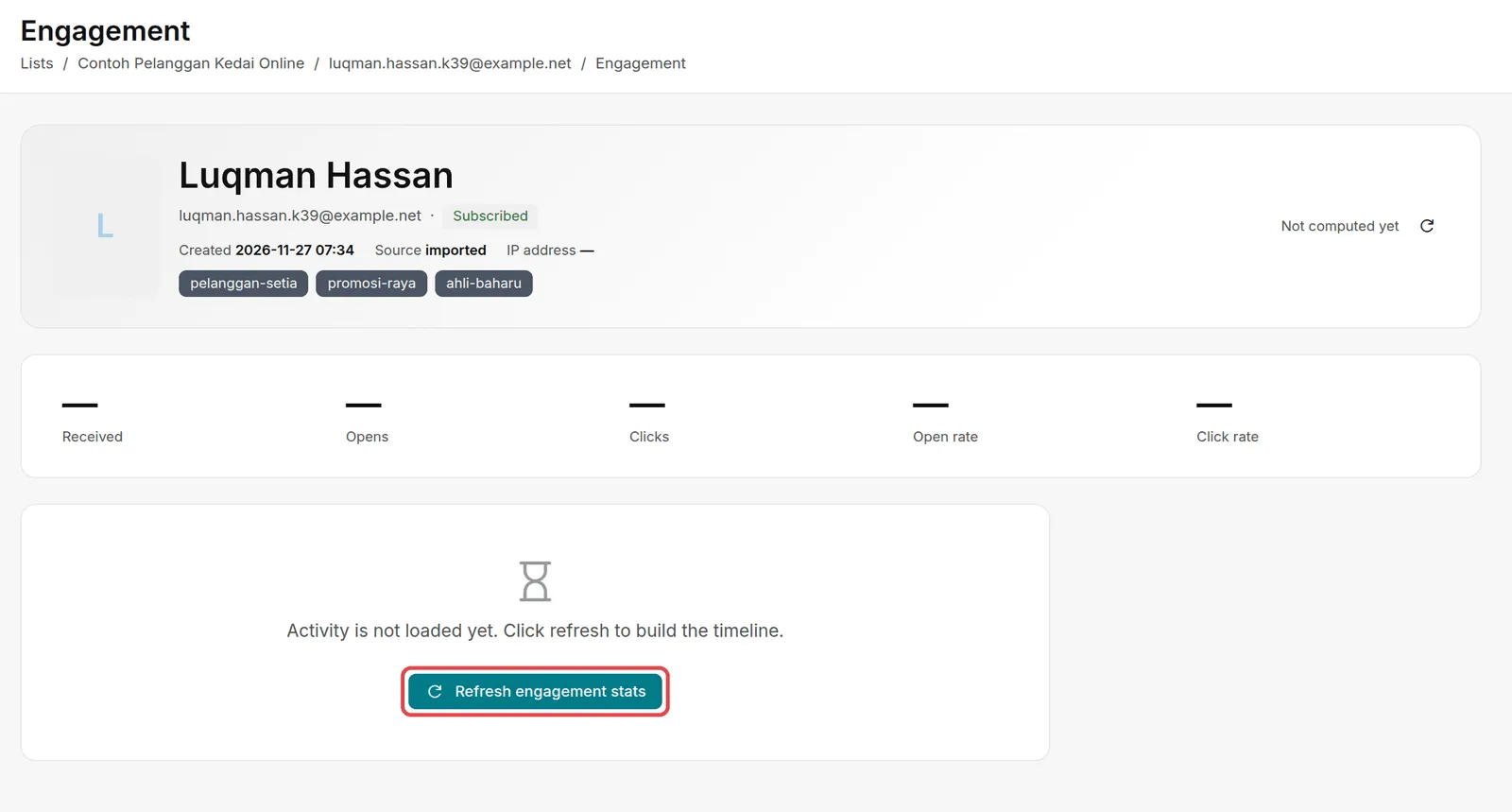
After Mail Niaga calculates the statistics, click View all activity → on the Engagement card of the profile page. If this page shows Not computed yet, click Refresh engagement stats to make the timeline. The calculation takes some minutes.
This advice helps you prepare your list for a campaign:
- Filter for the Unconfirmed status before an important campaign. These subscribers did not confirm their subscription. Send the confirmation email again from the row menu or with a bulk action.
- Check the Verification column before a large campaign. Undeliverable or Risky addresses can cause bounces. Bounces decrease your sending reputation.
- Show only the columns that you need. Use Columns to hide the columns that you do not often look at. The table is then easier to read on a small screen.
Common issues
Why can I not see the subscribers from all my lists at the same time?
In Mail Niaga, each subscriber is in one list. The subscriber page shows one list only. Click the list name at the top right of the page to go to a different list.
Why does **Audience** → **Subscribers** always open one specific list?
The menu opens the oldest list in your account. For a different list, click the list name at the top right of the page, or open Audience → Lists and click the number of subscribers of that list.
Can I change the email address of a subscriber?
The subscriber profile page has no email field. Thus, you cannot change the email address there. Add a new subscriber with the correct address, then delete the old subscriber.
Was this article helpful?
Thanks for your feedback.
Sorry, this page did not help. Chat on Messenger and we will help you fix it.