
Ask an AI about this page
 ChatGPT
 Claude
 Perplexity
 Google AI Mode
 Microsoft Copilot
 Grok
 Mistral Le Chat
Know the Mail Niaga dashboard
The Home page is the dashboard of the Mail Niaga console. This page gives a short summary of your account. It shows the plan quotas, the email performance in the last 7 days and the sending activity. It also shows the recent campaigns and the status of the subscribers in all lists.
The console opens this page after you log in. To go back to this page from a different page, click Home at the top of the side menu. To learn the other menus and buttons in the console, see Mail Niaga console menus and navigation.
Welcome message and update time
Section titled “Welcome message and update time”The top of the page shows “Welcome back” with the name of your account. The line below it tells you when the console updated the dashboard data, for example “updated 3 minutes ago”. Click the refresh icon at the end of that line to tell the console to calculate the data again.
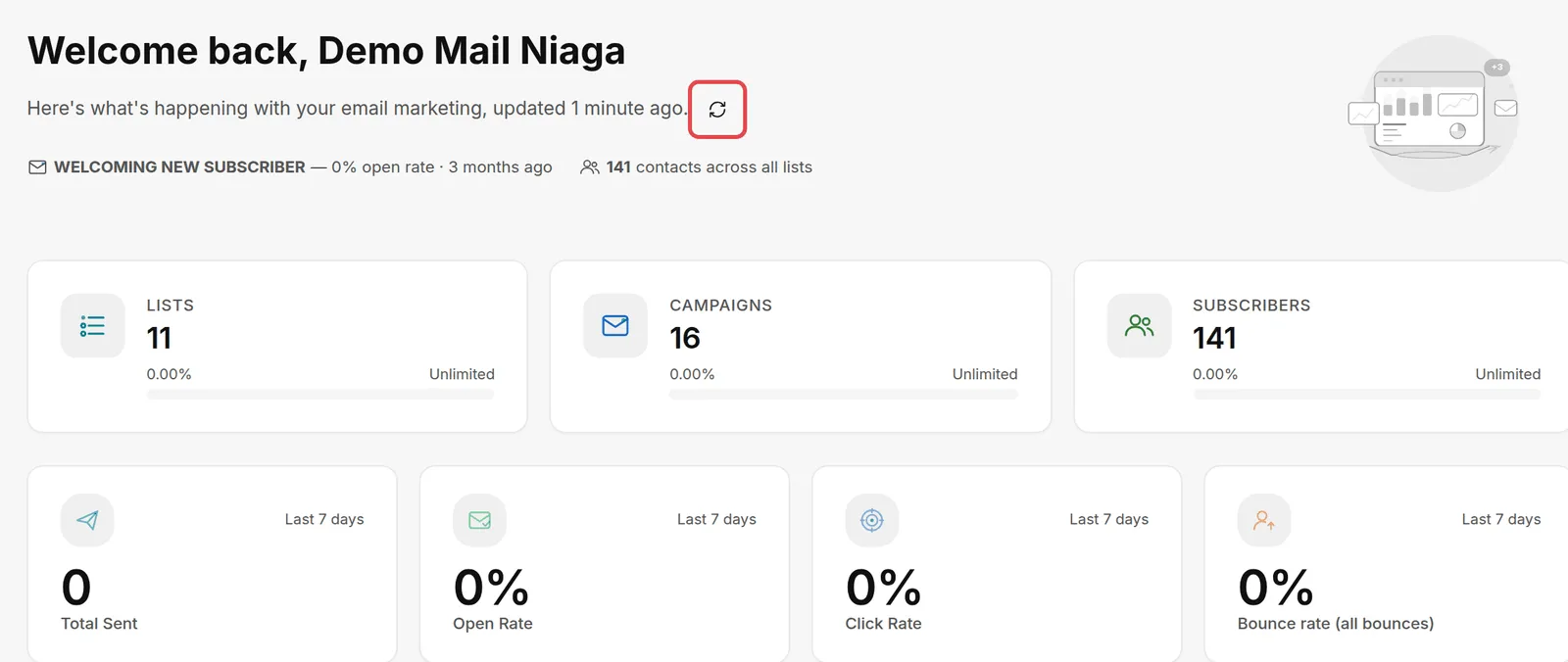
Below the welcome message, the console shows your last campaign with its open rate, and the total number of contacts in all lists.
Quota cards and 7-day performance
Section titled “Quota cards and 7-day performance”Three quota cards show how much of your plan you use:
| Card | What it counts |
|---|---|
| LISTS | The number of lists in your account. |
| CAMPAIGNS | The number of campaigns in your account. |
| SUBSCRIBERS | The total number of subscribers in all lists. |
Each card shows the percentage that you use and the plan limit. If your plan has no limit, the card shows Unlimited. The bar on the card becomes red when you use 80% of the limit. For all the plan limits, see Check your usage and plan limits.
The next four cards show the email performance for the Last 7 days: Total Sent, Open Rate, Click Rate and Bounce rate (all bounces).
Sending health and Sending Activity
Section titled “Sending health and Sending Activity”The Sending health card shows the hard bounce rate (Hard bounces) and the complaint rate (Complaints) for your recent emails. Until there is enough data, this card shows Collecting data. Click Details to open the full Sending health page.
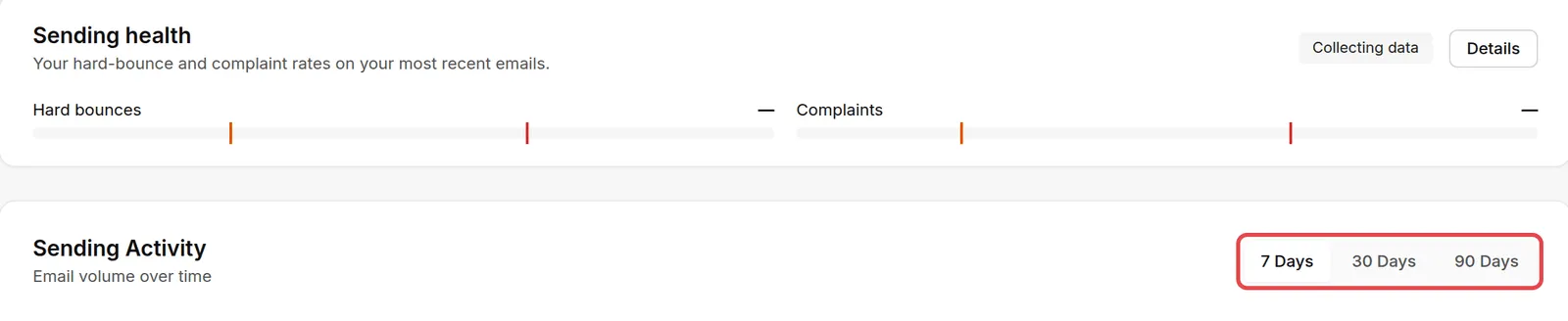
The Sending Activity card shows a graph of the number of emails that you sent each day. To change the period of the graph, click the 7 Days, 30 Days or 90 Days tab. If you sent no emails in that period, the card shows “No sending activity in this window”. Try a longer period.
Quick actions, recent campaigns and activity log
Section titled “Quick actions, recent campaigns and activity log”Four quick action cards take you directly to common tasks:
| Card | What it opens |
|---|---|
| New Campaign | Create a new email campaign. |
| Import Contacts | The Lists page. Choose a list, then import subscribers into that list. |
| Create List | The Lists page, with the Create list button. |
| View Reports | The campaign list. There, you can check the performance of each campaign. |
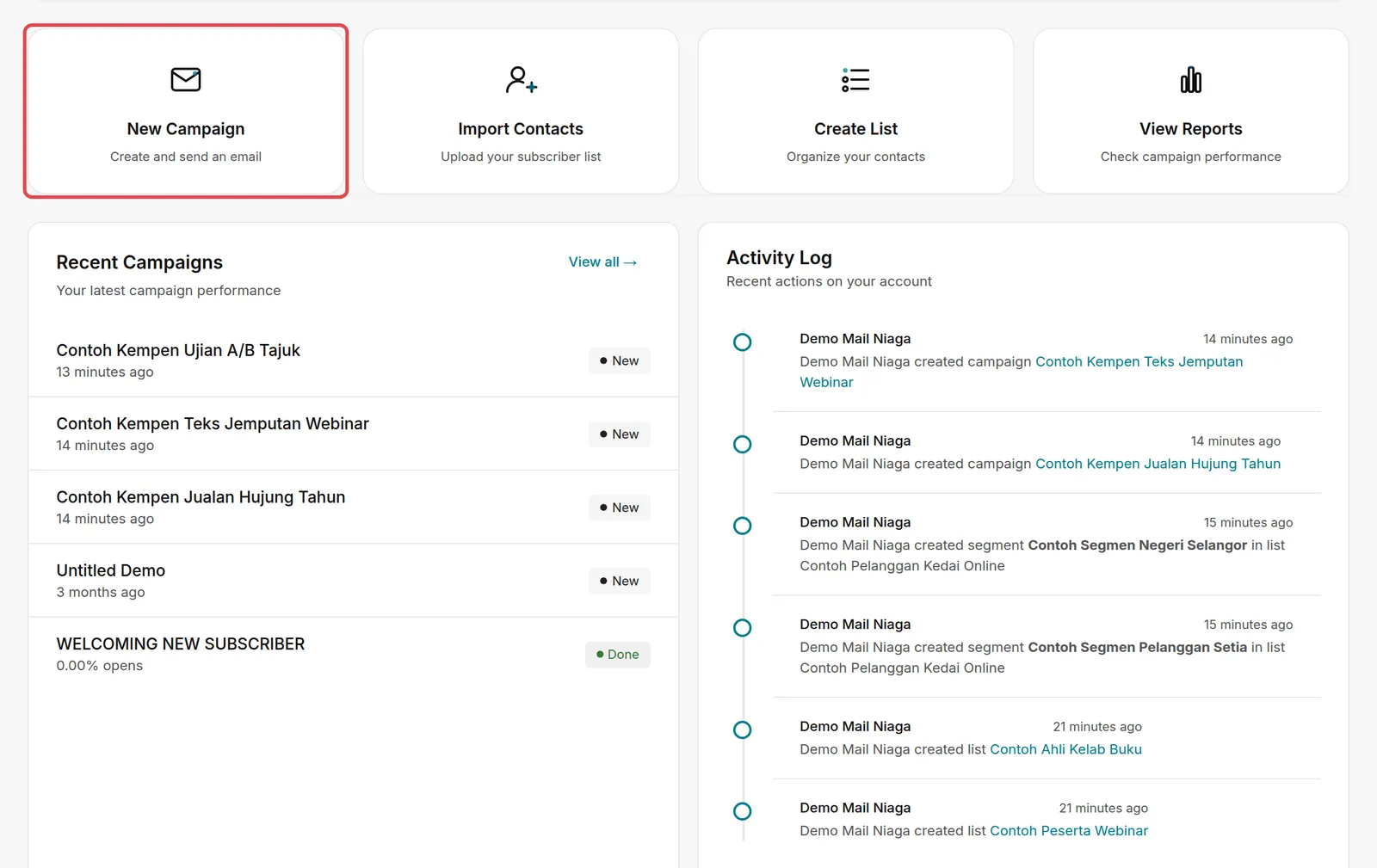
The Recent Campaigns card shows the five newest campaigns. A campaign that you did not send yet shows when you created it. A campaign that you sent shows its open rate. Each campaign has a status, for example New or Done. Click the name of a campaign to open it, or click View all → to open the full campaign list.
The Activity Log card shows the recent actions in your account, for example “created campaign” or “created list”. Each action shows the name of the person who did it and the time. If there are no actions yet, the card shows “No activity yet”. See Check the account activity log.
Top Campaigns, Top Countries and Subscriber Overview
Section titled “Top Campaigns, Top Countries and Subscriber Overview”The bottom of the page shows the performance and the status of your audience:
| Card | What it shows |
|---|---|
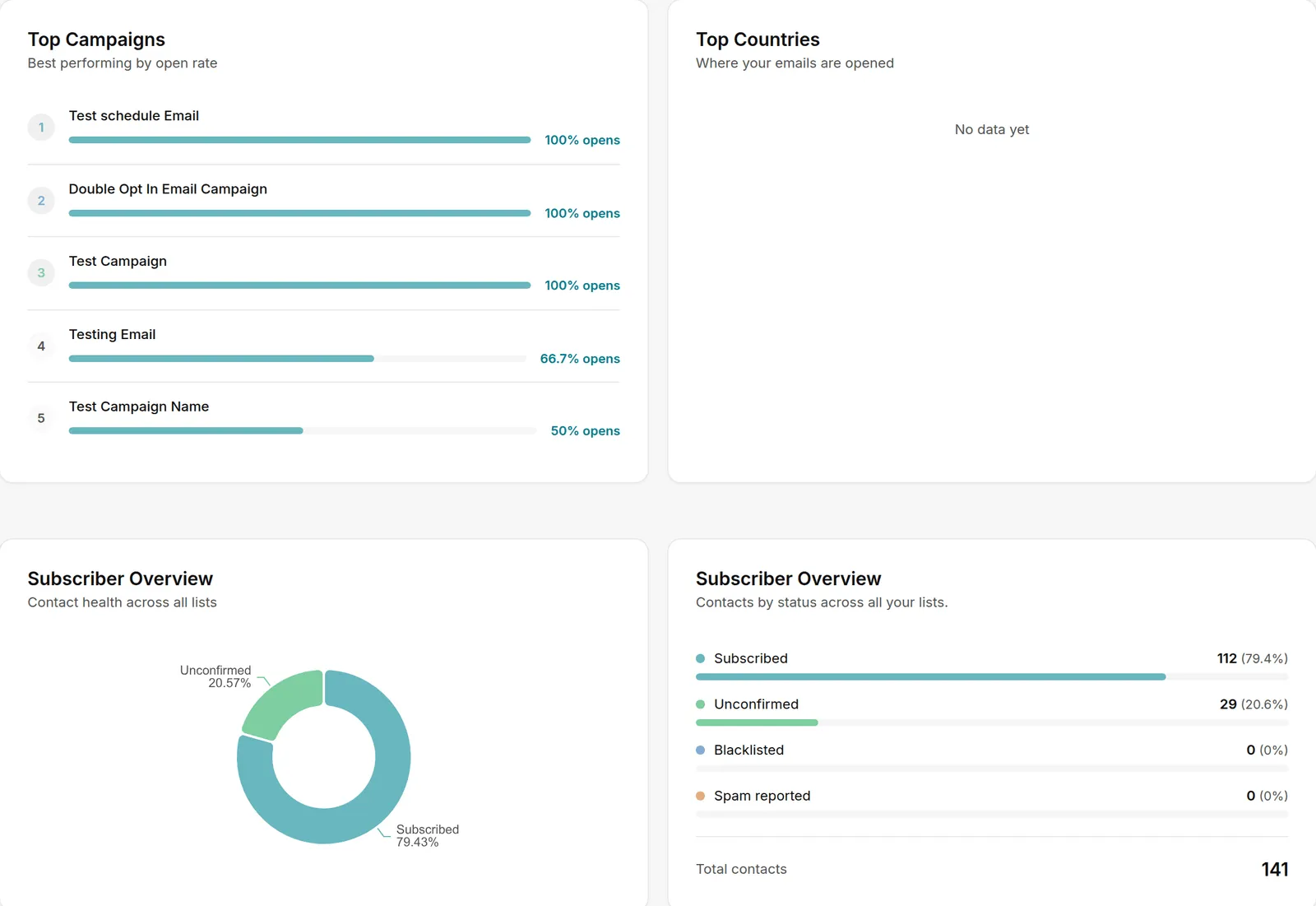
| Top Campaigns | The five campaigns with the highest open rate. |
| Top Countries | The countries where recipients opened your emails. If there is no data, the card shows “No data yet”. |
| Subscriber Overview (chart) | A donut chart of the status of the contacts in all lists. |
| Subscriber Overview (list) | The number of Subscribed, Unconfirmed, Blacklisted, Spam reported and Total contacts. |
Get Started for new accounts
Section titled “Get Started for new accounts”A new account shows the Get Started card below the welcome message. This card shows how many steps are complete, for example “1 of 4 done”, and four steps:
- Create your first mailing list: click Create List to create your first list.
- Add subscribers to your list: click Import Contacts to add subscribers.
- Send your first campaign: click Create Campaign to create your first campaign.
- Set up email delivery: this step becomes complete automatically if your plan includes email delivery.
A complete step shows Completed and a View button. The card goes away when all the steps are complete.
This advice helps you use the dashboard:
- Start with Get Started. The steps in this card are in the correct sequence for your first campaign.
- Look at Sending health after each large campaign. A high hard bounce rate or complaint rate can decrease the delivery of your next campaigns.
- Use the 30 Days or 90 Days tab. If you do not send each week, the 7-day graph is frequently empty.
Common issues
Why do the numbers on the dashboard not change after I send a campaign?
The console calculates the dashboard numbers again at intervals. See the time on the line below the welcome message. Click the refresh icon at the end of that line, then open the page again after some minutes.
Why do I not see the Get Started card?
The Get Started card shows only until all the steps are complete. If your account has a list, subscribers, a campaign and email delivery, the card does not show again.
Why does Top Countries show No data yet?
This card needs emails that recipients opened. After recipients get and open your first campaign, the card shows their countries.
Was this article helpful?
Thanks for your feedback.
Sorry, this page did not help. Chat on Messenger and we will help you fix it.