
Ask an AI about this page
 ChatGPT
 Claude
 Perplexity
 Google AI Mode
 Microsoft Copilot
 Grok
 Mistral Le Chat
Add an embedded form to your website
An embedded form is a subscription form in HTML code. You copy this code from the Mail Niaga console and paste it on your website. When visitors fill in the form, their email address goes into your list.
Each list has its own embedded form. The fields in the form come from the list fields of that list.
Open the embedded form for your list
Section titled “Open the embedded form for your list”Start from the list that will receive the new subscribers.
-
Click Audience → Lists.
-
Click the name of the list.
-
In the list menu, click Forms / Pages → Embedded form.
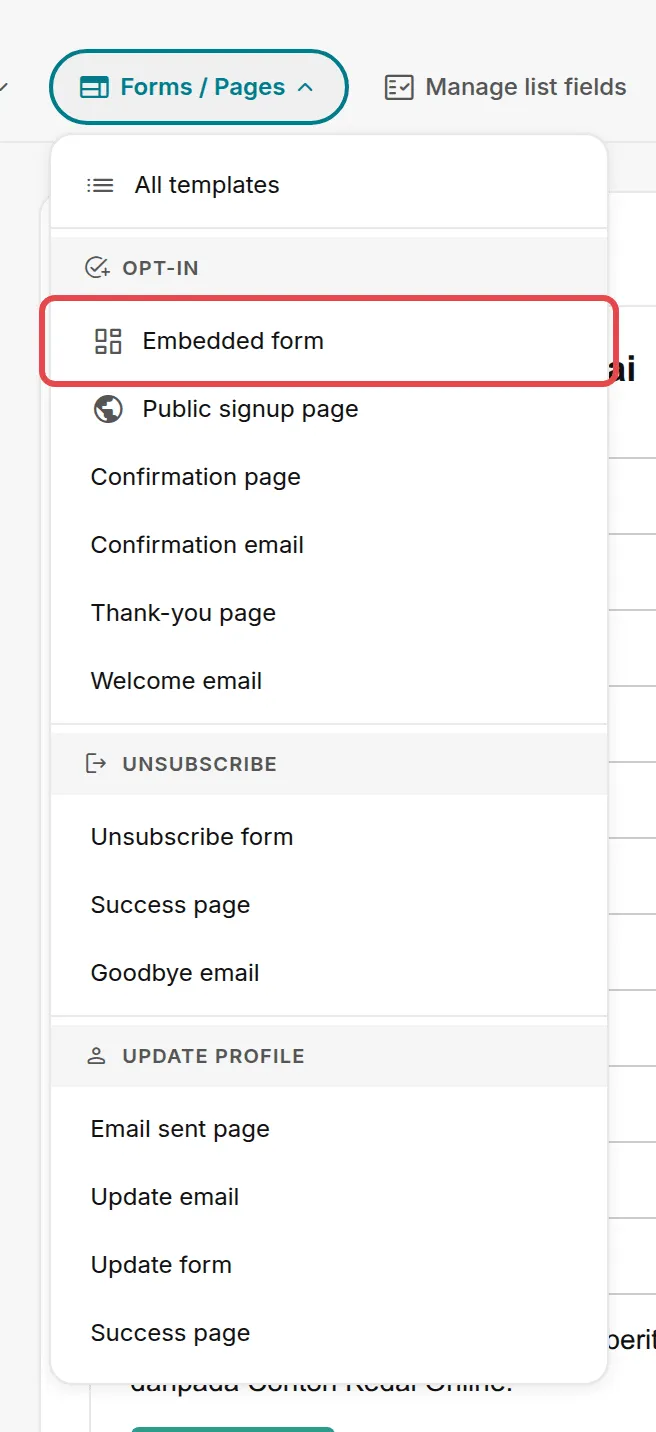
You can also open the same page from the page with all your lists. Click the … menu on the row of the list, then click Embedded form. To go to a different list, click the list name above the list menu.
Choose the form settings
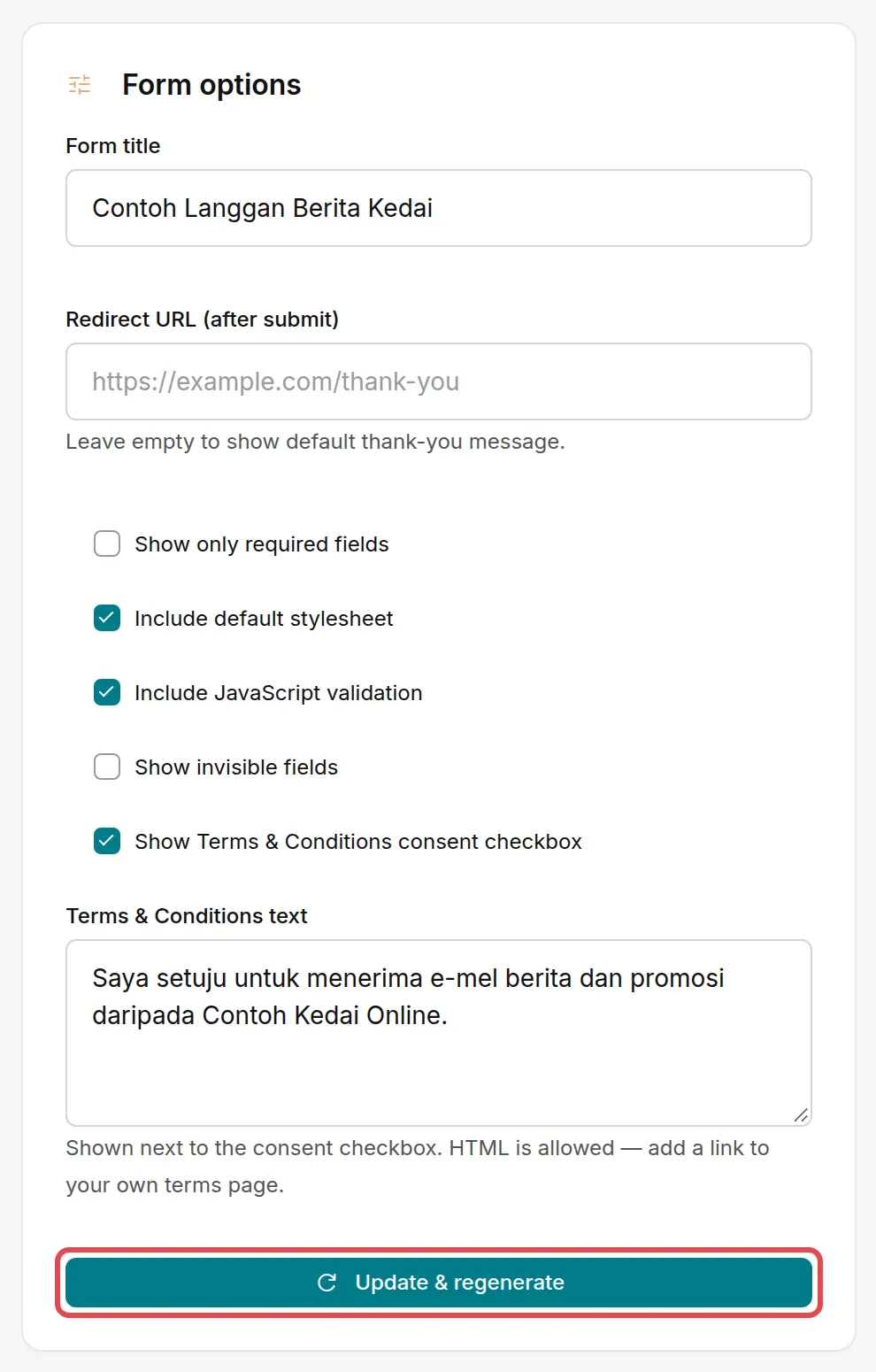
Section titled “Choose the form settings”The Form options panel sets the fields and the appearance of the form. This table gives each setting:
| Setting | Function |
|---|---|
| Form title | The title above the form, for example “Subscribe to our newsletter”. |
| Redirect URL (after submit) | The address of the page that visitors see after they send the form. The console says that you can leave it empty to show a thank-you message. |
| Show only required fields | Show only the required fields, for example Email. |
| Include default stylesheet | Include basic styles (CSS) so that the form looks neat. Turn off this setting if your website has its own styles. |
| Include JavaScript validation | Include a script that sends the form without leaving the page. The button changes to “Subscribing…” and then to “Subscribed!”. |
| Show invisible fields | Also show the list fields that are usually hidden. |
| Show Terms & Conditions consent checkbox | Add a consent checkbox. Visitors must tick this box before they send the form. |
| Terms & Conditions text | The text next to the checkbox. You can use HTML, for example a link to your terms page. |
After you change the settings, make the code again:
-
Change the settings in Form options.
-
Click Update & regenerate. The code in Embed code and the form in Preview change to the new settings.
Copy the code & paste it on your website
Section titled “Copy the code & paste it on your website”You can paste this code on any page that accepts HTML. Examples are WordPress, Elementor, a landing page builder or a plain HTML website.
-
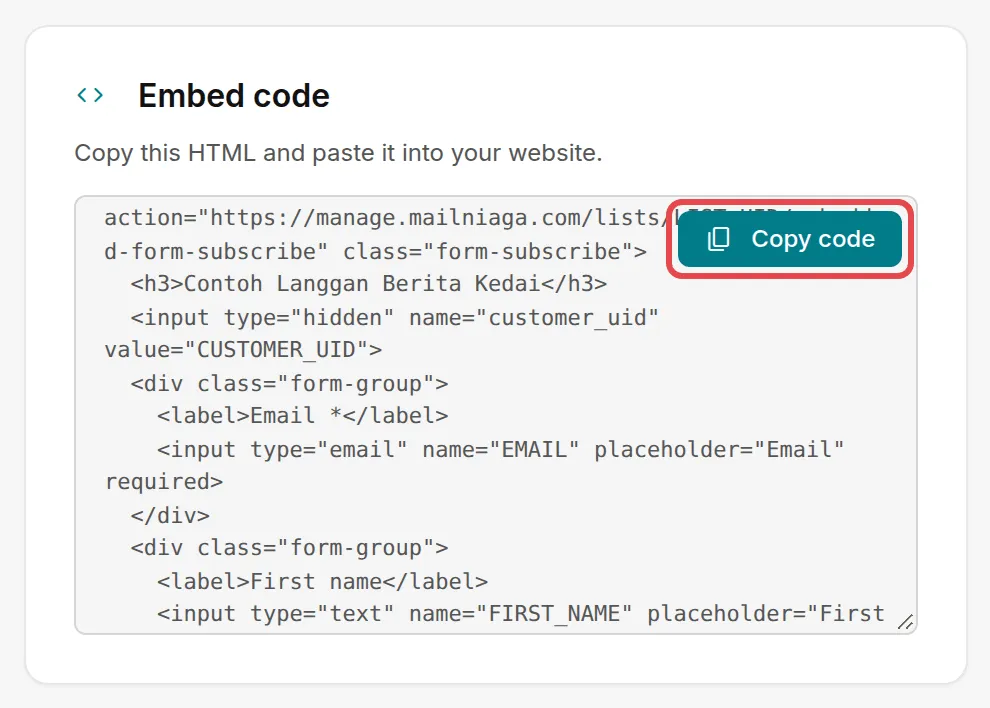
In the Embed code panel, click Copy code.
-
Open the editor of your website and add an HTML block. Examples are the HTML widget in Elementor and the Custom HTML block in WordPress.
-
Paste the code.
-
Save and publish the page.
-
Open the page in a browser and make sure that the form shows.
What visitors see
Section titled “What visitors see”The Preview panel shows the form as visitors see it. It shows the title, the list fields (for example Email, First name, Last name and the list fields that you added), the terms checkbox and the Subscribe button.
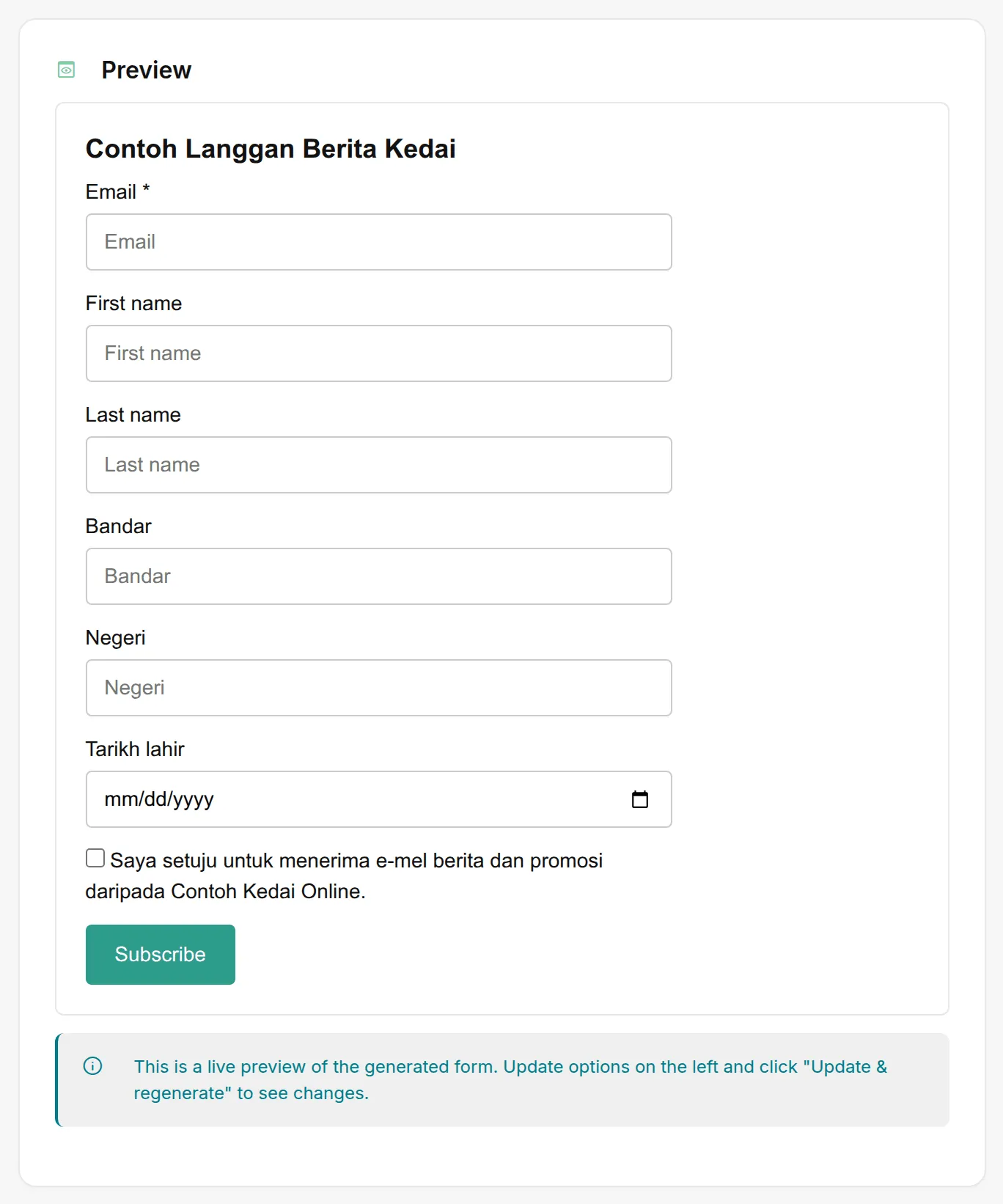
After visitors click Subscribe, their address goes into this list. If Double opt-in is on for this list, they must click the link in the Confirmation email first. See Turn on double opt-in.
This advice helps you get correct signups from your form:
- Test the form with your own email address. After you paste the code, fill in the form one time. Then look for that address in Subscribers → View all of the list.
- Use the terms checkbox if you collect addresses for marketing. Visitors know what they agree to before they subscribe.
- Use a different list for the form on each website. Then you know where each subscriber comes from.
Common issues
Can I use an embedded form in Elementor or WordPress?
Yes. Add an HTML block (the HTML widget in Elementor, the Custom HTML block in WordPress), and paste the code from Copy code. Then save and publish the page.
Why does the form on my website not change after I change the Form options?
The code on your website is a copy. Click Update & regenerate, and click Copy code again. Then replace the old code on your website with the new code.
Where can I see the subscribers who signed up through the embedded form?
In the same list. Click Audience → Lists, and click the name of the list. Then click Subscribers → View all in the list menu.
Was this article helpful?
Thanks for your feedback.
Sorry, this page did not help. Chat on Messenger and we will help you fix it.