
Ask an AI about this page
 ChatGPT
 Claude
 Perplexity
 Google AI Mode
 Microsoft Copilot
 Grok
 Mistral Le Chat
Bulk actions for subscribers
With bulk actions, you can change many subscribers at one time. For example, you can add tags, change the status, copy subscribers to a different list or delete subscribers. All these actions are in the Actions menu on the Subscribers page.
Choose the subscribers
Section titled “Choose the subscribers”The Actions menu shows only after you tick subscribers.
- Open the Subscribers page of the list.
- If necessary, filter the subscribers, for example with All statuses or the search box.
- Tick the checkbox on the subscriber rows. To choose more subscribers, click Select, then choose one of these options:
- Whole page: all the subscribers on this page.
- All subscribers: all the subscribers that match the current filter, also on the other pages.
- Clear selection: clears the selection.
The Actions button shows the number of selected subscribers.
Choose an action
Section titled “Choose an action”Click Actions, then choose an action.
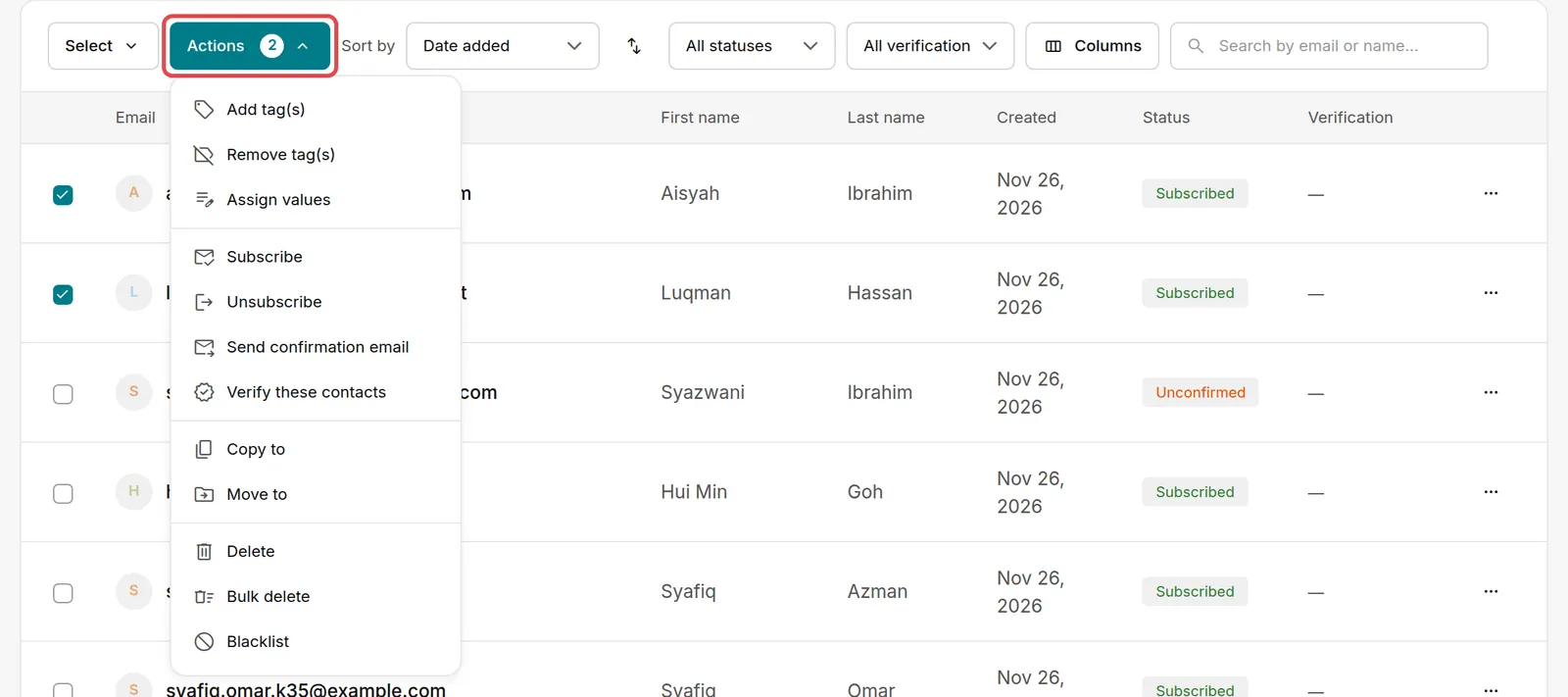
| Action | What it does |
|---|---|
| Add tag(s) | Adds one tag or more. Put a comma between the tags, then click Add Tags. |
| Remove tag(s) | Removes the tags that you type. Only the tags that match are removed. Click Remove Tags. |
| Assign values | Choose a list field in Field, type a value in Value, then click Assign. The console puts that value in for all the selected subscribers. |
| Subscribe | Changes the status to Subscribed. These subscribers will receive your campaigns. If a subscriber is in your blacklist, the console removes the subscriber from the blacklist. |
| Unsubscribe | Changes the status to Unsubscribed. These subscribers do not receive campaigns after this change. |
| Send confirmation email | Sends a confirmation email to the subscribers with the Unconfirmed status. Click Send. |
| Verify these contacts | Verifies the email addresses of the selected subscribers. See Verify the email addresses in a list. |
| Copy to, Move to | Copies or moves the subscribers to a different list. See the next section. |
| Delete | Deletes the selected subscribers with all their data. You cannot undo this action. |
| Bulk delete | Deletes subscribers by email address. See the section below. |
| Blacklist | Puts the subscribers in the blacklist. They are blocked in all your lists. |
Copy or move to a different list
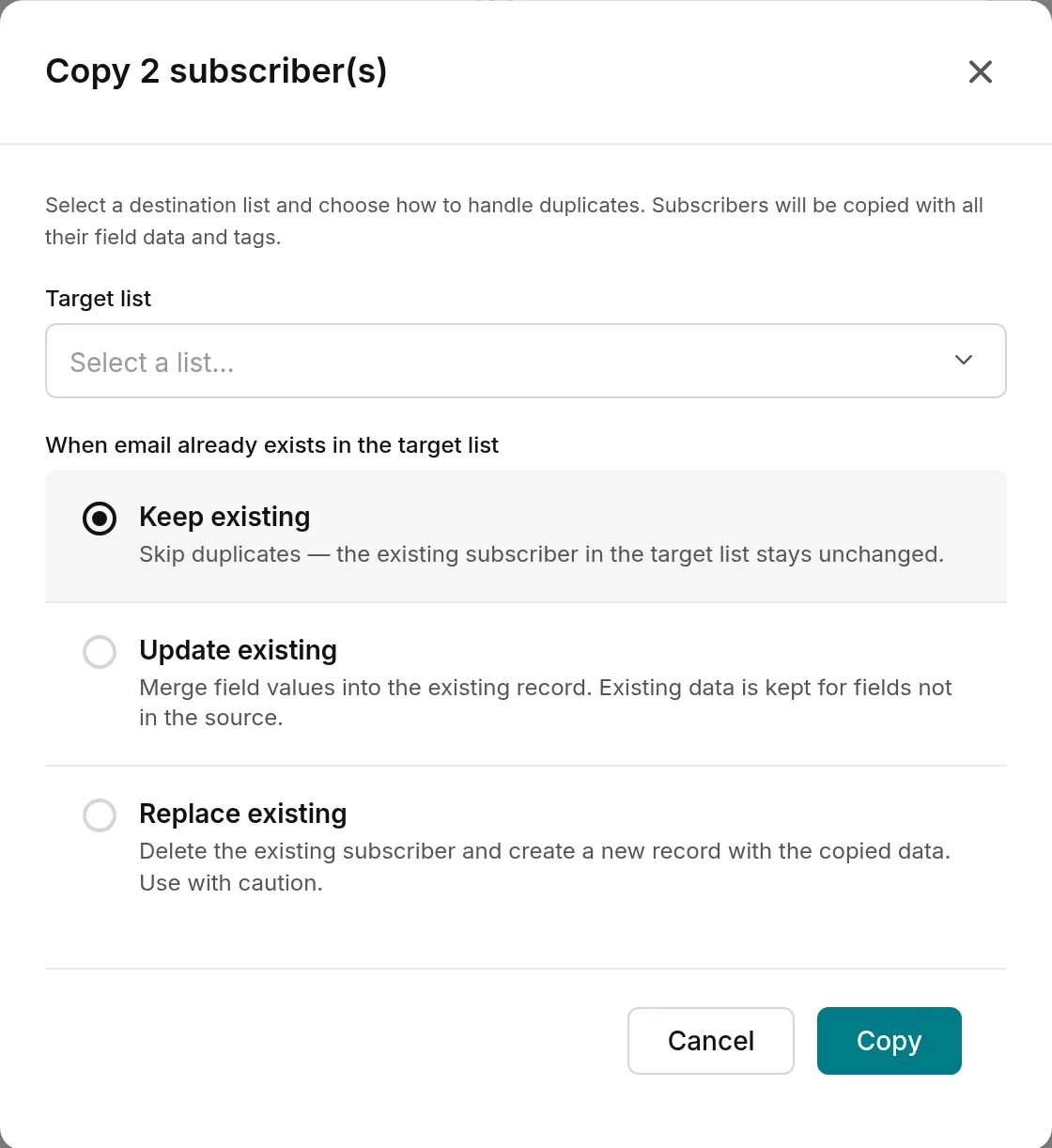
Section titled “Copy or move to a different list”Copy to makes a copy of the subscribers in a different list. The subscribers stay in the original list. Move to moves the subscribers to a different list. The two actions take all the list field values and tags of the subscribers.
-
Click Actions → Copy to or Move to.
-
In Target list, choose the destination list.
-
In When email already exists in the target list, choose what happens to an address that is already there:
Option Result Keep existing Skips the address. The subscriber in the destination list does not change. Update existing Merges the field values into the record of the subscriber that is already there. The fields that are not in the source list do not change. Replace existing Deletes the subscriber that is already there and makes a new record with the copied data. Be careful with this option. -
Click Copy or Move.
Delete by a list of email addresses
Section titled “Delete by a list of email addresses”Use Bulk delete for a list of email addresses to delete, for example from complaints or subscriber requests. You do not have to tick rows.
- Click Actions → Bulk delete.
- Paste the email addresses in Emails to delete, with one address on each line.
- Click Delete.
Mail Niaga deletes only the subscribers in this list.
This advice helps you keep your lists correct:
- Choose Unsubscribe for people who do not want your email. Do not delete them. You can add a deleted subscriber again by accident with an import. The Unsubscribed status keeps a record that they unsubscribed.
- Use Blacklist for addresses that must never receive email. The blacklist blocks the address in all your lists.
- Check the filter before you choose All subscribers. This option includes all the subscribers that match the filter, also on the other pages.
Common issues
Why does the **Actions** button not show?
The Actions button shows only after you tick one subscriber or more. Tick the checkbox on a row, or click Select → Whole page or All subscribers.
How do I verify the email addresses of many subscribers at one time?
Tick the subscribers, then click Actions → Verify these contacts. See Verify the email addresses in a list.
What is the difference between **Delete** and **Bulk delete**?
Delete deletes the subscribers that you ticked. Bulk delete deletes the subscribers in a list of email addresses that you paste. You do not have to tick rows.
Was this article helpful?
Thanks for your feedback.
Sorry, this page did not help. Chat on Messenger and we will help you fix it.