Ask an AI about this page
 ChatGPT
 Claude
 Perplexity
 Google AI Mode
 Microsoft Copilot
 Grok
 Mistral Le Chat
Use the email builder (drag & drop)
The email builder is a drag and drop editor in the Mail Niaga console. You put blocks such as headings, text, images and buttons in order, without HTML code. You do not need an external tool to design a newsletter.
Open the email builder
Section titled “Open the email builder”The builder opens a template that you created from the gallery. To create a new template, see Create an email template from the gallery.
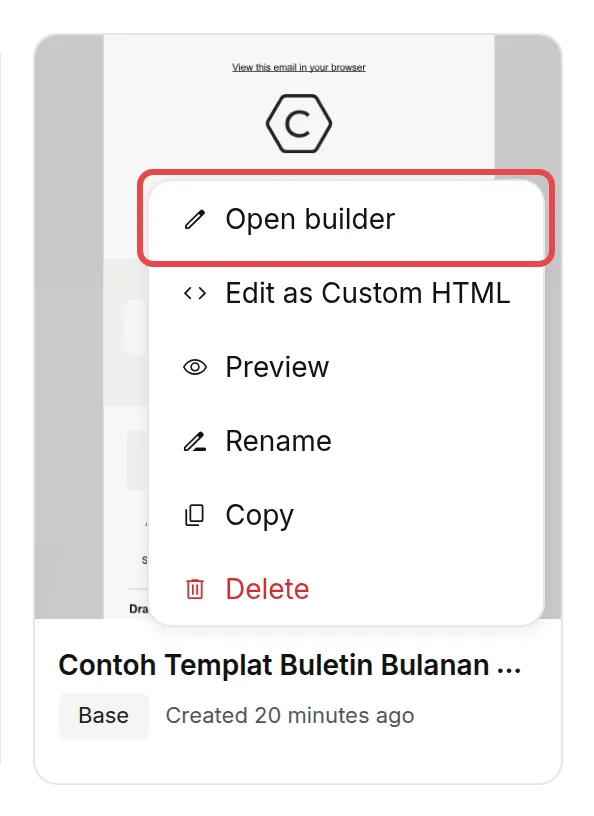
- Go to Campaigns → Templates.
- On the template card, click the menu icon (…).
- Click Open builder. You can also click Edit on the card.
In a campaign, open the Template step, then click Open email builder.
The builder top bar
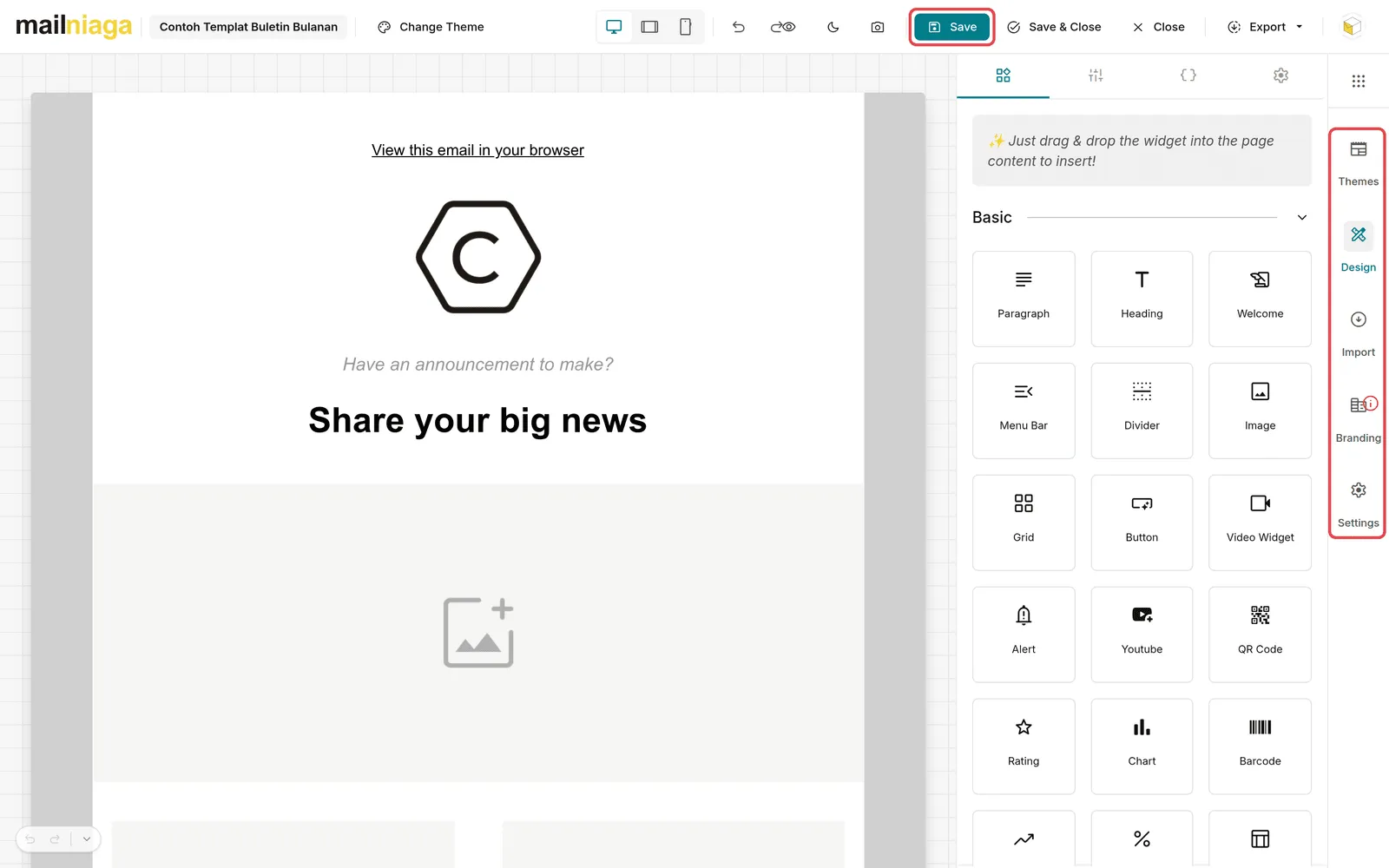
Section titled “The builder top bar”The bar at the top of the builder has buttons to preview, save and exit. This table tells you about the buttons that you use most:
| Button | What it does |
|---|---|
| Change Theme | Changes the base design of the email. The subject and the content settings stay. |
| Desktop, Tablet, Mobile | Shows the email at that screen size. |
| Undo, Redo | Cancels or does again the last change (Ctrl+Z, Ctrl+Shift+Z). |
| Toggle preview | Changes between the design mode and the preview mode. |
| Save | Saves, and you stay in the builder (Ctrl+S). |
| Save & Close | Saves, and takes you back to the previous page. |
| Close | Exits and does not save. |
| Export | Downloads the email as HTML (inline CSS, full links, or a ZIP package). |
The side menu
Section titled “The side menu”The side menu is on the right edge of the builder. This table tells you about each part of the menu:
| Menu | What it does |
|---|---|
| Themes | Choose a start layout for your email. |
| Design | A list of blocks to drag to the canvas, the controls for the selected block, and a list of personalisation tags. |
| Import | Upload a builder theme file (*.bundle.zip). This is not for your own HTML. |
| Settings | Settings for the full email, for example Font Family, Container Width and Page Padding. |
Branding is also in that menu, but you cannot use this part yet (“Coming soon!”). To use your own HTML, choose Edit as Custom HTML from the template card menu.
Add and change blocks
Section titled “Add and change blocks”Each part of the email is one block. Do these steps to build your email:
- Click Design in the side menu.
- Drag blocks such as Heading, Paragraph, Image or Button to the canvas.
- Click a block on the canvas. The controls for that block show in the panel.
- Double-click the text to change it directly on the canvas. The text toolbar shows above the block.
- To put the name of the subscriber in the text, click the { } (Insert variable) button on the text toolbar. See Use personalisation tags in an email.
- Click Save at regular intervals.
Add an image
Section titled “Add an image”The Image block gets an image from your media library or from a link.
- Drag the Image block to the canvas, then click the block.
- In Image Mode, choose Browse Media, then click the folder icon. In the Choose a file popup, choose an image or click Upload, then click Select.
- As an alternative, choose Paste Url, then paste the link of the image.
- Fill in Alternate Text with a short description of the image.
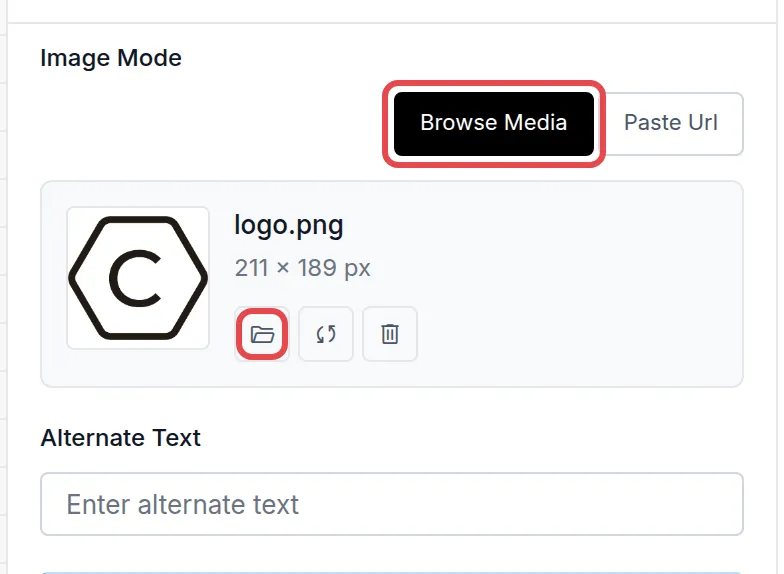
Image size
Section titled “Image size”Large images make an email slow to open, mostly on a phone. Use these general rules for images in an email:
- A width of 600 px. This width is correct for most screens. The height depends on your design. In Settings, Container Width has the option Narrow (600px).
- Compress the file before you upload it. A tool such as tinypng.com makes the file smaller. The image looks the same.
- Fill in Alternate Text. Some email apps block images. The reader can still see this text.
This advice helps you build emails faster:
- Start with a design from the gallery. It is faster to change a ready layout than to build an email from nothing.
- Look at the Mobile view before you save. Many subscribers open emails on a phone.
- Put an unsubscribe link in each email. See Put an unsubscribe link in an email.
Common issues
Must I use an external tool such as Topol.io to design my emails?
No. Mail Niaga has its own email builder. Create a template from the gallery in Campaigns → Templates, then open the template with Edit or Open builder.
Can I go back to the builder after I change a template to Custom HTML?
No. Before it saves, the console asks "Switch to Custom HTML?" and gives a warning that the template will stay in HTML mode. If you want to keep the builder version, make a copy of the template with Copy first.
What is a good image size for an email?
A width of 600 px is correct for most screens. The height depends on your design. Compress the file first. A small file makes the email open faster. See the Image size section above.
Was this article helpful?
Thanks for your feedback.
Sorry, this page did not help. Chat on Messenger and we will help you fix it.