
Ask an AI about this page
 ChatGPT
 Claude
 Perplexity
 Google AI Mode
 Microsoft Copilot
 Grok
 Mistral Le Chat
Use tags for subscribers
A tag is a short label on a subscriber, for example vip, pelanggan-setia or webinar-2026. Use tags to put subscribers into groups in one list, with no new list. Then, send to them with a segment or an automation.
Each tag is kept on a subscriber in one list. Mail Niaga has no special page to manage all the tags.
Add or remove tags on one subscriber
Section titled “Add or remove tags on one subscriber”Open the subscriber profile to change the tags.
-
On the Subscribers page, click the email address of the subscriber.
-
Below the subscriber details, click +.
-
Type one tag or more in the box that shows. Put a comma between the tags.
-
Press Enter to save the tags.
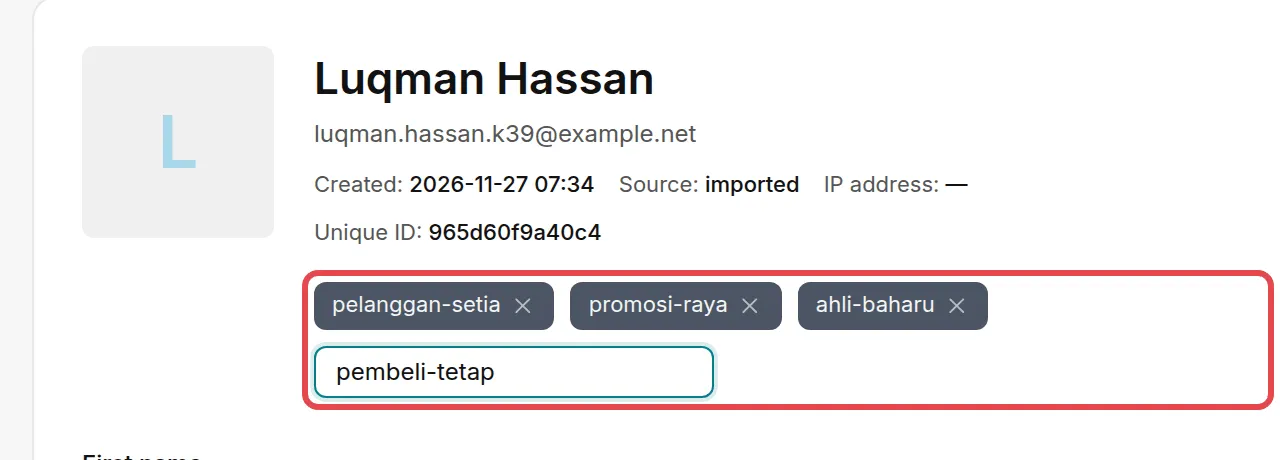
To remove a tag, click the × on that tag. Press Esc to close the tag box and not save.
Add or remove tags for many subscribers
Section titled “Add or remove tags for many subscribers”Use the Actions menu to change the tags of many subscribers at one time.
-
Tick the subscribers in the table, or click Select → All subscribers.
-
Click Actions → Add tag(s) or Remove tag(s).
-
Type the tags. Put a comma between the tags.
-
Click Add Tags or Remove Tags.
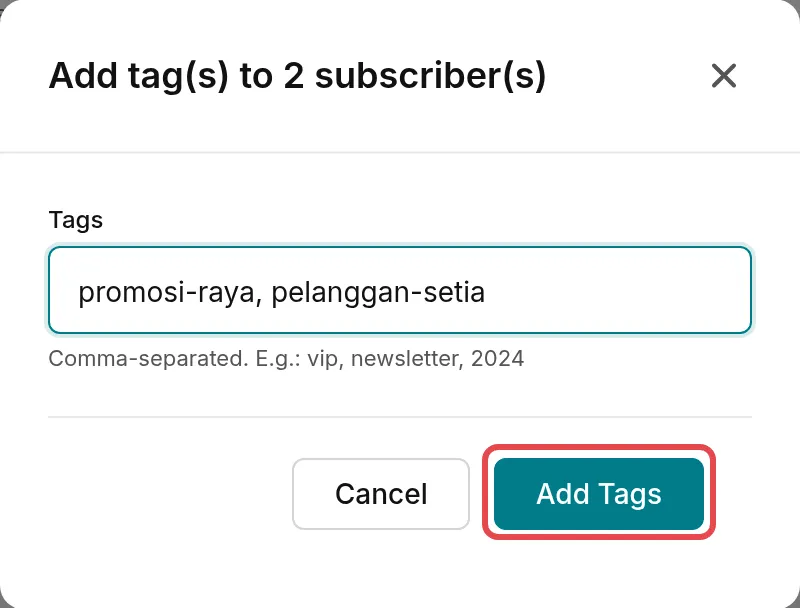
Remove tag(s) removes only the tags that match. The other tags on the subscriber do not change.
Where you can use tags
Section titled “Where you can use tags”After you tag a subscriber, you can use the tag in these locations:
| Location | How the tag is used |
|---|---|
| Segments | Use the Tag condition with contains or not contains to filter subscribers by tag. |
| CSV import | A tags column in the CSV file can replace the tags of the subscribers that are already there. For this, tick the option in the Settings step. |
| CSV export | The export file has the tags of each subscriber. |
| Copy and move | Copy to and Move to take the tags to the destination list. |
| Automations | The Tag based and Remove Tag triggers start an automation. An action in an automation can also add or remove tags. |
The Tag based and Remove Tag triggers are on the first page of a new automation.

This advice helps you keep your tags in good order:
- Use short tag names with one style. Use small letters and hyphens, for example
pelanggan-setia. Names with one style make segments and automations easier to make. - Tag many subscribers at one time, not one by one. A bulk action or a CSV
tagscolumn is faster than a change in each profile.
Common issues
Where can I see all the tags in my account?
Mail Niaga has no special page for tags. Each tag is kept on a subscriber in one list. To find the subscribers with a tag, create a segment with the Tag condition.
Do the tags go with the subscribers when I copy them to a different list?
Yes. Copy to and Move to take all the list field values and tags of the subscribers to the destination list. See Bulk actions for subscribers.
Can I use a tag to start an automation?
Yes. The Tag based trigger starts an automation when a tag is added to a subscriber. The Remove Tag trigger starts it when a tag is removed. See Automation triggers and Build an automation flow.
Was this article helpful?
Thanks for your feedback.
Sorry, this page did not help. Chat on Messenger and we will help you fix it.