
Ask an AI about this page
 ChatGPT
 Claude
 Perplexity
 Google AI Mode
 Microsoft Copilot
 Grok
 Mistral Le Chat
Clean invalid addresses from a list
A clean list has only email addresses that can receive email. Mail Niaga has no special page to clean a list. You do it on the Subscribers tab. Filter the invalid addresses and select all of them. Then unsubscribe, delete or blacklist these addresses.
Verify your list first. Then each address has a verification result. See Verify the email addresses in a list.
Why you must clean a list
Section titled “Why you must clean a list”Email providers such as Gmail and Outlook monitor how many of your emails bounce. If many of your emails go to addresses that do not exist, your sending reputation goes down. Then more of your email goes to the spam folder. A clean list also gives more accurate report figures. Open and click percentages come from addresses that really exist.
Find the invalid addresses
Section titled “Find the invalid addresses”Use the filters above the subscriber table to find the addresses to clean.
-
Log in to the Mail Niaga console.
-
Click Audience → Lists, open the list that you want, then click the Subscribers tab.
-
In the All verification filter, choose Undeliverable.
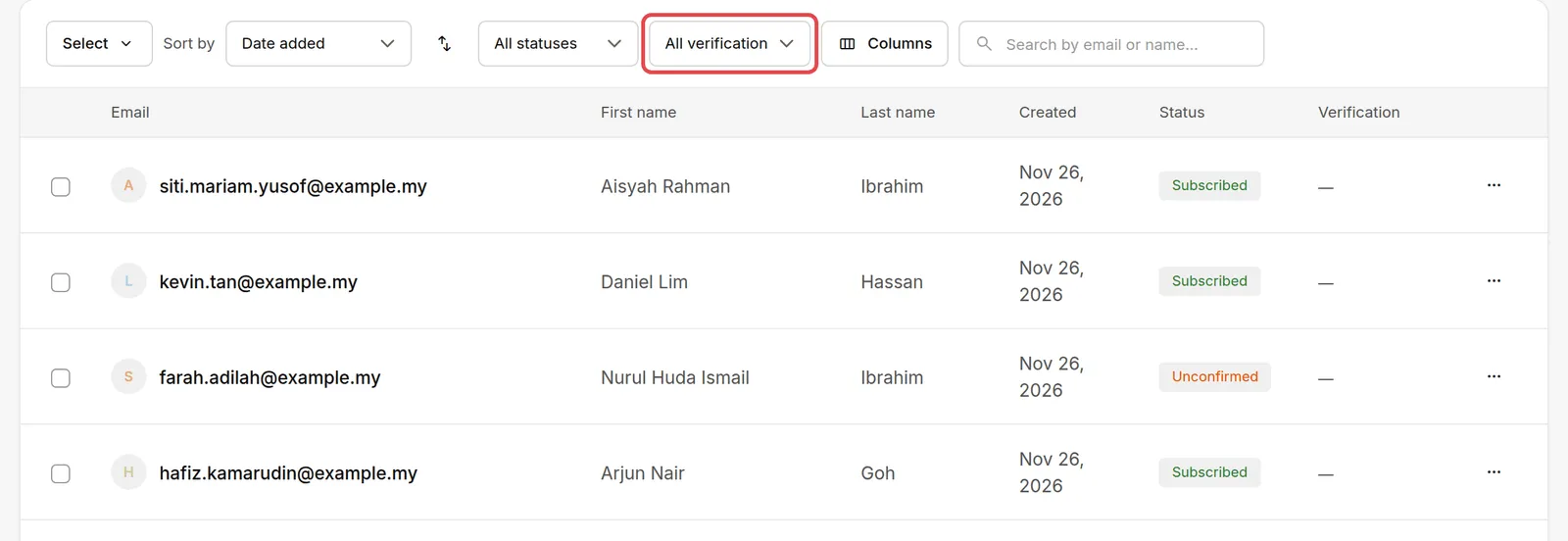
The table shows only the Undeliverable addresses. If there are none, the message No subscribers found shows.
You can also use these filters:
| Filter | Option | Who the table shows |
|---|---|---|
| All verification | Unknown | Addresses with the verification result Unknown. The meaning of each result is in Verify the email addresses in a list. |
| All statuses | Blacklisted | Addresses in the blacklist. |
Select and clean the addresses
Section titled “Select and clean the addresses”After you apply the filter, do one action on all the addresses at one time.
-
Click Select → All subscribers. The console selects all the subscribers that match the filter, and the Actions button shows their number.
-
Click Actions, then choose one action:
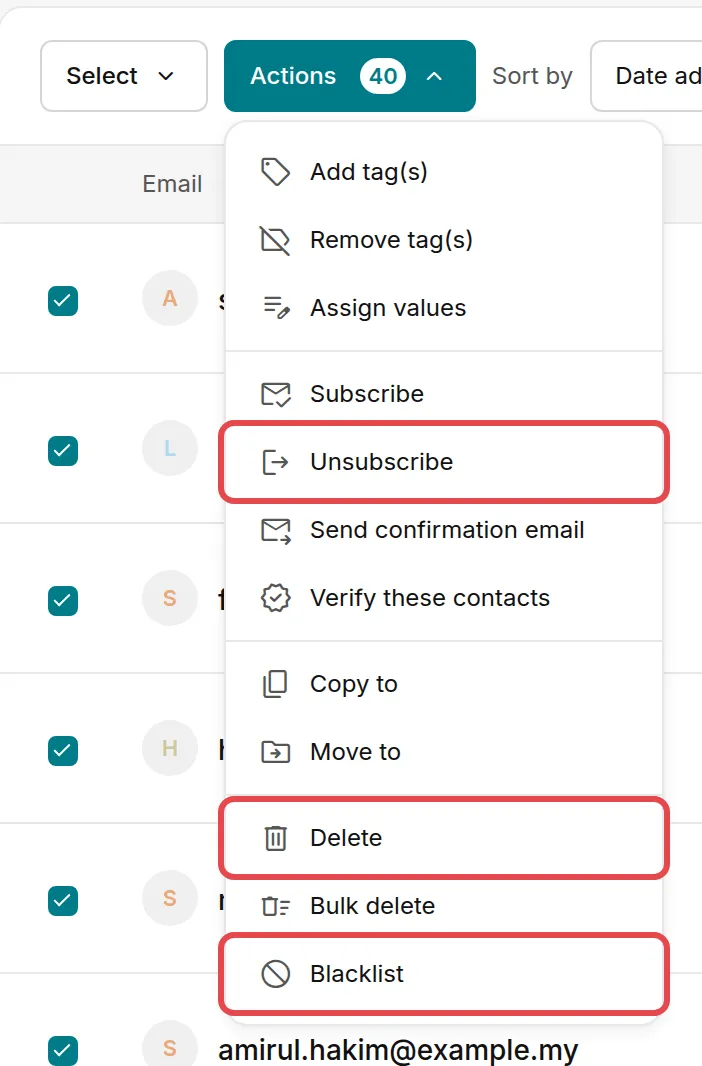
Action Result When to use it Unsubscribe The subscriber stays in the list, but does not receive campaigns again. You want to keep the record and its history. Delete The console removes the subscriber and all its data. You cannot undo this action. You are sure that the address has no more use. Blacklist The console blocks the address in all your lists. The address must not receive any email from you. -
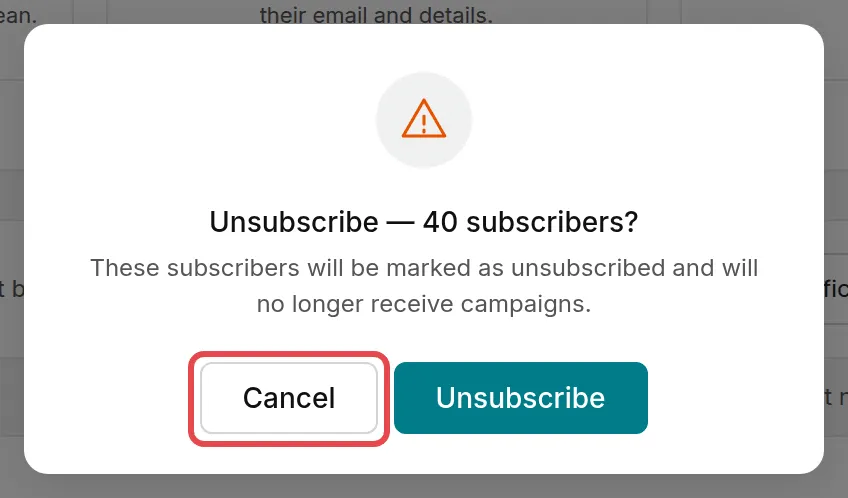
In the confirmation dialog, read the number of subscribers. Then click the action button to continue, or Cancel to stop.
To move the addresses to a different list and not delete them, click Actions → Move to. An example is a list for storage.
This advice helps you clean a list safely:
- Export the list before you delete addresses. You will have a copy of the data if you need it later. See Export subscribers to a CSV file.
- Clean the list after each verification. Addresses become inactive over time, for example when a person changes jobs.
- Choose Unsubscribe if you are not sure. You cannot get back a subscriber that you deleted.
Common issues
Is there a special page to clean a list?
No. You clean a list on the Subscribers tab. Filter the invalid addresses, select all of them, then use the Actions menu.
Why does the Undeliverable filter show nothing?
Your list has no Undeliverable addresses, or you did not verify the list yet. Verify the list first on the Email verification tab. See Verify the email addresses in a list.
Must I delete or unsubscribe the invalid addresses?
Unsubscribe keeps the subscriber record, but Mail Niaga does not send campaigns to it again. Delete removes the subscriber and all its data, and you cannot undo it. If you are not sure, choose Unsubscribe.
Was this article helpful?
Thanks for your feedback.
Sorry, this page did not help. Chat on Messenger and we will help you fix it.