
Ask an AI about this page
 ChatGPT
 Claude
 Perplexity
 Google AI Mode
 Microsoft Copilot
 Grok
 Mistral Le Chat
Create a popup form for your website
A popup form is a subscription form that shows on top of a page of your website. Each form connects to one list. Visitors who fill in the form go directly into that list as subscribers.
You need a list, and a website that is registered in Integration → Websites with the tracking code installed.
Create a new form
Section titled “Create a new form”Do these steps to create a popup form:
-
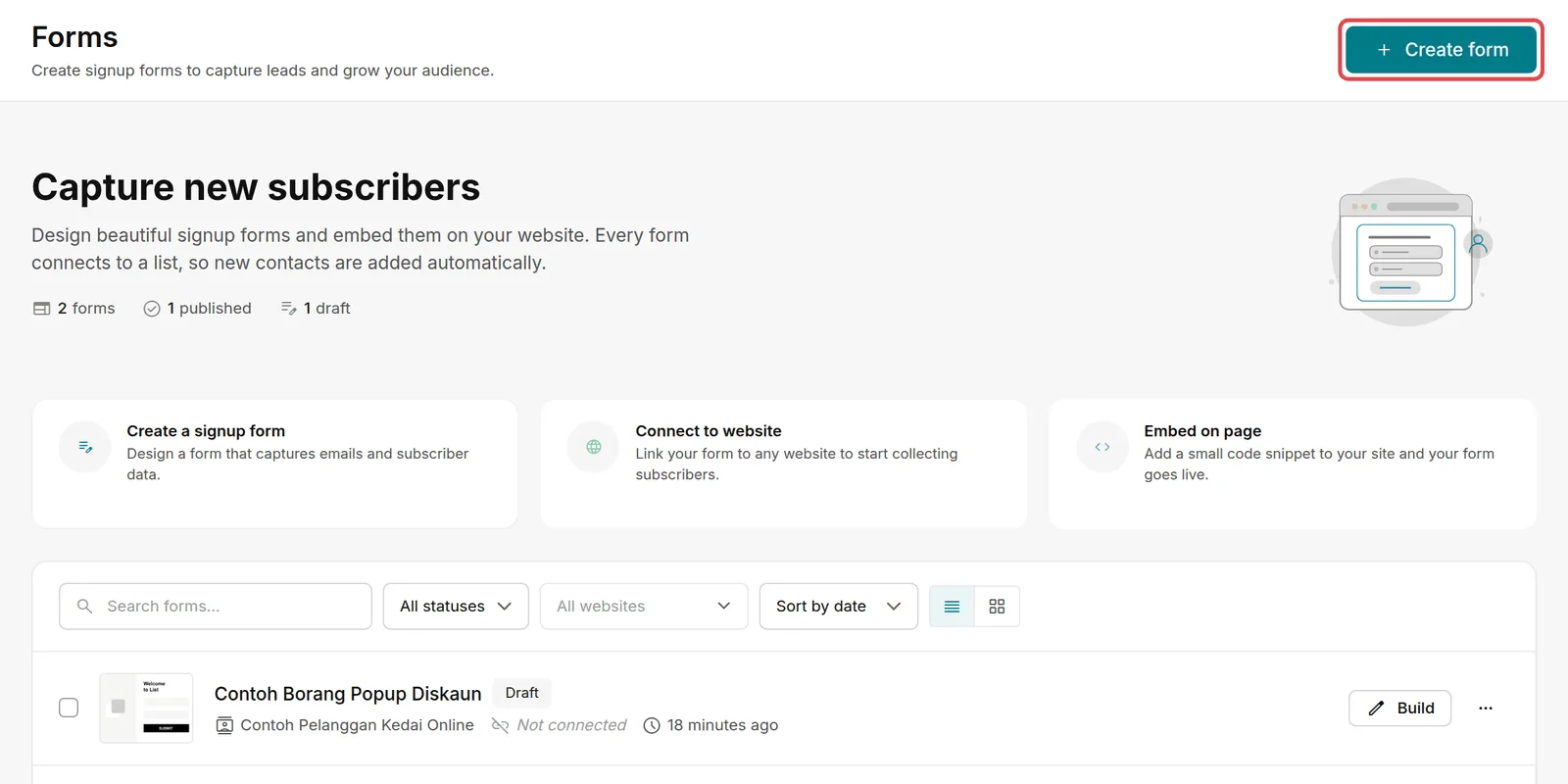
Go to Audience → Forms.
-
Click Create form.
-
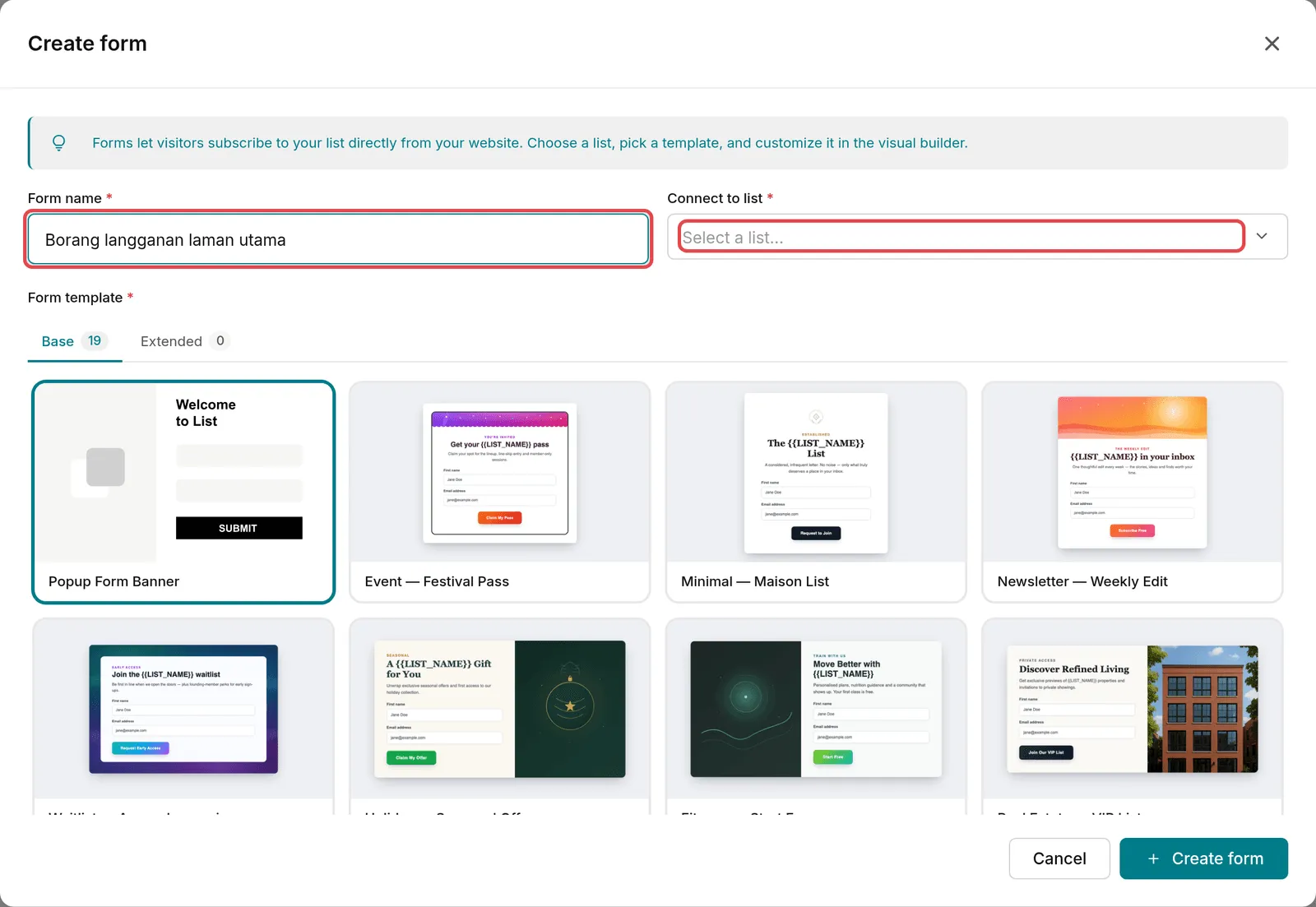
Fill in Form name, for example “Home page signup form”.
-
Choose a list in Connect to list.
-
In Form template, choose one design from the Base tab.
-
Click Create form. The form builder opens.
Change the form design
Section titled “Change the form design”The builder has three panels on the right side:
| Panel | Use |
|---|---|
| Layouts | Change the form design to a different layout. |
| Design | Drag list fields (Form Fields), Terms of Service and other widgets such as Heading or Image into the form. |
| Settings | Change the form name, the list (Mail list), Overlay opacity and Display trigger. |
Click Preview at the top to see the form on a new page. Click Save to save the design.
Choose when the popup shows
Section titled “Choose when the popup shows”Do these steps to set when the popup shows on the website:
- In the builder, click Settings on the right side.
- Choose one option in Display trigger.
- Click Save settings.
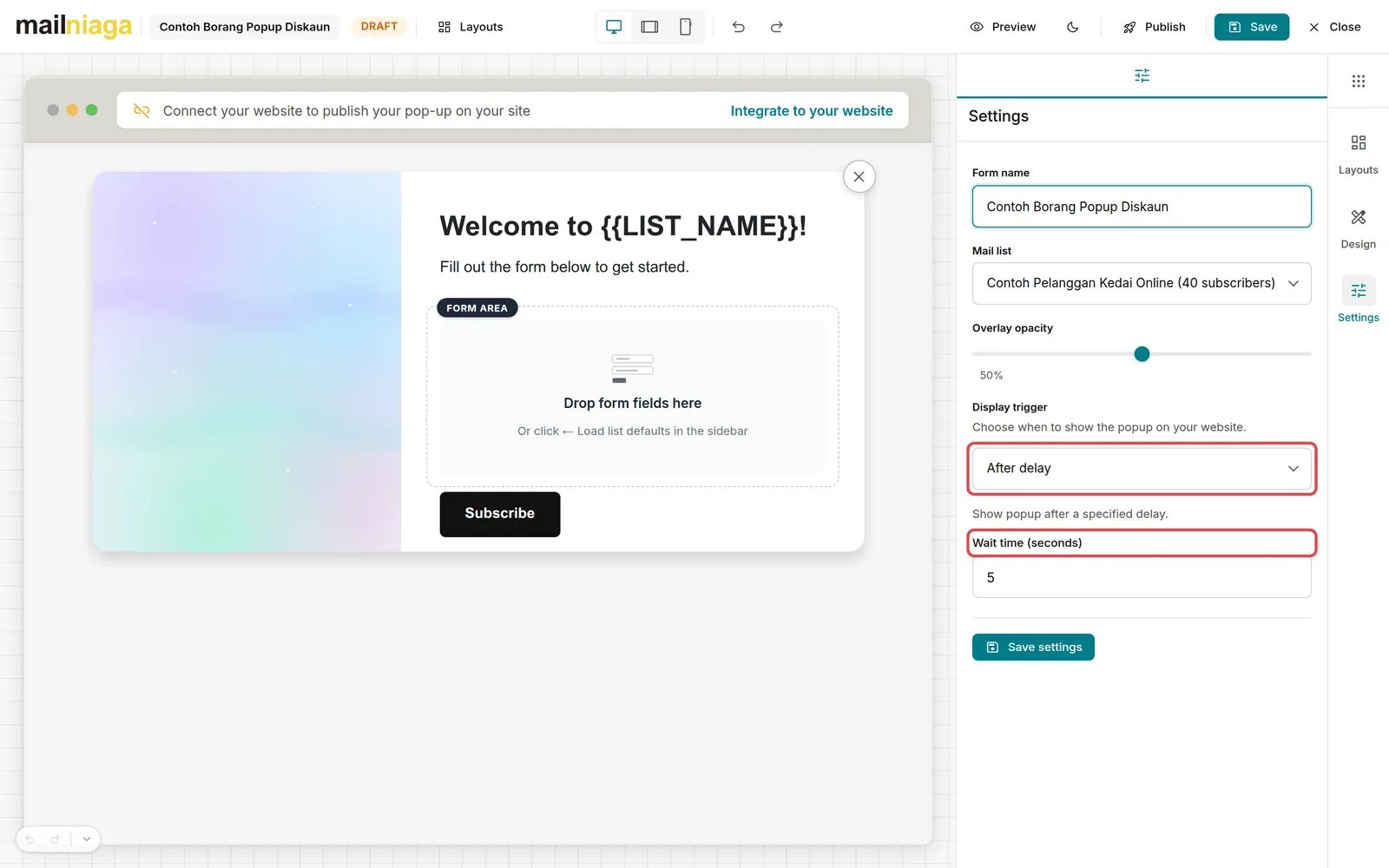
This table gives the options in Display trigger:
| Option | When the popup shows |
|---|---|
| Immediately | When the page opens. |
| First visit only | Only on the first visit of the visitor. |
| After delay | After some seconds. Fill in the number of seconds in Wait time (seconds). |
| On element click | When the visitor clicks a button or a link on your page. Fill in the ID or selector of that element in Element ID or selector. |
| On exit intent | When the visitor is about to leave the page. |
The list in Audience → Forms uses different names for the same options. For example, it shows Immediately as On page load.
Connect the form to your website
Section titled “Connect the form to your website”The popup shows only on the website that you connect. Do these steps:
- In the builder, click Integrate to your website on the site frame above the form. If the form is already connected, click Edit on that frame.
- In the Connect your site popup, choose your site in Website.
- Click Connect.
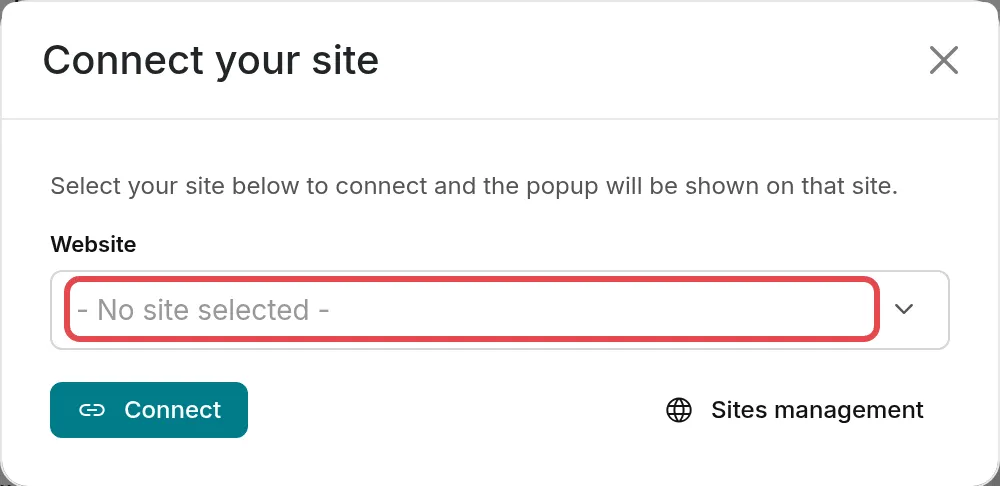
If your website is not in the list, click Sites management to add the site and copy the tracking code. Paste the code before the </body> tag on your site.
Publish the form
Section titled “Publish the form”A new form has the status Draft and does not show on the website. Click Publish at the top of the builder to publish the form. To stop the form, click Unpublish.
You can also manage forms from the list in Audience → Forms. The … menu of each form has Preview, Unpublish (or Publish for a draft form) and Delete.
Check the website status
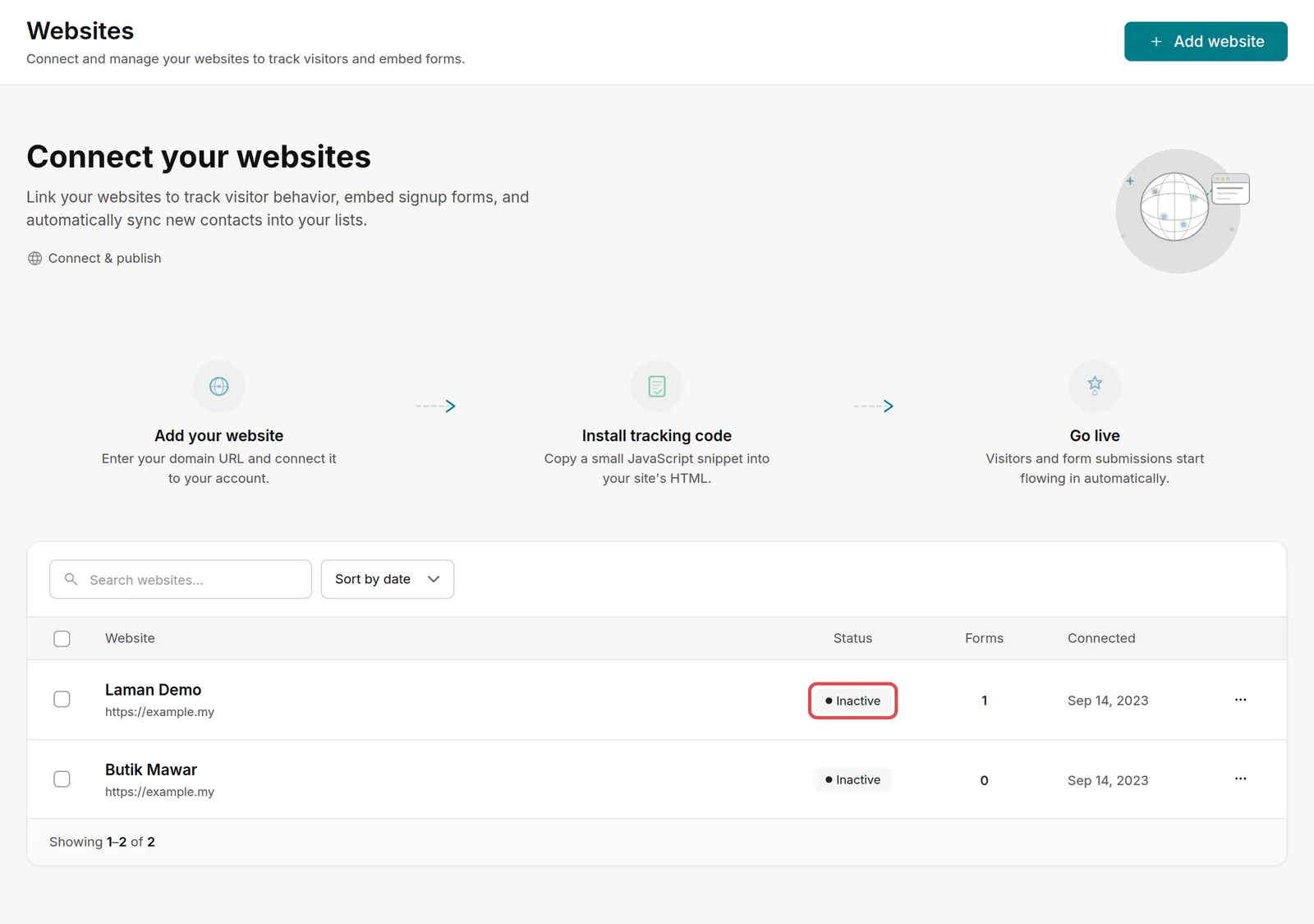
Section titled “Check the website status”In Integration → Websites, the Status column shows if the tracking code works. A site with the status Inactive did not send a signal from the tracking code yet. Until then, the popup cannot show on that site.
This advice helps you get more subscribers from a popup:
- Test the form with Preview before you publish it. Preview shows the real form, but not on the website.
- Use On exit intent for sites where visitors leave quickly. This popup does not interrupt visitors while they read.
- Turn on double opt-in for the list of the form. Subscribers must confirm their email first. Your list stays clean.
Common issues
Why do I see the message "Cannot save form" when I save a form?
The form is not complete. Each form must have one Email field and one Submit button. Each required field of the list must also be in the form. Add the missing fields from the Design panel, then click Save again.
Why does the popup not show on my website after I publish the form?
Check three things. First, the form has the status Published. Second, the form is connected to the website. In the builder, the site frame shows the address of your site, not Integrate to your website. Third, the tracking code is installed on the website. In Integration → Websites, the site has the status Inactive until the tracking code works.
What is the difference between a popup form and an embedded form?
A popup form shows on top of a page of your website, and you manage it in Audience → Forms. An embedded form is HTML code that you paste directly into a page. If you do not have a website, use the list signup page.
Was this article helpful?
Thanks for your feedback.
Sorry, this page did not help. Chat on Messenger and we will help you fix it.