
Ask an AI about this page
 ChatGPT
 Claude
 Perplexity
 Google AI Mode
 Microsoft Copilot
 Grok
 Mistral Le Chat
Read a campaign report
Each sent campaign has a report. The report shows the number of emails that arrived, that recipients opened and that recipients clicked. The report also shows the number of bounces, unsubscribes and spam reports. Use this report to evaluate the campaign and to plan the next campaign.
Open a campaign report
Section titled “Open a campaign report”A report is available for a campaign that Mail Niaga sent.
- Click Campaigns → Email.
- Click View on the row of the campaign. You can also click View report in the row menu.

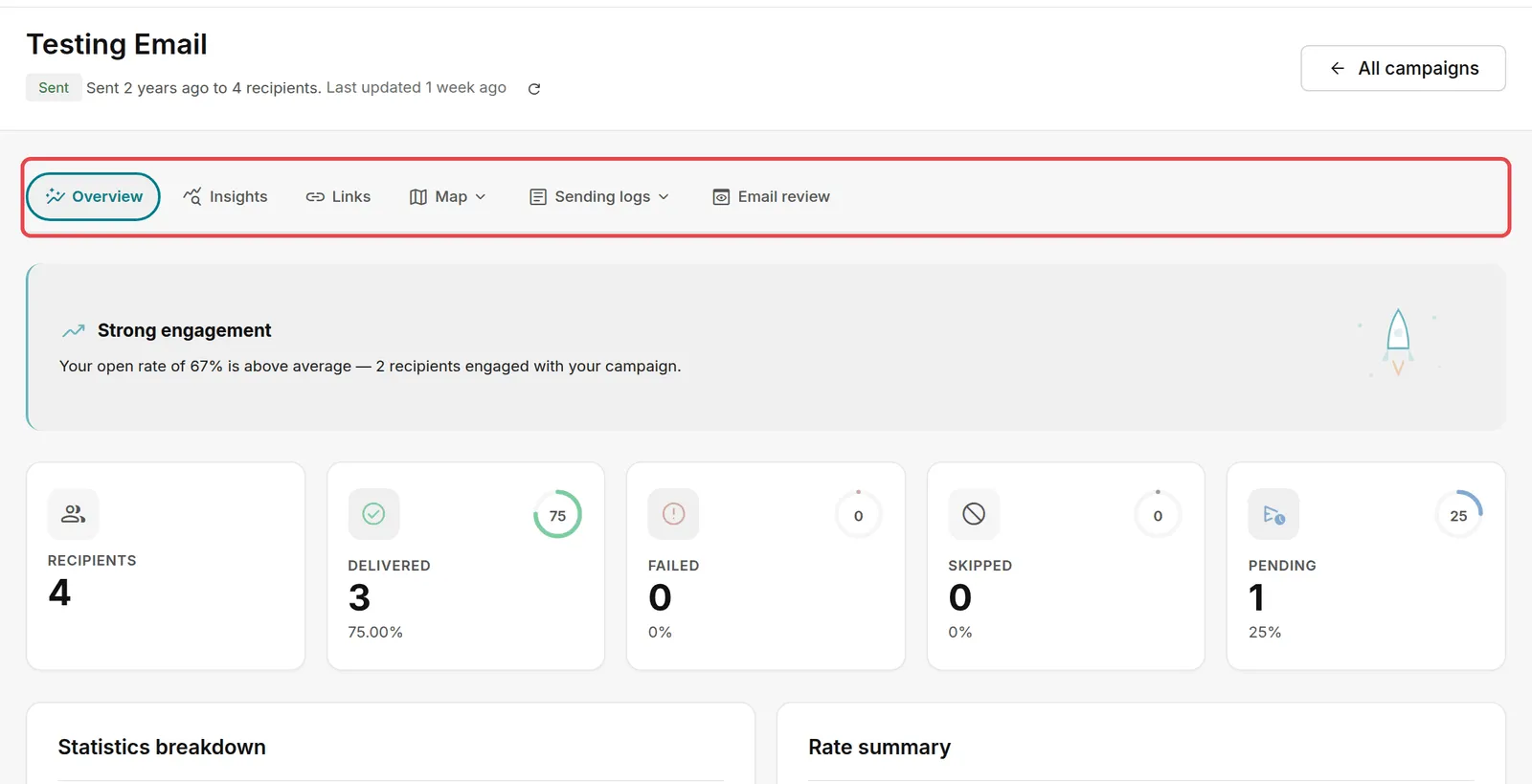
The top of the report shows the campaign name, the status, the send time and the number of recipients. Below it are the report tabs:
| Tab | What it shows |
|---|---|
| Overview | A summary: delivery, open rate, click rate, charts and campaign details. |
| Insights | The delivery status and the activity of each recipient. |
| Links | The links in the email and the number of clicks on each link. |
| Map | Open map and Click map: the locations of opens and clicks by country and city. |
| Sending logs | A detailed log of each email. See Campaign sending logs. |
| Email review | A preview of the sent email. |
Email review opens a preview popup with the title “Preview:” and the campaign name. Above the preview, click the desktop, tablet or phone icon. You can also change between HTML and Plain text. Click Close to go back to the report.
Overview
Section titled “Overview”At the top of Overview, a short box evaluates the open rate of the campaign, for example “Strong engagement”. Below it, cards show the status of each email in the campaign:
| Card | Meaning |
|---|---|
| Recipients | The total number of recipients of the campaign. |
| Delivered | Emails that the recipient server accepted with no error. |
| Failed | Emails that the recipient server refused. |
| Skipped | Recipients who did not get the email, for example because they unsubscribed or did not confirm. |
| Pending | Emails that Mail Niaga did not send yet, or recipients who joined the list after the campaign was complete. |
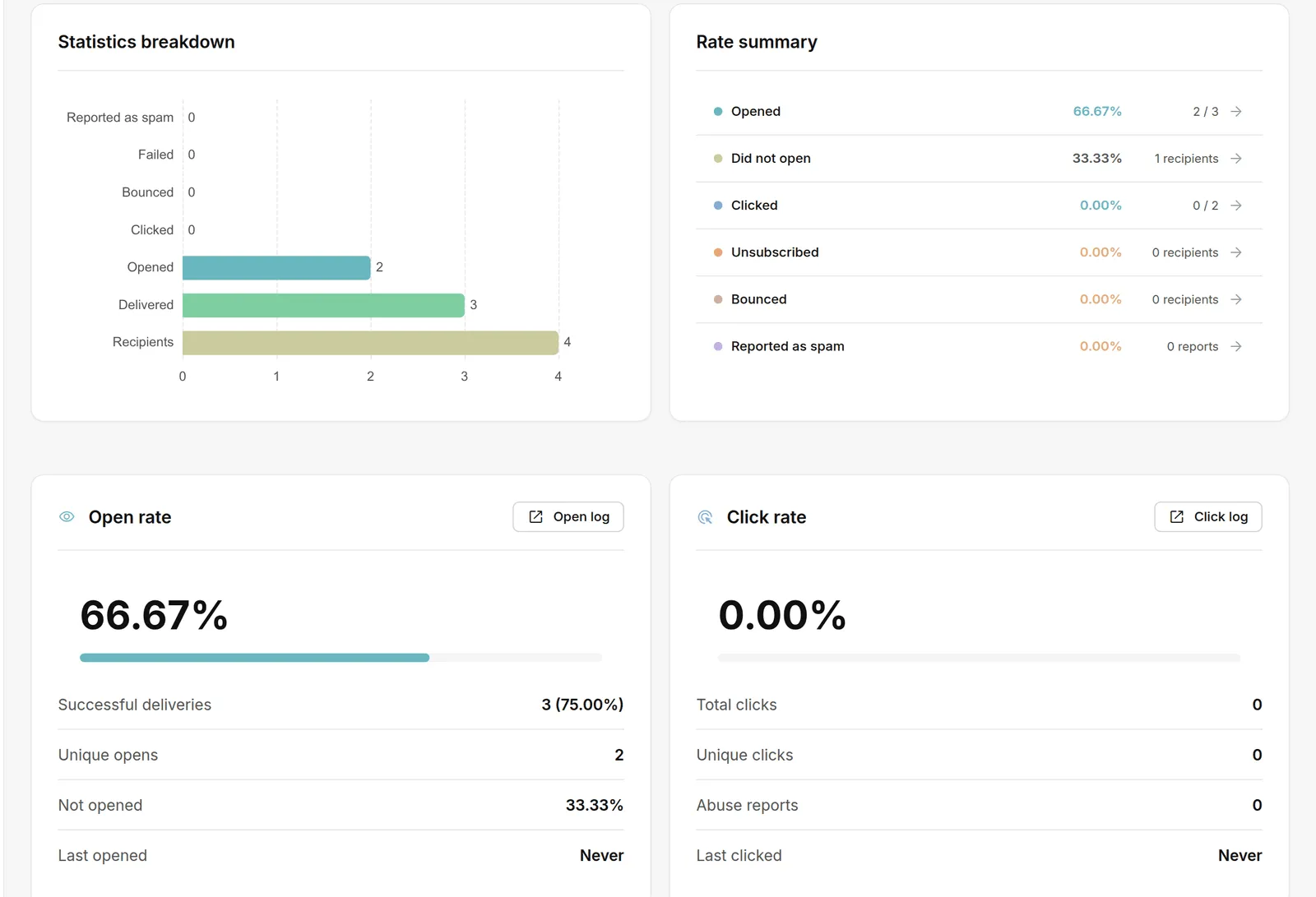
Below that, Statistics breakdown shows the same numbers in a chart. Rate summary shows the percentage and the number for each result. Click the arrow to see the details.
What each number means
Section titled “What each number means”These numbers are in Rate summary, and in the Open rate and Click rate cards.
| Number | Meaning |
|---|---|
| Opened (open rate) | The percentage of the delivered emails that recipients opened one or more times. Unique opens counts each recipient only one time. |
| Did not open | The percentage of the delivered emails that recipients did not open. |
| Clicked (click rate) | The percentage of recipients who clicked one or more links. Total clicks counts each click. Unique clicks counts each recipient one time. |
| Unsubscribed | Recipients who unsubscribed after they got this campaign. |
| Bounced | Emails that the recipient server sent back, for example because the address does not exist or the mailbox is full. |
| Reported as spam | Recipients who marked the email as spam. The Click rate card shows this number as Abuse reports. |
Mail Niaga counts an open only when Track opens is on and the recipient loads the images in the email. Mail Niaga counts a click only when Track clicks is on. The campaign details below the chart show the tracking that is on for the campaign.
The bottom of Overview has Performance over time (opens and clicks by time) and Campaign details. This part also shows the links with the most clicks, the top countries and the most active subscribers.
Saved numbers & the refresh button
Section titled “Saved numbers & the refresh button”Mail Niaga calculates some report numbers in the background and keeps them. The top row of the report shows when Mail Niaga updated the numbers, for example “Last updated 1 week ago”. A card without calculated numbers shows “Not available yet”.
- Click the refresh icon next to “Last updated”, or on the card that shows “Not available yet”.
- Wait some minutes.
- Open the report page again to see the new numbers.
Insights
Section titled “Insights”Insights shows each recipient of the campaign. Delivery mix at the top divides the recipients into Delivered, Failed, Pending and Skipped.
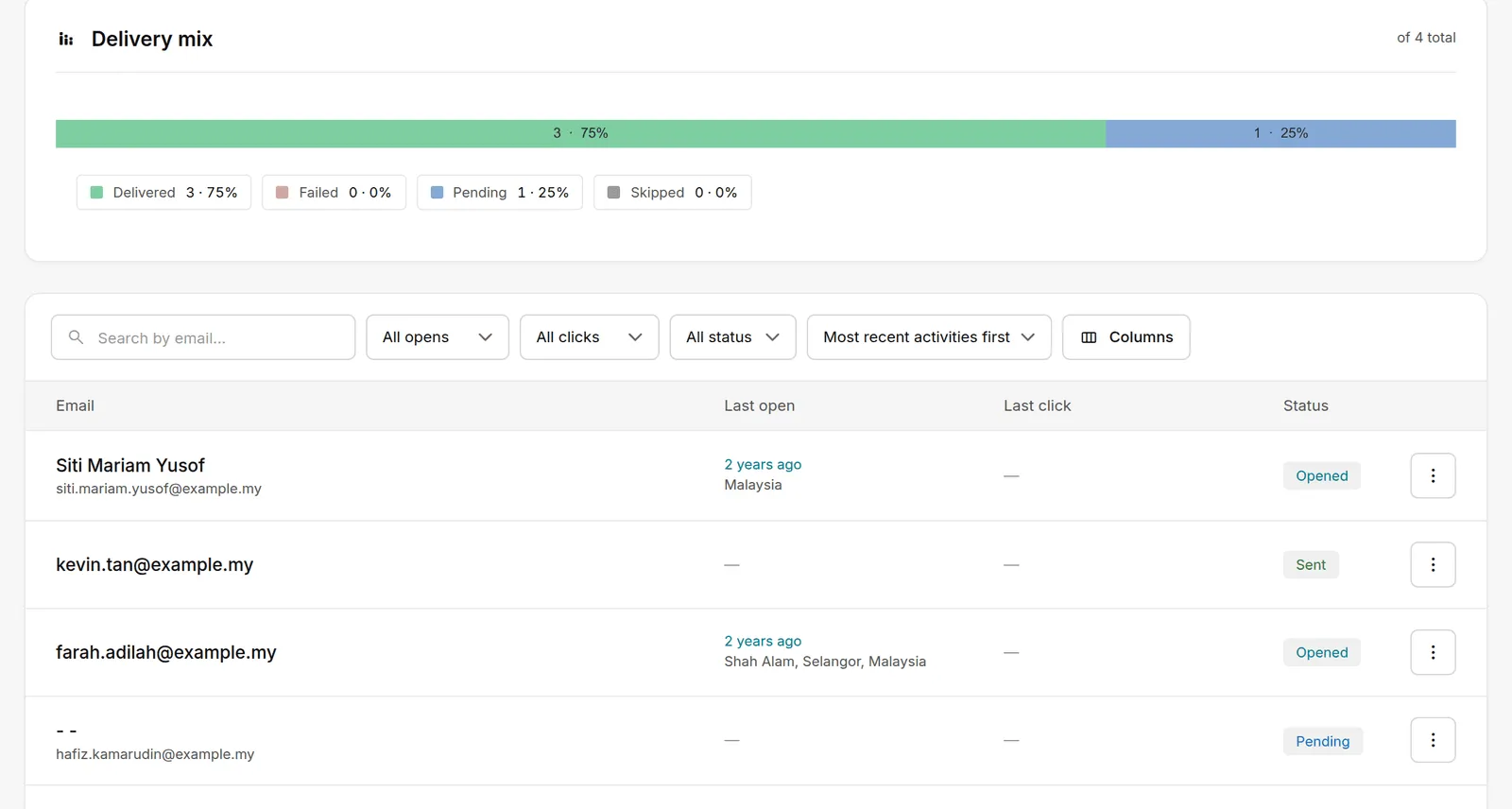
Use the All opens, All clicks and All status filters to find a group. An example is the recipients with Not opened. Columns changes the columns that show. The Last open and Last click columns show when and from where the recipient opened the email or clicked a link.
Links & Map
Section titled “Links & Map”Links lists the links in the email and the number of clicks. If there are no clicks yet, this page shows “No links tracked yet”.
Map has two options:

- Open map shows where recipients opened the email. It shows the number of locations, countries, total opens and cities, and a map. It also shows Opens by country, Clicks by country, Top locations by opens and Recent open activity (the last opens with the location and the IP address).
- Click map shows the number of locations, countries and total clicks, and a map of the click locations. It also shows Opens by country and Clicks by country. If there are no clicks yet, the map shows “No click location data yet”.
Mail Niaga estimates the country and the city from the IP address. Thus this data is not always correct.
This advice helps you use the report:
- Look at the click rate as well as the open rate. Some email providers open images automatically. Thus the click rate shows the real interest more accurately.
- Check Bounced and Reported as spam after each campaign. If they go up, clean your list before the next campaign.
- Use Insights for a second round. Use the Not opened filter to see who did not open the email. Then use Resend with a new subject.
Common issues
Why does a card in the report show Not available yet?
Mail Niaga calculates some report numbers in the background and keeps them. Click the refresh icon on the card and wait some minutes. Then open the page again.
Why does my open rate look higher than the real rate?
Mail Niaga counts an open when the tracking image in the email loads. Some email providers load images automatically. Thus some opens do not come from people. Use the click rate as a more accurate measure.
Why are the country and the city in Map not correct?
Mail Niaga estimates the location from the IP address when the email opens or a link gets a click. Sometimes the email opens through a proxy server of the email provider. In this case, the location is the location of that server, not the location of the subscriber.
Was this article helpful?
Thanks for your feedback.
Sorry, this page did not help. Chat on Messenger and we will help you fix it.