Ask an AI about this page
 ChatGPT
 Claude
 Perplexity
 Google AI Mode
 Microsoft Copilot
 Grok
 Mistral Le Chat
Mail Niaga console menus & navigation
The Mail Niaga console has two navigation areas. The sidebar on the left takes you to all the main pages. The top bar has the search, theme, tour, notifications and language. The account menu opens from your name at the bottom of the sidebar.
Sidebar
Section titled “Sidebar”The sidebar puts the pages of the console in groups. The group names show in capital letters:
| Group | Items |
|---|---|
| (no group) | Home |
| CAMPAIGNS | Email, Automation, Templates |
| AUDIENCE | Overview, Lists, Subscribers, Segments, Forms |
| SENDING | Sending health, Sending domains, Blacklist, Signatures |
| INTEGRATION | Websites, Connect AI |
| (no title, below Connect AI) | API |
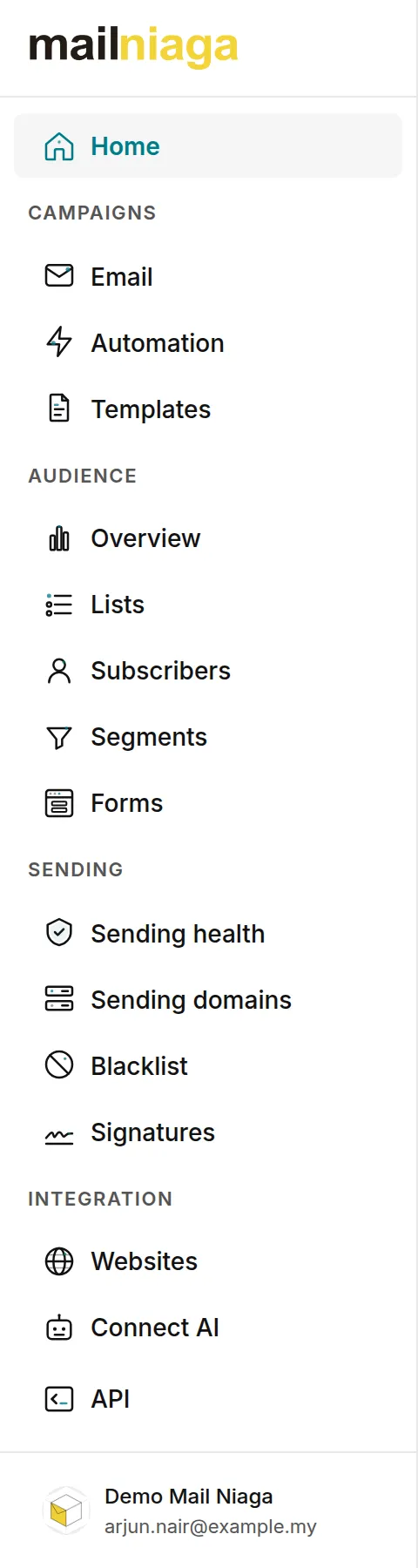
In these guides, a menu path looks like Audience → Lists. This path means: click the Lists item in the AUDIENCE group.
Subscribers and Segments open the subscribers and the segments of the first list that you created. That list is possibly not the top list on the Lists page. For a different list, choose that list in Audience → Lists.
Some menu items show only if your plan includes that feature, for example API. Your menu can have more or fewer items than the picture above. Resource Usage shows the features of your plan. See Check your usage and plan limits.
To give the page more space, click the Toggle sidebar button at the top left corner. The sidebar becomes narrow and shows only icons. Click it again to show the menu names again.
Top bar
Section titled “Top bar”The top bar is on each page of the console:

| Button | Function |
|---|---|
| Toggle sidebar | Make the sidebar narrow with only icons, or make it wide again. |
| Search box (“Navigate your workspace instantly…”) | Open the console search. Shortcut: Ctrl+K. |
| Theme (sun or moon icon) | Choose Light, Dark or System. |
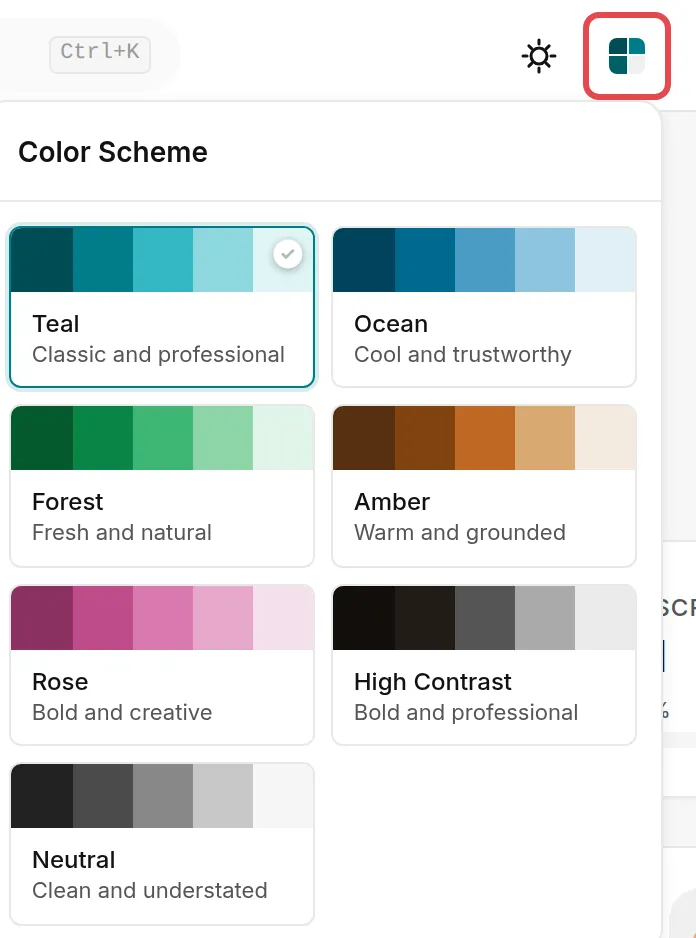
| Color Scheme (four-square icon) | Choose the colour scheme of the console. |
| Take a Tour (question mark icon) | Start a step-by-step tour of the console. |
| Welcome Tour (rocket icon) | Open the welcome slides again. |
| Notifications (bell icon) | Open the account notifications. |
| English (globe icon) | Change the language of the console. |
Find a page with Ctrl+K
Section titled “Find a page with Ctrl+K”The console search is the fastest way to go to any page. Do these steps:
- Press Ctrl+K (on a Mac, ⌘K), or click the search box in the top bar.
- Type the name of a page or an action, for example “list” or “template”.
- Choose a result with the up and down arrow keys, then press Enter. Press Esc to close the search.
Before you type, the search shows a QUICK ACTIONS list, for example Create Campaign, Create List, Account Settings and Toggle Dark Mode. Below it is a PAGES list.
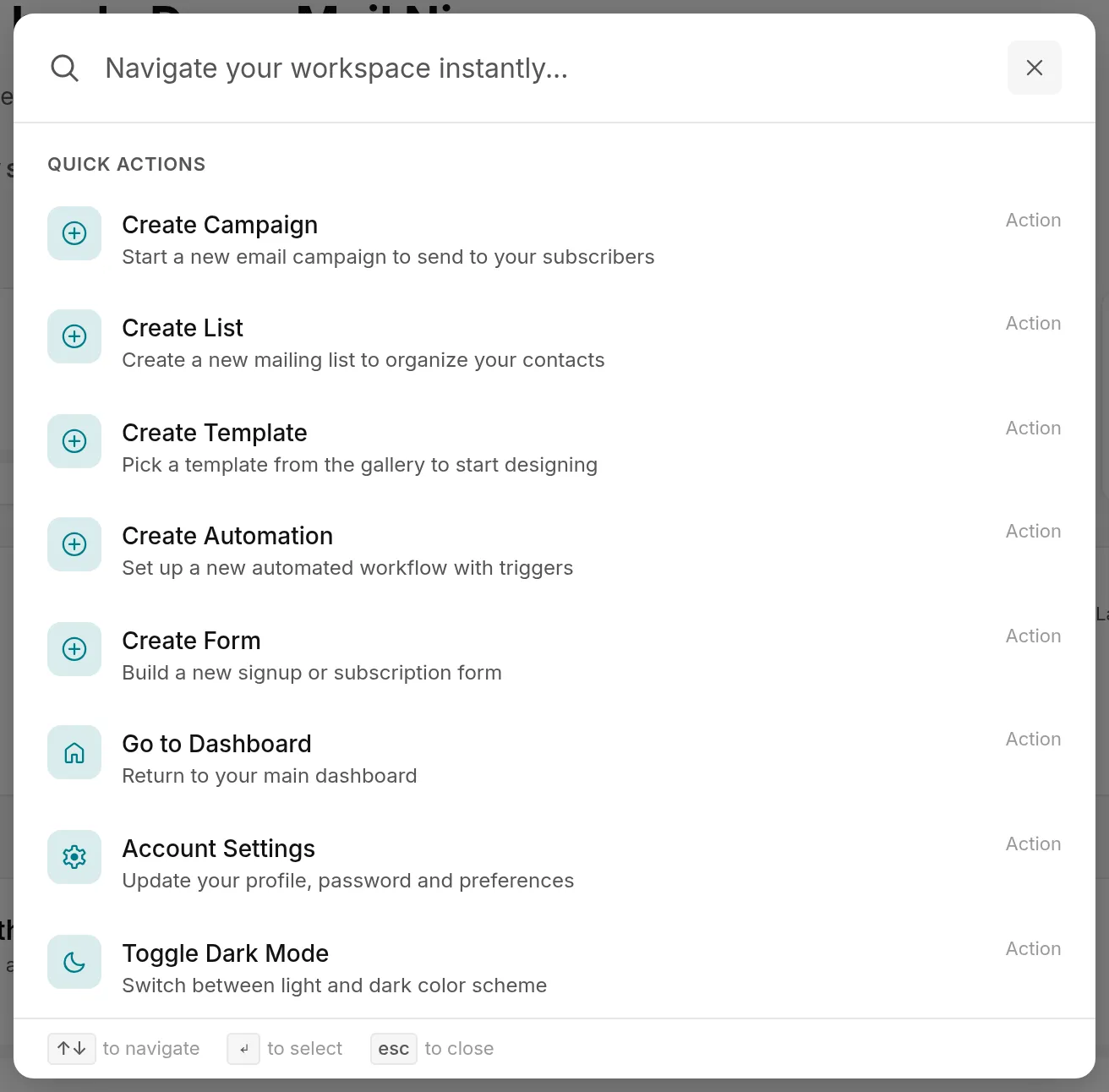
The PAGES list can also show pages for features that are not in your plan, for example Sending Servers. Use the sidebar as your main reference.
Theme & colour scheme
Section titled “Theme & colour scheme”Click Theme to choose how the console looks:
- Light: a light background.
- Dark: a dark background, good at night.
- System: the same as the setting of your device.
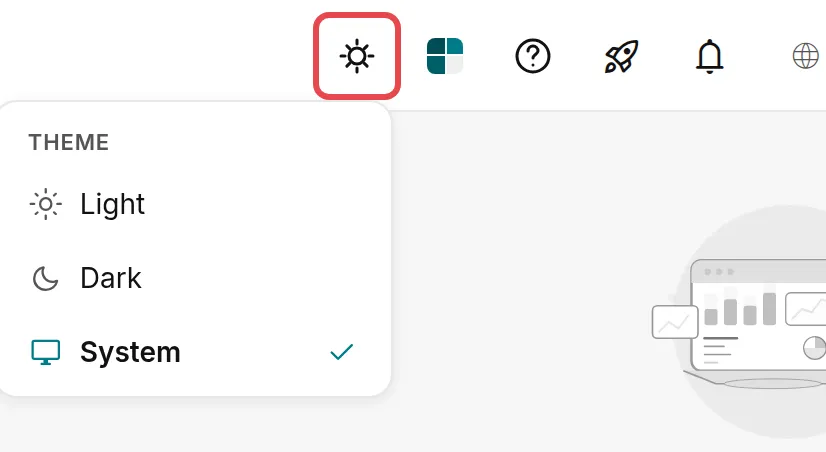
Click Color Scheme to choose the main colour of the console. The options are Teal, Ocean, Forest, Amber, Rose, High Contrast and Neutral.
Tour, notifications & language
Section titled “Tour, notifications & language”The welcome slides open automatically when you start to use the console. The slides introduce campaigns, audience, automations and reports. To see the slides again, click Welcome Tour.
Take a Tour shows each area of the console on the screen. Click Take a Tour, then click Next at each step. Click Skip tour to stop.
Click Notifications to see the notifications about your account and your subscription. If there are no new notifications, the panel shows “You’re all caught up.”. Click View all to open all the notifications.
The language button shows the current language, for example English. Click the button and choose MS Bahasa Melayu or EN English. These guides use the English labels.
Account menu
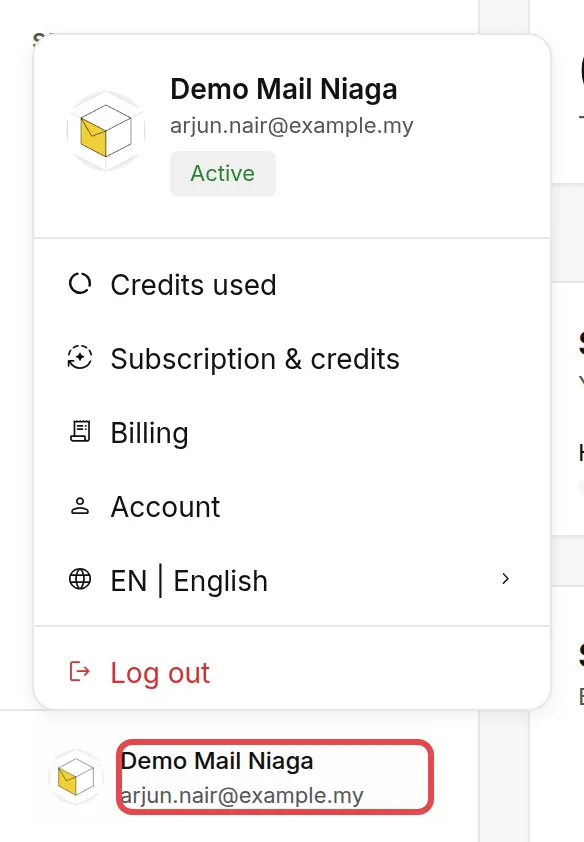
Section titled “Account menu”Click your name and email address at the bottom of the sidebar. The account menu opens upwards:
| Item | Function |
|---|---|
| Credits used | Open Resource Usage: the plan limits, the credits and the plan features. |
| Subscription & credits | Your subscription plan and your credits. |
| Billing | The payment method and the billing address. |
| Account | The profile, the password and the account settings. |
| EN | English | Change the language of the console. |
| Log out | Leave the console. |
The status of your account, for example Active, shows below your name in this menu.
This advice helps you use the console:
- Use Ctrl+K to go to a page in fewer steps. You do not have to remember the menu group of each page.
- Choose System in Theme. The console then uses the light or dark mode of your device automatically.
Common issues
Why is my menu not the same as the menu of my colleague?
Some menu items show only if your plan includes that feature. Look at the features of your plan in Resource Usage. See Check your usage and plan limits.
Where is the Log out button?
Click your name at the bottom of the sidebar. The Log out button is at the end of the account menu that opens.
How do I show the menu names again if the sidebar shows only icons?
Click the Toggle sidebar button at the top left corner, next to the search box.
Was this article helpful?
Thanks for your feedback.
Sorry, this page did not help. Chat on Messenger and we will help you fix it.