
Ask an AI about this page
 ChatGPT
 Claude
 Perplexity
 Google AI Mode
 Microsoft Copilot
 Grok
 Mistral Le Chat
Change the language & timezone
The Mail Niaga console has two display languages: Bahasa Melayu and English. The account timezone sets the time that the console uses for campaign schedules and for the times on the dashboard. These two settings apply to the full account. They also change for your team members.
This guide uses the English labels, the same as the console in English.
Change the language from the top bar
Section titled “Change the language from the top bar”This method is the fastest. The console saves the language immediately when you choose it. You do not click Save changes.
-
Click the language button in the top bar (the globe icon, for example English).
-
Choose Bahasa Melayu or English.
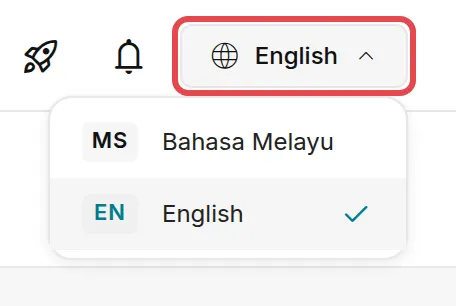
You can also click your name at the bottom of the sidebar, then click the language item (for example EN | English). Then choose a language in the Select language popup.
Change the timezone or language on the Profile page
Section titled “Change the timezone or language on the Profile page”Do these steps to change the timezone. You can also change the language here.
-
Click your name at the bottom of the sidebar, then click Account.
-
In the Account Information section, choose a timezone in Timezone. For Malaysia, choose
(GMT+08:00) Asia/Kuala_Lumpur. -
If necessary, choose a language in Language.

-
Click Save changes at the bottom of the page.
What the timezone changes
Section titled “What the timezone changes”The console saves the timezone on the account, not on each user. The timezone has an effect on these items:
| Item | Effect |
|---|---|
| Campaign schedules | The console reads the send time that you choose in the account timezone. |
| Dashboard | The dashboard and the reports show times in the account timezone. |
| Team members | All the users in the account see the same timezone. |
Language on the login page
Section titled “Language on the login page”The login page, the registration page and the forgot password page also have a language button. Your browser keeps the language that you choose on these pages only on your computer (in a cookie). It does not change the account language. After you log in, the console uses the account language.
This advice helps you avoid problems with the time and the language:
- Check the timezone before you schedule your first campaign. An incorrect timezone can send a campaign at midnight.
- Speak to your team before you change the language or the timezone. All the team members see the change.
Common issues
Why was my campaign sent at the wrong time?
Check Timezone on the Profile page. The campaign schedule uses the account timezone. For Malaysia, choose (GMT+08:00) Asia/Kuala_Lumpur, then click Save changes.
Why did my Timezone and Language not change after Save changes?
On the Profile page, only a user whose role has Full Access in the OTHER RESOURCES group (for example, the Full Access role) can save the timezone and the language. To change the language, use the language button in the top bar. To change the timezone, ask the account owner to change it for you.
Why does a different language show after I log in, when I changed the language on the login page?
Your browser keeps the language of the login page only on your computer. After you log in, the console uses the language that is saved on the account. Change the account language with the language button in the top bar.
Was this article helpful?
Thanks for your feedback.
Sorry, this page did not help. Chat on Messenger and we will help you fix it.