Ask an AI about this page
 ChatGPT
 Claude
 Perplexity
 Google AI Mode
 Microsoft Copilot
 Grok
 Mistral Le Chat
Create an email template from the gallery
A new template starts from one design in the Mail Niaga gallery. You give the template a name and choose a design. Then Mail Niaga opens the email builder, where you can change the content.
Create a template
Section titled “Create a template”Do these steps to create a new template.
-
In the left sidebar of the Mail Niaga console, click Campaigns → Templates.
-
Click Create template at the top right.

-
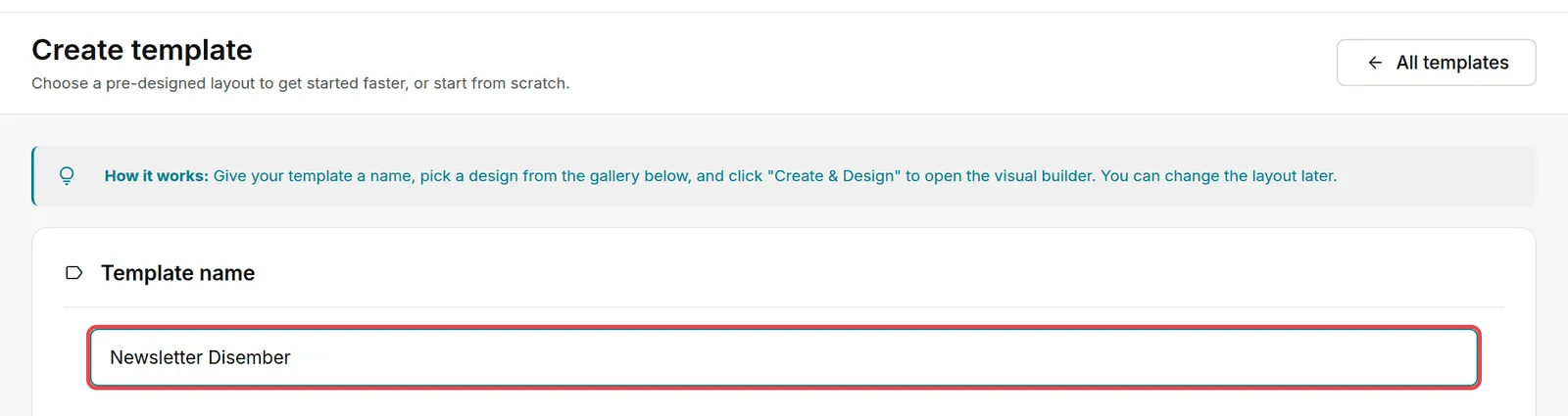
In Template name, delete the default name “My new template” and type the name of your template, for example “December newsletter”.
-
In Start from a template, click the All, Base, Simple or Extended tab to see the designs in that group. This page opens on the Base tab.

-
Click the card of the design that you want. The bar at the bottom of the page shows the name of the design that you chose.
-
Click Create & Design.
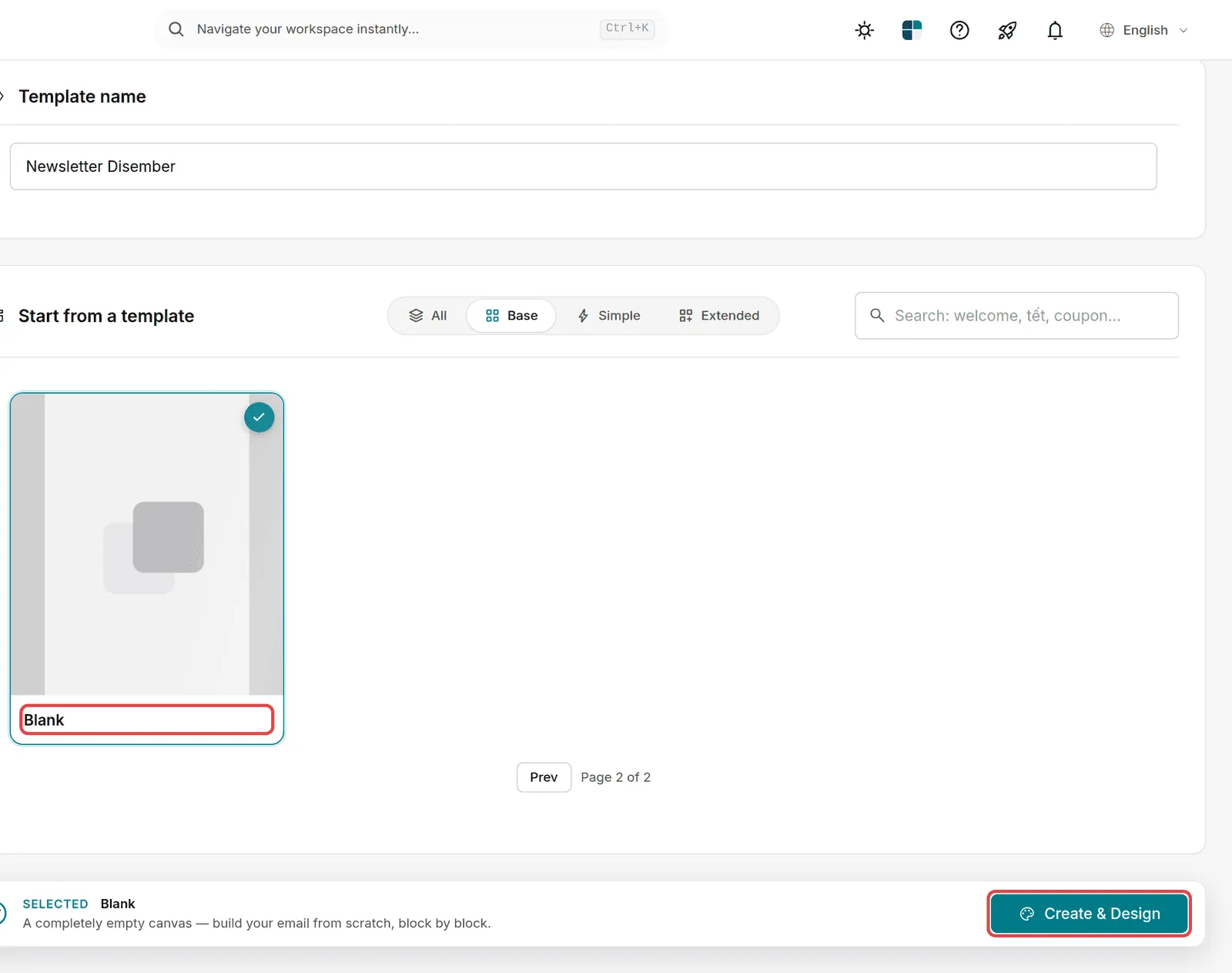
Mail Niaga creates the template and opens the email builder. There, you change the content of the email.
Find a design
Section titled “Find a design”The gallery has many designs. The search box helps you to find a design.
- Type what you want to send in the search box, for example “welcome” or “coupon”. The design names are in English. The search includes all the tabs. You cannot click a tab while a search is active.
- Click Next and Prev below the gallery to see other pages.
- To start with an empty design, click the Blank card in the Base tab.
From the old system
Section titled “From the old system”If you know the old Mail Niaga, some items are different now.
| Before | Now |
|---|---|
| The Template menu at the top | Campaigns → Templates in the left sidebar |
| The Create and Start Design buttons | Create template, then Create & Design |
| The Upload button for a template that you have | There is no Upload button. Paste your HTML into a Custom HTML template. See Use your own HTML (Custom HTML). |
This advice helps you make templates in less time:
- Choose the design that is nearest to your email. Then you change fewer blocks, and the template is ready in less time.
- Use a name that tells the purpose of the template. That name shows when you choose a template for a campaign.
- You can change the layout later. The design that you choose in the gallery is not final. You can still change it in the builder.
Common issues
Why can I not click the Create & Design button?
You did not choose a design yet. Click one card in the Start from a template gallery. The Create & Design button becomes active after you click one card.
Where is the Upload button to upload my HTML template?
The Templates page has no Upload button. To use your own HTML, see Use your own HTML (Custom HTML).
I want to start with an empty design. Which card do I choose?
Click the Blank card in the Base tab. This card is on the last page of that tab. Click Next below the gallery to go to that page.
Was this article helpful?
Thanks for your feedback.
Sorry, this page did not help. Chat on Messenger and we will help you fix it.