Ask an AI about this page
 ChatGPT
 Claude
 Perplexity
 Google AI Mode
 Microsoft Copilot
 Grok
 Mistral Le Chat
Schedule a campaign
The Schedule step is the fourth step of the campaign wizard. In this step, you set when the campaign starts to send: immediately after you launch it, or at a date and time that you choose. You can also limit the sending to specific hours, for example office hours.
Open the Schedule step
Section titled “Open the Schedule step”This step comes after the Template step in the Mail Niaga console. Do these steps to open it:
- Click Campaigns → Email.
- Click Edit on your draft campaign.
- Click Save & Continue on the Recipients and Setup steps.
- Click Continue to Schedule on the Template step.
The Schedule your campaign page opens. If the campaign is not complete, the console takes you to the first step that is not complete.
Send now or schedule
Section titled “Send now or schedule”Choose one of these two options at the top of the page:
| Option | When to use it |
|---|---|
| Send now | The campaign starts to send when you click Launch Campaign on the last step. |
| Schedule for later | The campaign sends at the date and time that you choose, for example on the morning of a sale. |
To schedule the campaign, do these steps:
- Click Schedule for later.
- In Delivery date & time, choose the Date.
- Choose the Time.
- Click Save & Continue.
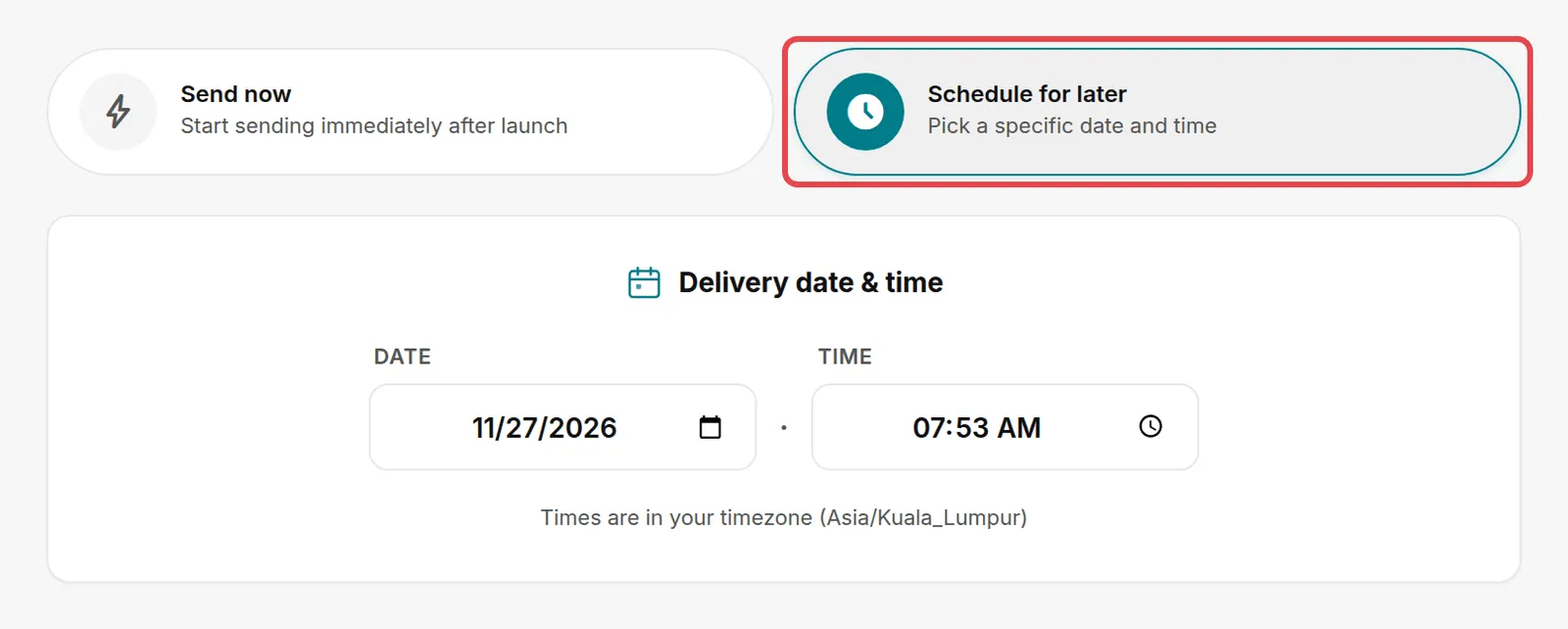
The date and the time use the time zone of your account. The page shows that time zone below the fields, for example “Times are in your timezone (Asia/Kuala_Lumpur)”.
Limit the sending hours
Section titled “Limit the sending hours”The sending hours section at the bottom of the page sets the hours when this campaign can send. There are two options:
| Option | What occurs |
|---|---|
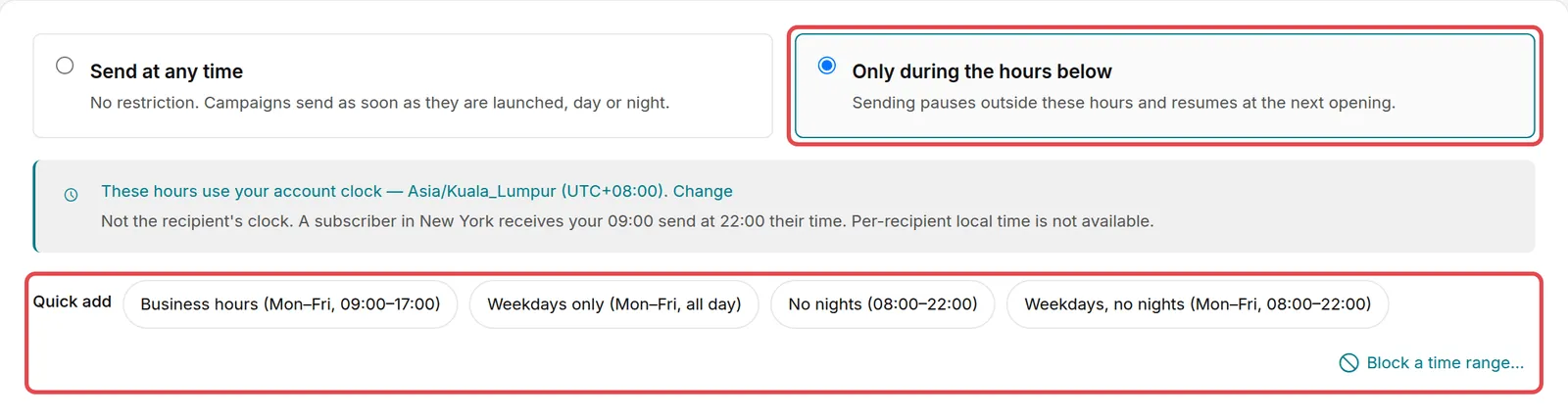
| Send at any time | There is no limit. The campaign sends by day or by night, immediately after the launch. |
| Only during the hours below | The sending stops outside the hours that you choose, and continues at the start of the next sending hours. |
To set the sending hours, do these steps:
- Click Only during the hours below.
- Click one option in Quick add, or set your own hours for each day (see the table below).
- Read the When will this actually send? summary. This summary shows the total sending hours in a week and when the next sending hours start.
- Click Save & Continue.
This table tells you how to set the hours:
| Tool | Use |
|---|---|
| Quick add | Ready options: Business hours (Mon–Fri, 09:00–17:00), Weekdays only (Mon–Fri, all day), No nights (08:00–22:00) and Weekdays, no nights (Mon–Fri, 08:00–22:00). |
| Your week | A grid of your week (Mon to Sun, hours 00 to 24). Click an hour to open or close that hour. |
| From and To | A time range for one day, in steps of 15 minutes. Click Add range to add a different range on the same day. |
| Copy to… | Copy the ranges of one day to Mon–Fri, Sat + Sun or All 7 days. |
| Send this day | Open or close the full day. |
Block a time range
Section titled “Block a time range”Sometimes it is easier to give the hours that you want to avoid, for example the night. Block a time range… removes that range from your sending hours. Do these steps:
- Click Block a time range….
- Choose From and To for the range that you want to block.
- Choose the days in On these days.
- If the range goes past midnight, you can tick Keep the block inside the selected days. Then the morning of the next day is not blocked.
- Read Your sending hours will become:.
- Click Apply to sending hours.
- Click Save & Continue.
The block is saved as normal sending hours. There is no separate list of blocks.
Account time zone
Section titled “Account time zone”The sending hours and the scheduled time use the time zone of your account. This page shows the time zone of the account with a Change link. Click that link to change the time zone in the account profile. See Change the language and time zone.
This time is not the local time of the subscriber. For example, you send an email at 09:00 Malaysian time. A subscriber in New York gets it at 20:00 or 21:00 on the night before, in New York time. Mail Niaga does not send at the local time of each subscriber.
This advice helps you to get better results:
- Launch the campaign early, and let Mail Niaga send it on schedule. Then you have time to check the campaign and send a test email.
- Use sending hours for large campaigns. A campaign to a large list can take some hours. With sending hours, the late emails do not get to subscribers at midnight.
- Check the time zone of the account before your first campaign. An incorrect time zone makes the campaign send at the incorrect hour.
Common issues
Why is my launched campaign not sent yet?
Look at the sending hours section in the Schedule step. If you chose Only during the hours below, the sending stops outside those hours. The campaign continues automatically at the start of the next sending hours.
Which time zone does the scheduled time use?
The time uses the time zone of your account, not the time zone of the subscriber. Subscribers in other countries get the email at a different hour. To change the time zone of the account, click the Change link on the same page.
Why does the console open the Recipients page when I click the Schedule step?
The campaign is not complete. For example, it has no list or no template. The console takes you to the first step that is not complete. Complete that step first.
Was this article helpful?
Thanks for your feedback.
Sorry, this page did not help. Chat on Messenger and we will help you fix it.