
Ask an AI about this page
 ChatGPT
 Claude
 Perplexity
 Google AI Mode
 Microsoft Copilot
 Grok
 Mistral Le Chat
Create a segment to filter subscribers
A segment is a group of subscribers in one list that meet your conditions. Examples are the subscribers with the pelanggan-setia tag, or the subscribers who opened an email in the last 30 days. Use a segment to send a campaign to part of a list only, or to export part of that list.
A segment does not make a copy of the subscribers. Each time you use a segment, it selects the subscribers from the list again. Thus, new subscribers that meet the conditions go into the segment automatically.
Open the Segments page
Section titled “Open the Segments page”Each list has its own segments. Do these steps to open the segments of a list:
- Click Audience → Segments. This page shows the segments of the oldest list in your account.
- For a different list, click the list name at the top right of the page, then choose that list.
You can also open the list, then click the Segments tab.
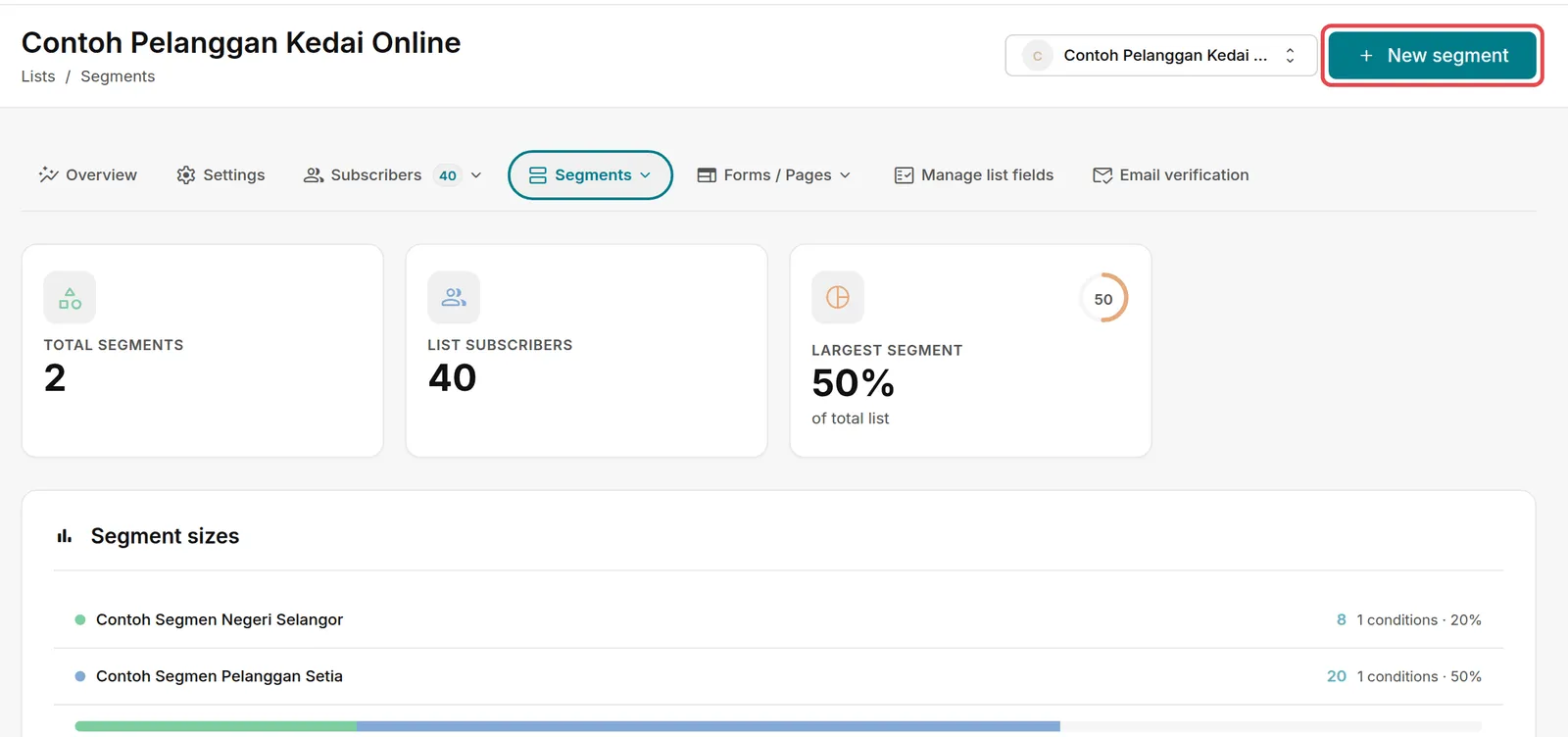
At the top, the TOTAL SEGMENTS, LIST SUBSCRIBERS and LARGEST SEGMENT boxes give a summary of the segments. The Segment sizes chart shows the number of subscribers in each segment.
Create a segment
Section titled “Create a segment”Do these steps to create a new segment:
-
Click New segment. If the list has no segments, you can also click Create first segment.
-
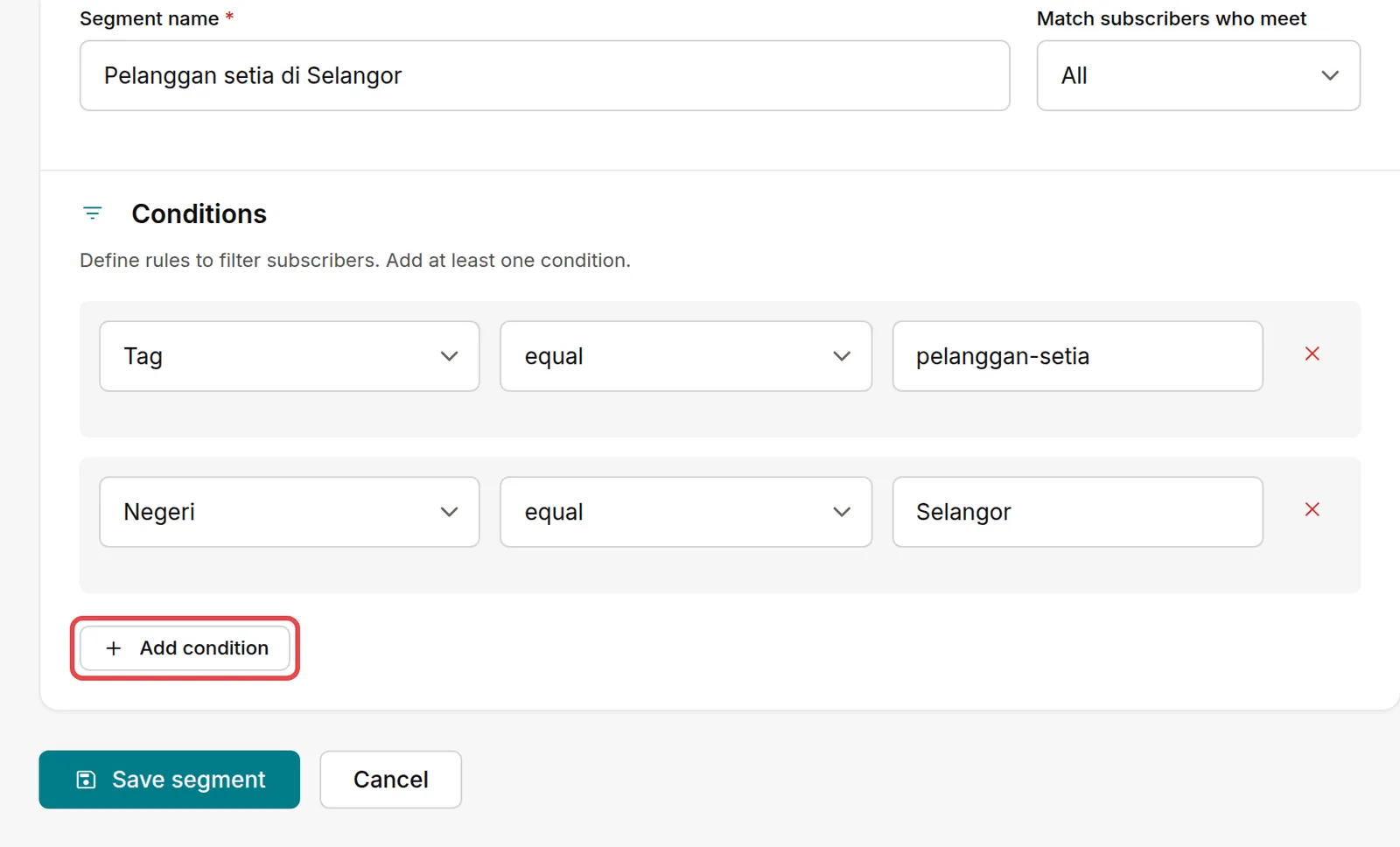
Fill in Segment name, for example “Pelanggan setia di Selangor”.
-
In Match subscribers who meet, choose:
- All: the subscriber must meet all the conditions.
- Any: the subscriber must meet one condition only.
-
Click Add condition.
-
In the condition row, choose the field, then the operator, then fill in the value. See the table in the next section.
-
Do steps 4 and 5 again for each other condition. Click the red × to remove a condition.
-
Click Save segment.
The new segment shows in the table on the Segments page. The Segment column shows the segment name, the match method (for example Match ALL) and the number of conditions. The Match rules column shows the conditions. The Subscribers column shows the number of subscribers that match.
Conditions & operators
Section titled “Conditions & operators”The list of fields in each condition row has four groups. The operators and the value box change with the field that you choose:
| Field | Operators | Value |
|---|---|---|
| A text list field, for example Email, First name, Last name | equal, not equal, contains, not contains, starts with, ends with, not starts with, not ends with, greater than, less than, blank, not blank | Text. blank and not blank need no value. |
| A date list field, for example Tarikh lahir | later than, ealier than (spelt as on the screen), is, is not, blank, not blank | A date. blank and not blank need no value. |
| Verification result | equal, not equal | Deliverable, Undeliverable, Unknown, Risky or Unverified |
| Tag | contains, not contains | The tag name |
| Last opened email | Greater than (days), Less than (days) | A number of days |
| Last link click | Greater than (days), Less than (days) | A number of days |
| Created date | greater than, less than, In the last X days | A date and time, or a number of days (1 to 36500) for In the last X days |
An example is Last opened email with Less than (days) and the value 30. It selects the subscribers who opened your email in the last 30 days.
Manage the segments that you have
Section titled “Manage the segments that you have”Click the … icon on the segment row to open its menu:
| Item | What it does |
|---|---|
| Edit | Opens the Edit segment conditions page. Change the name, All or Any, and the conditions of the segment, then click Save segment. |
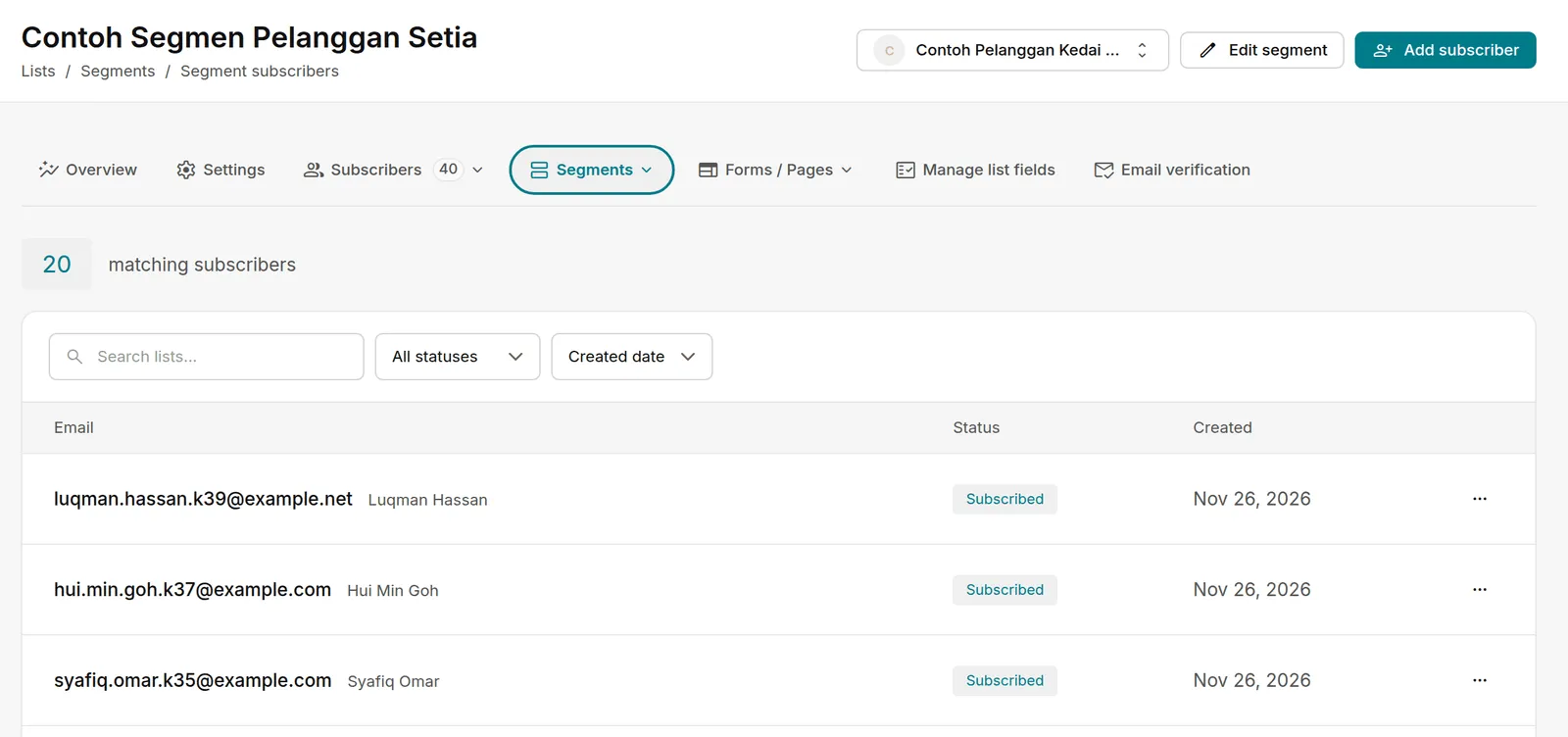
| View subscribers | Opens the Segment subscribers page: the number of matching subscribers and the list of subscribers that match, with a search and a status filter. |
| Delete | Deletes this segment. |

The Segment subscribers page also has the Edit segment button at the top right.
This advice helps you build useful segments:
- Start with one condition, then add more. After each change, save the segment and look at the number of subscribers. Then you know which condition decreases the number.
- Use tags for groups that you choose yourself. Tag the subscribers, then create a segment with the Tag condition. See Use tags for subscribers.
- Send important campaigns to active subscribers. Last opened email with Less than (days) selects the recent openers of your email. This helps your sending reputation.
Common issues
How can I see the subscribers in a segment?
Click the ... icon on the segment row, then click View subscribers. The page shows the number of matching subscribers and the list of subscribers that match.
Can I save a segment with no conditions?
No. A segment must have one condition or more, as the Conditions area tells you. Click Add condition, fill in the condition, then click Save segment.
Can I create a segment that takes subscribers from many lists?
No. Each segment is in one list and selects subscribers from that list only.
Was this article helpful?
Thanks for your feedback.
Sorry, this page did not help. Chat on Messenger and we will help you fix it.