
Ask an AI about this page
 ChatGPT
 Claude
 Perplexity
 Google AI Mode
 Microsoft Copilot
 Grok
 Mistral Le Chat
Campaign sending logs
The logs show what occurred to each email in a campaign, with one row for each event. The campaign report gives the totals. The logs give the details: who, when and why. Open the logs when you must check bounces, spam complaints or a specific subscriber.
Open the campaign logs
Section titled “Open the campaign logs”The logs are in the report of a campaign that was sent.
- Click Campaigns → Email.
- Click View on the row of the campaign.
- Click Sending logs, then choose the log that you want.
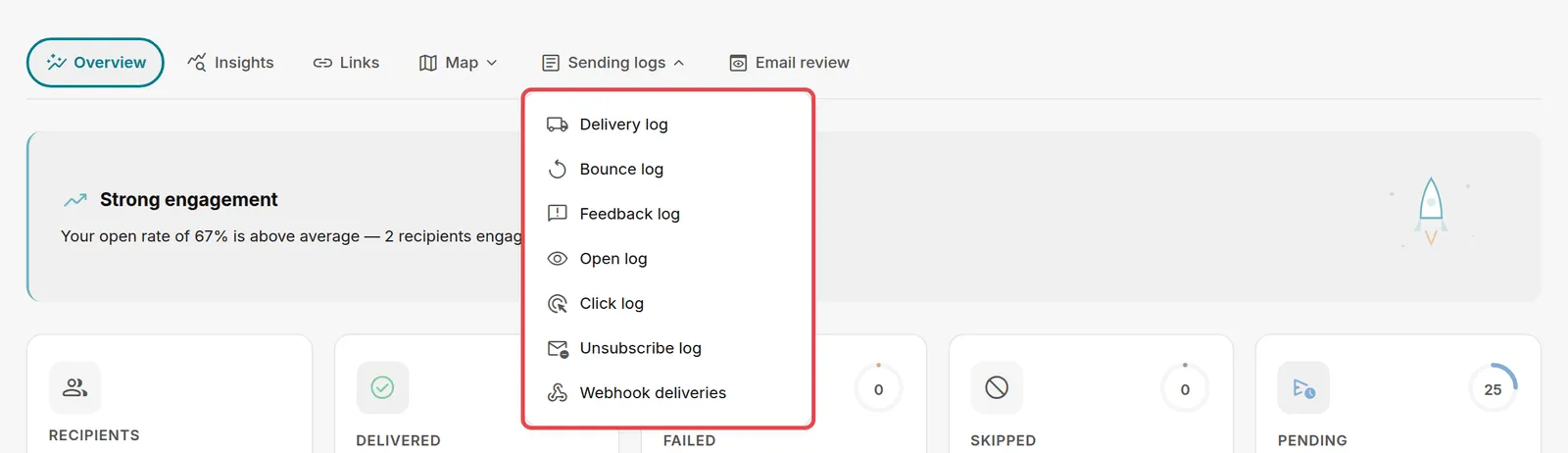
At the top of each log, one sentence tells what the log contains. Each log also has a Search by email… box and a Sort by date option. A button changes the sort direction.
Types of log
Section titled “Types of log”The Sending logs menu has seven logs:
| Log | What it records | When to check it |
|---|---|---|
| Delivery log | The status of each email sent: Sent, Failed or Duplicate. | When subscribers say that they did not get the email. |
| Bounce log | Emails that the receiving server returned, with the bounce type and the reason. | After each campaign, to find bad addresses. |
| Feedback log | Spam complaints and feedback from receiving servers. | When the Reported as spam figure in the report increases. |
| Open log | Each open of the email, with the IP address and the location. | To know when and from where people opened the email. |
| Click log | Each click on a link, with the URL, the IP address and the location. | To know which links people clicked, and who clicked them. |
| Unsubscribe log | Subscribers who unsubscribed after they received this campaign. | When the Unsubscribed figure in the report increases. |
| Webhook deliveries | Each webhook call that this campaign sent to your server. | When you use a campaign webhook and the data does not arrive. |
A log with no data shows an empty message, for example “No bounce logs found.”, “No click logs found.” or “No webhook deliveries yet.”.
Delivery log
Section titled “Delivery log”The Delivery log shows each recipient, the list of the recipient, the status of the email and the time when Mail Niaga sent it.
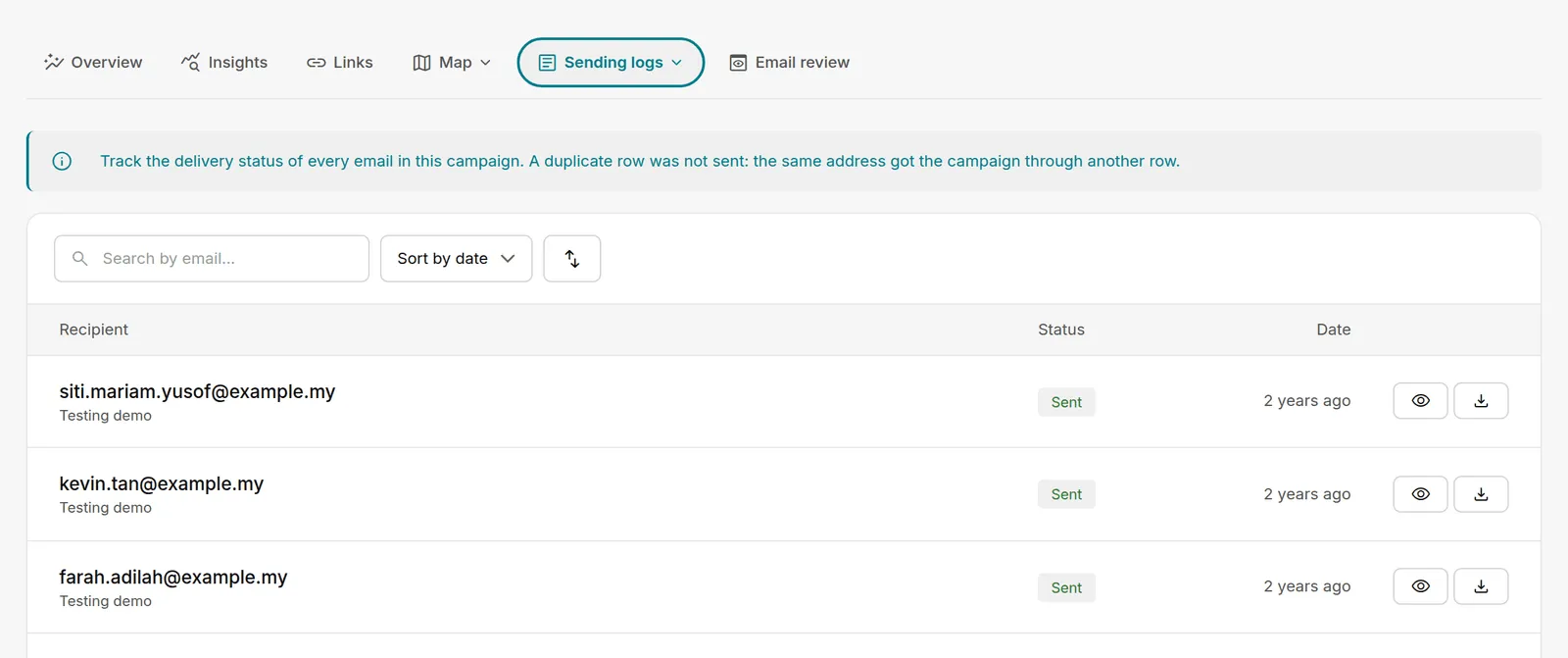
This table tells what each status means:
| Status | What it means |
|---|---|
| Sent | The receiving server accepted the email with no error. |
| Failed | The receiving server rejected the email. Put the mouse pointer on the badge to read the error. |
| Duplicate | The email was not sent. The same address already received the campaign through a different row. |
The eye button (Preview HTML) on each row opens a preview of the email that the recipient got. The download button (Download .eml) saves that email as an .eml file.
Bounce log & Feedback log
Section titled “Bounce log & Feedback log”The Bounce log has the columns Recipient, Bounce type (for example soft), Reason and Date. Click a reason to read the full message from the receiving server in the Bounce reason popup. Remove addresses that bounce again and again from your lists. Then your sending reputation will not decrease.
The Feedback log has the columns Recipient, Type, Reason and Date. Each row is a recipient who made a complaint, usually when they marked the email as spam. Do not send email to these recipients again.
Open log, Click log & Unsubscribe log
Section titled “Open log, Click log & Unsubscribe log”These three logs show the recipient, the IP address, the date and a Webhook column. The Open log and the Click log also show the location. The Click log also shows the URL that the recipient clicked.
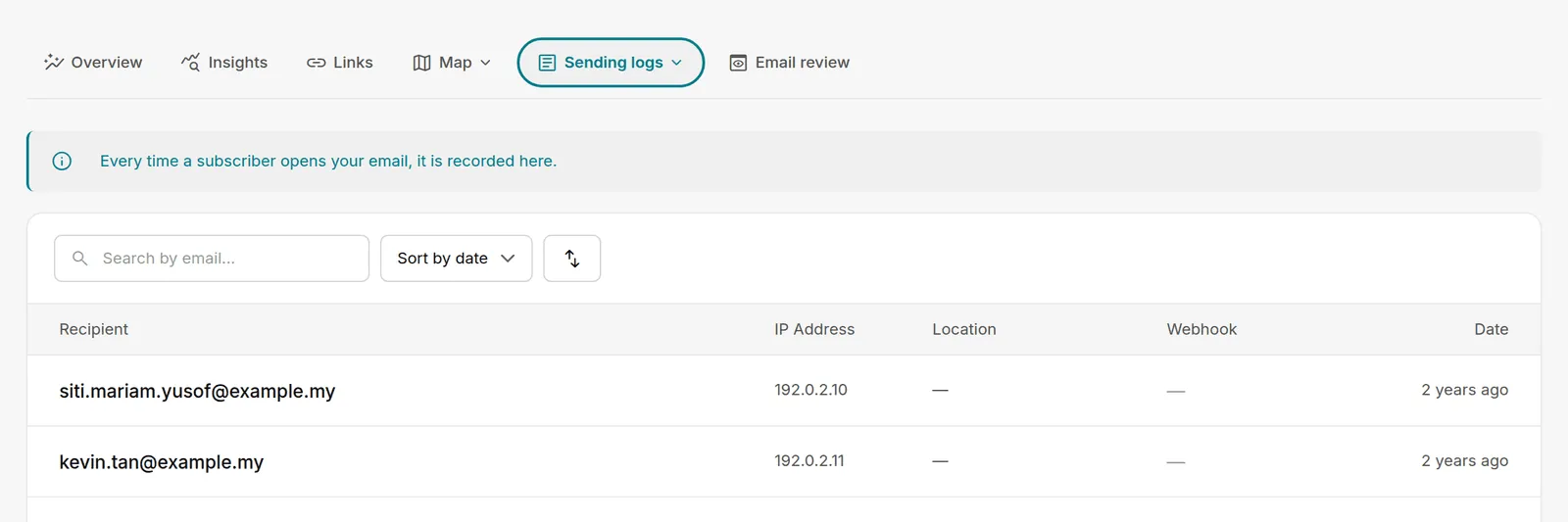
The Webhook column shows if Mail Niaga sent the event to the campaign webhook. If the campaign has no webhook, the column shows no badge.
Webhook deliveries
Section titled “Webhook deliveries”Webhook deliveries lists each webhook call for opens, clicks and unsubscribes. This log has the columns Recipient, Event, Endpoint, Status, Attempts and Date. The status Success means that your server accepted the call. The statuses Pending, Rejected by endpoint and Permanently failed mean that the data did not arrive yet, or will not arrive. Click a status to see the details of that call.
This advice helps you use the logs:
- Check the Bounce log after each campaign. Remove the addresses that bounced. Then your next campaign will not have the same problem.
- Do not send email again to the recipients in the Feedback log. More spam complaints make delivery worse for all your subscribers.
- Archive a campaign only after you check its logs. Archive deletes all its logs, and you cannot get them back.
Common issues
What is the difference between Failed in the Delivery log and Bounced in the Bounce log?
Failed means that the receiving server rejected the email immediately, when Mail Niaga sent it. A bounce occurs later: the server accepts the email first, and then returns it. Bounces are in the Bounce log. They are not in the Delivery log.
Why are there Duplicate rows in the Delivery log?
The same email address is on more than one row in the campaign recipients, for example in two lists. One address receives the campaign only one time. The second row is not sent, and the console marks it Duplicate.
Why is the log of my old campaign empty?
Possibly the campaign is archived (Archive). If so, the console deleted its sending logs to save space. The statistics in Overview stay, but you cannot get the logs back.
Was this article helpful?
Thanks for your feedback.
Sorry, this page did not help. Chat on Messenger and we will help you fix it.