
Ask an AI about this page
 ChatGPT
 Claude
 Perplexity
 Google AI Mode
 Microsoft Copilot
 Grok
 Mistral Le Chat
Manage list fields (custom fields)
A list field is a data field for each subscriber in a list, for example a name, a phone number or a state. Each list has three main list fields: Email, First name and Last name. Add your own list fields (custom fields) to keep other data.
Open the list fields page
Section titled “Open the list fields page”Do these steps in the Mail Niaga console:
-
Click Audience → Lists, then click the name of the list.
-
Click the Manage list fields tab. On the Lists page, you can also click … → Manage fields.
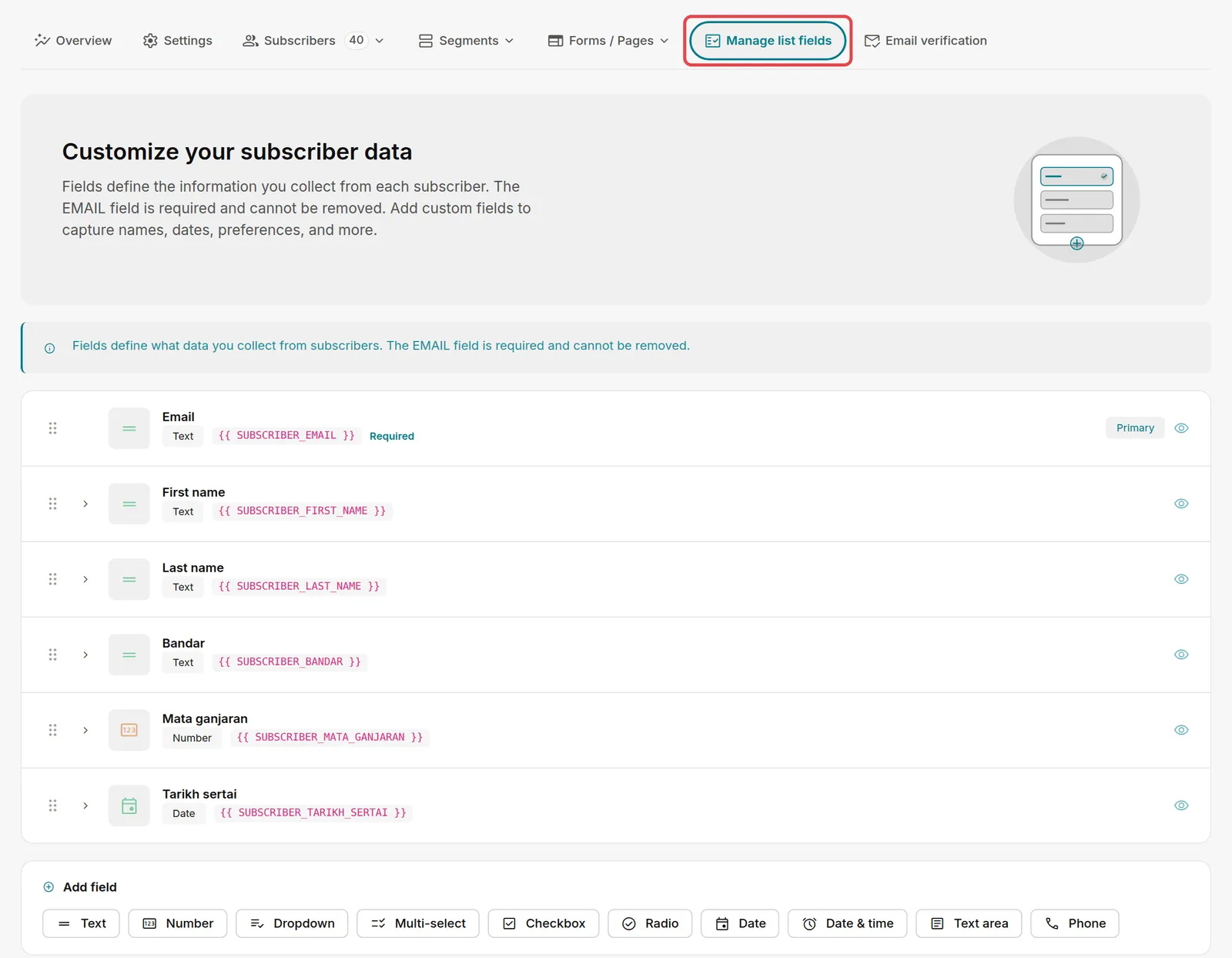
Each list field shows as a card. The card shows:
- the label of the list field
- the type of the list field, for example Text
- the tag, for example
{{ SUBSCRIBER_FIRST_NAME }} - Required, if the list field is required
The eye icon shows if the list field is visible. The Email list field has the Primary mark, and you cannot open it or change it.
Add a new list field
Section titled “Add a new list field”Do these steps to add a list field:
-
In the Add field area, click the type of list field that you need. A new card opens at the end of the list.
-
Fill in Label, which is the name of the list field that subscribers see, for example “State”.
-
Fill in Tag, for example
STATE. Use only letters, numbers and underscores. The full tag becomes{{ SUBSCRIBER_STATE }}. -
Fill in Default value if the list field must have a default value.
-
Turn on Required if the list field is required. Turn off Visible if the list field must not show.
-
For Dropdown, Multi-select, Checkbox or Radio, click Add option. Then fill in Label and Value for each option.
-
Click Save fields.
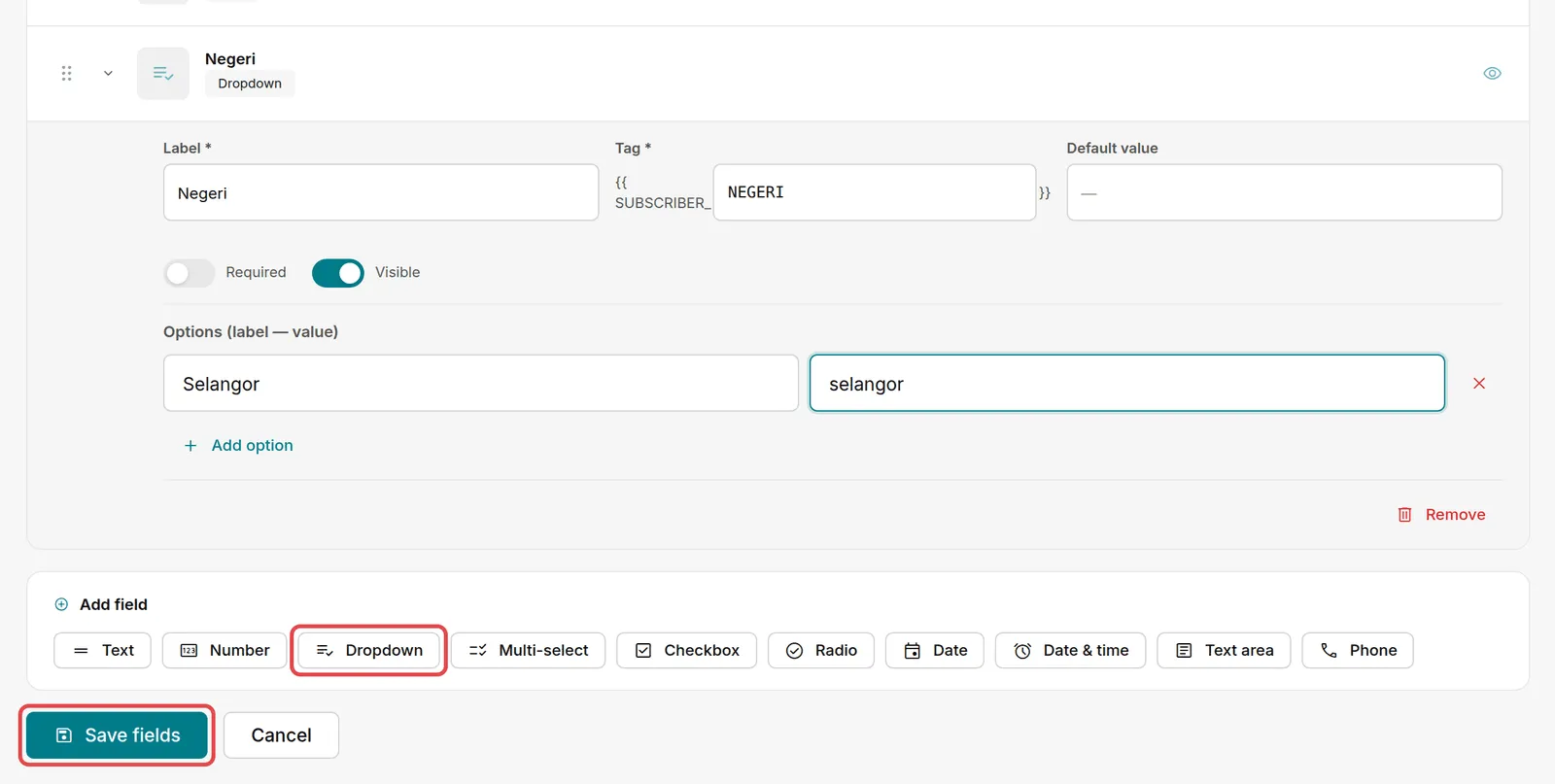
The console does not save a new list field until you click Save fields. To remove a new card that you did not save, click Remove. To leave and not save, click Cancel.
List field types
Section titled “List field types”The Add field area has ten list field types:
| Type | When to use it |
|---|---|
| Text | Short text, for example a company name. |
| Number | A number, for example an age or a purchase total. |
| Dropdown | One option from a list, for example a state. |
| Multi-select | More than one option from a list, for example interests. |
| Checkbox | Check boxes for one or more options. |
| Radio | One option from a set of buttons. |
| Date | A date, for example a date of birth. |
| Date & time | A date and a time, for example the time of an appointment. |
| Text area | Long text, for example an address or notes. |
| Phone | A phone number. |
Change, sort or delete a list field
Section titled “Change, sort or delete a list field”To change a list field, click its card and change the details. Then click Save fields.
To change the sequence of the list fields, drag the dot icon on the left of a card to a new position. The console saves the new sequence immediately when you release the card.
To delete a list field that you saved, open its card and click Delete field. The console does not ask you to confirm. The console deletes the list field immediately when you click. You do not click Save fields.
If the console does not save the list fields
Section titled “If the console does not save the list fields”The console checks your list fields when you click Save fields. If there is an error, the console saves nothing.
If Label or Tag is empty, or Tag has a space or a symbol, your browser shows a message on that field. For example, “Please fill out this field.” or “Please match the requested format.” The language of this message is the language of your browser settings.
The console shows other errors in a red box above the list fields:

| Message | How to correct it |
|---|---|
Duplicate tag: BANDAR |
Two list fields use the same tag. Change one of the tags. |
Field "Negeri": At least one option is required for dropdown fields |
Click Add option and fill in a minimum of one option. |
This advice helps you plan your list fields:
- Create list fields before you import subscribers. During an import, you must match each column in your file with a list field.
- Choose a tag that is short and clear. You use the tag as a personalisation tag in an email, for example
{{ SUBSCRIBER_STATE }}. - Do not change a tag that a template uses. An email with the old tag does not show the subscriber data.
Common issues
Can I delete the Email list field?
No. Each list must have the Email list field. You cannot delete it or change it.
Why does the console not save my new list field when I click Save fields?
Label or Tag is empty, or Tag has a space or a symbol. Your browser shows a message on that field, for example "Please fill out this field." Fill in Tag with only letters, numbers or underscores, for example STATE. Then click Save fields again.
Why can I not save my Dropdown list field?
A list field of the type Dropdown, Multi-select, Checkbox or Radio needs a minimum of one option. Click Add option, and fill in Label and Value. Then click Save fields.
Was this article helpful?
Thanks for your feedback.
Sorry, this page did not help. Chat on Messenger and we will help you fix it.