
Ask an AI about this page
 ChatGPT
 Claude
 Perplexity
 Google AI Mode
 Microsoft Copilot
 Grok
 Mistral Le Chat
Read the audience overview & list reports
The Mail Niaga console has two summary pages for your audience. Audience → Overview shows the total number of subscribers and their status in all your lists. The Overview tab of each list shows the report for that list only.
Audience Overview for all lists
Section titled “Audience Overview for all lists”Click Audience → Overview in the sidebar. The Audience page opens with a summary of all your lists. The GROW FASTER panel at the top has the Create a list and Browse lists buttons.
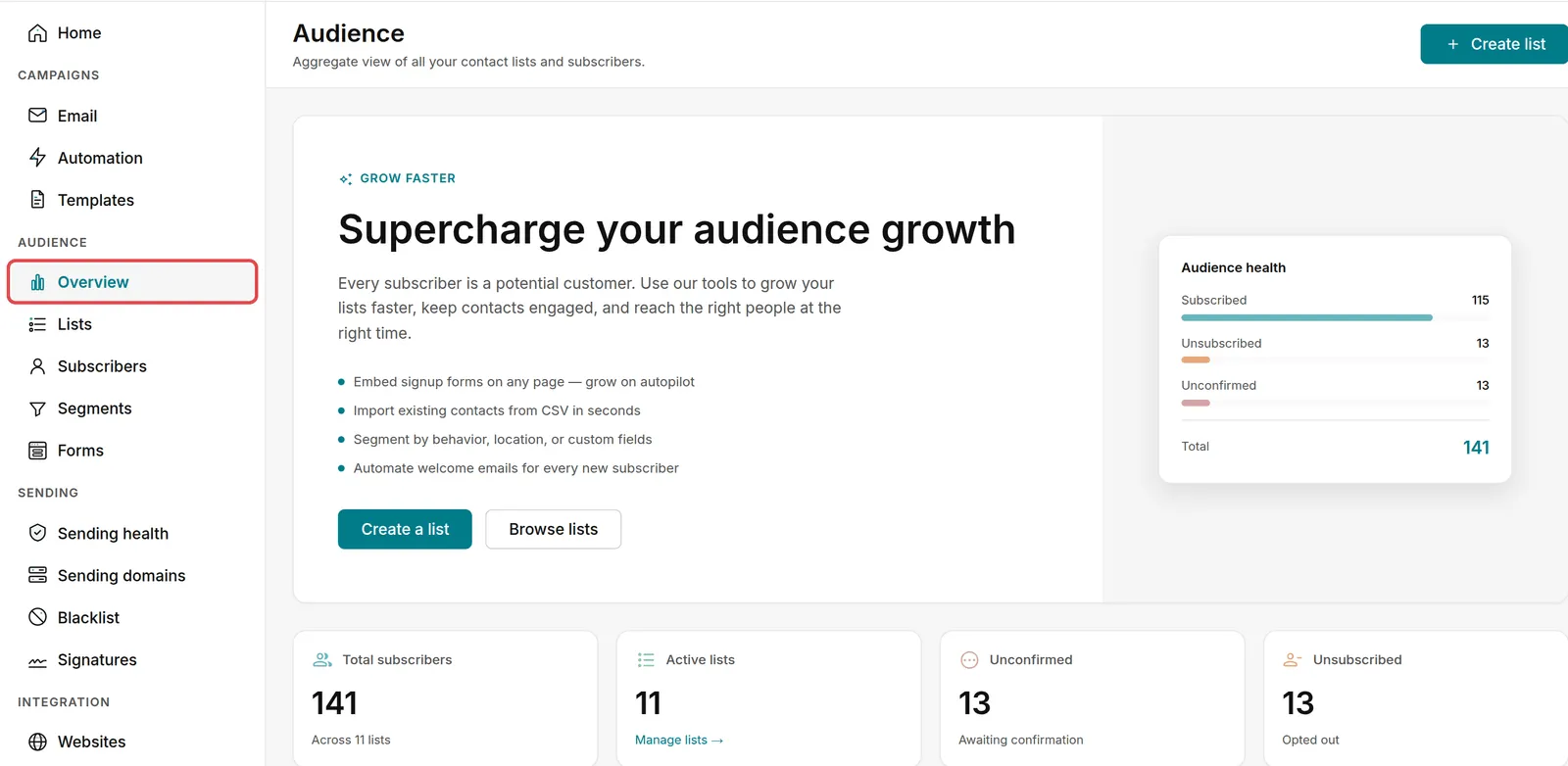
The Audience health box on the right shows the number of Subscribed, Unsubscribed and Unconfirmed subscribers, and the Total. Below it, there are four cards:
| Card | What it counts |
|---|---|
| Total subscribers | The number of subscribers, and the number of lists that they are in. |
| Active lists | The number of lists. Click Manage lists → to open the lists page. |
| Unconfirmed | The subscribers who did not confirm their subscription. |
| Unsubscribed | The subscribers who unsubscribed. |
Below the cards, three charts show the trends of your audience:
- Subscriber growth: the new subscribers in each month, for the last 6 months.
- Subscriber breakdown: a donut chart of the subscriber status in all your lists.
- A daily signup chart: the new subscribers on each day, for the last 30 days.
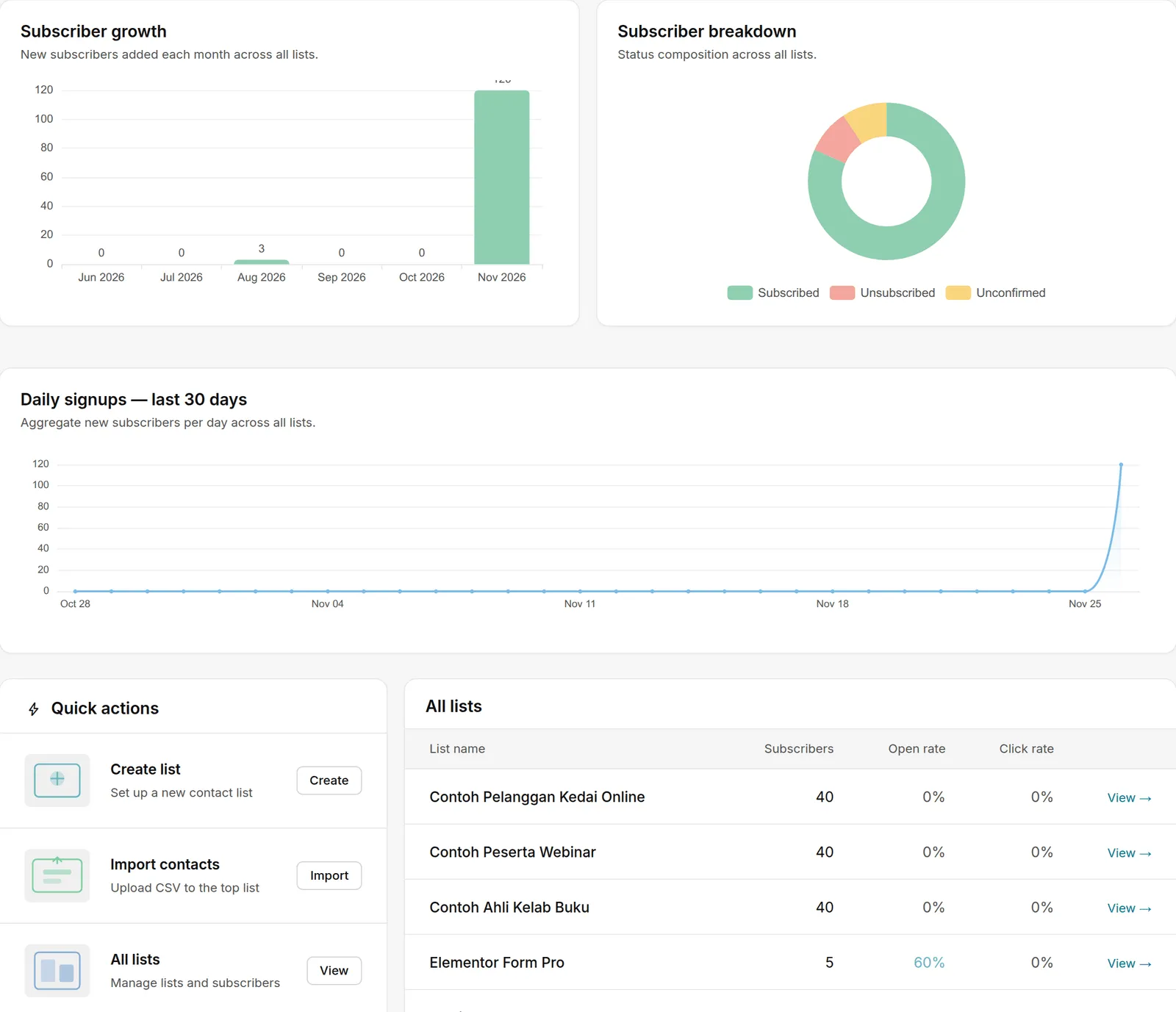
The Quick actions area has the Create list, Import contacts and All lists shortcuts. The All lists table shows each list with its Subscribers, Open rate and Click rate. Click View → to open the report of that list.
The Overview tab of one list
Section titled “The Overview tab of one list”To open the report of one list, click Audience → Lists, then click the list name. The Overview tab opens first.
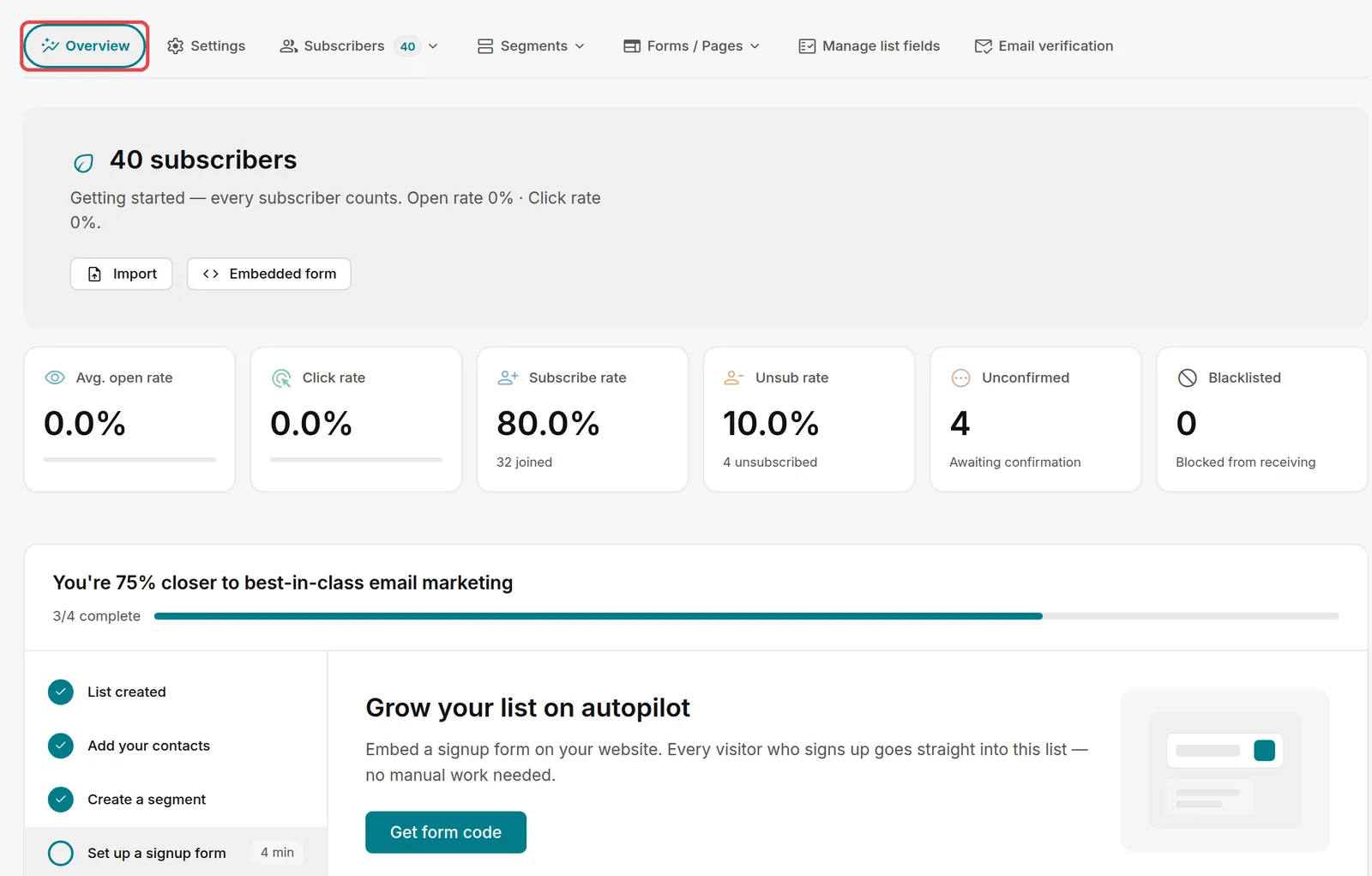
The top of the tab shows the number of subscribers, the open rate and the click rate of the list. The Import and Embedded form buttons are also there. Below them, there are six cards:
| Card | What it counts |
|---|---|
| Avg. open rate | The average open rate of the campaigns that you sent to this list. |
| Click rate | The click rate of the campaigns that you sent to this list. |
| Subscribe rate | The subscription rate, with the number of subscribers who joined the list (“joined”). |
| Unsub rate | The unsubscribe rate, with the number of subscribers who unsubscribed. |
| Unconfirmed | The subscribers who did not confirm their subscription. |
| Blacklisted | The subscribers who cannot receive email. |
The list checklist
Section titled “The list checklist”Below the cards, a checklist shows how ready your list is, for example “3/4 complete”. The checklist has four steps:
- List created: complete when you create the list.
- Add your contacts: complete when the list has subscribers.
- Create a segment: complete when the list has a segment.
- Set up a signup form: install a signup form on your website.
A tick icon marks each complete step. For an incomplete step, the panel on the right shows a button. An example is Get form code for Set up a signup form.
Charts & recent subscribers
Section titled “Charts & recent subscribers”The Overview tab also has three charts for the list: Subscriber composition (the subscriber status), Monthly subscriber growth (the new subscribers in each month) and a daily signup chart for the last 30 days.
The Quick actions area has Import, Add and Create. The Recent subscribers table shows the five latest subscribers with their Email, Status and Joined date. Click View all → to see all the subscribers in the list.
When the numbers update
Section titled “When the numbers update”Mail Niaga keeps the list numbers and counts them again in the background. The numbers can update some time after an import or a campaign. In Audience → Lists, each list shows “Statistics updated” with the time of the last count.

When you open the Overview tab of a list, Mail Niaga starts to count the numbers of that list again. After that, the Lists page shows the new time, for example “Statistics updated 12 seconds ago”.
You can also count the numbers of one list again from the Lists page, with the list closed. Click the refresh icon (Refresh statistics) next to that text. The console shows a message that it sent the task. Open the page again after some minutes.
This advice helps you keep the quality of your lists:
- Monitor the Unconfirmed number. A high number means that many subscribers did not click the confirmation link in their email.
- Compare your lists in the All lists table. A low open rate can show that you must clean that list.
Common issues
Why do the list numbers not change after I import subscribers?
Mail Niaga counts the list numbers again in the background. In Audience → Lists, click the refresh icon next to "Statistics updated". Then open the page again after some minutes.
Why is the Set up a signup form step not marked as complete?
This step can stay incomplete when your list already has a form, for example a popup form that is still a draft. You can ignore this step after you install your form on your website.
What is the difference between the Audience Overview and the Overview tab of a list?
Audience → Overview shows the totals for all your lists. The Overview tab of a list shows the numbers for that list only, with the latest subscribers and a checklist.
Was this article helpful?
Thanks for your feedback.
Sorry, this page did not help. Chat on Messenger and we will help you fix it.