
Ask an AI about this page
 ChatGPT
 Claude
 Perplexity
 Google AI Mode
 Microsoft Copilot
 Grok
 Mistral Le Chat
Export subscribers to a CSV file
An export keeps the subscribers of one list in a CSV file. Use an export to make a copy of your list. You can also open the subscriber data in Excel or Google Sheets. You can export the full list or one segment only.
Open the export page
Section titled “Open the export page”Do these steps to open the export page of the list that you want.
-
Log in to the Mail Niaga console.
-
Click Audience → Lists, then open the list that you want.
-
Click the Subscribers tab, then click Export.
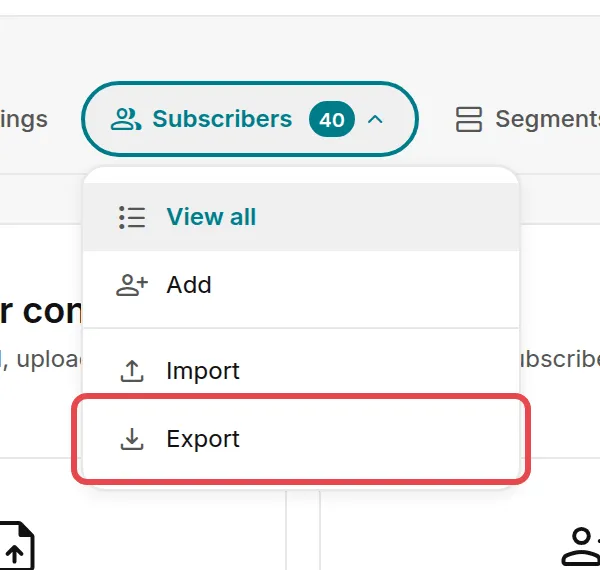
You can also click the three-dot icon on the list row on the Lists page, then click Export.
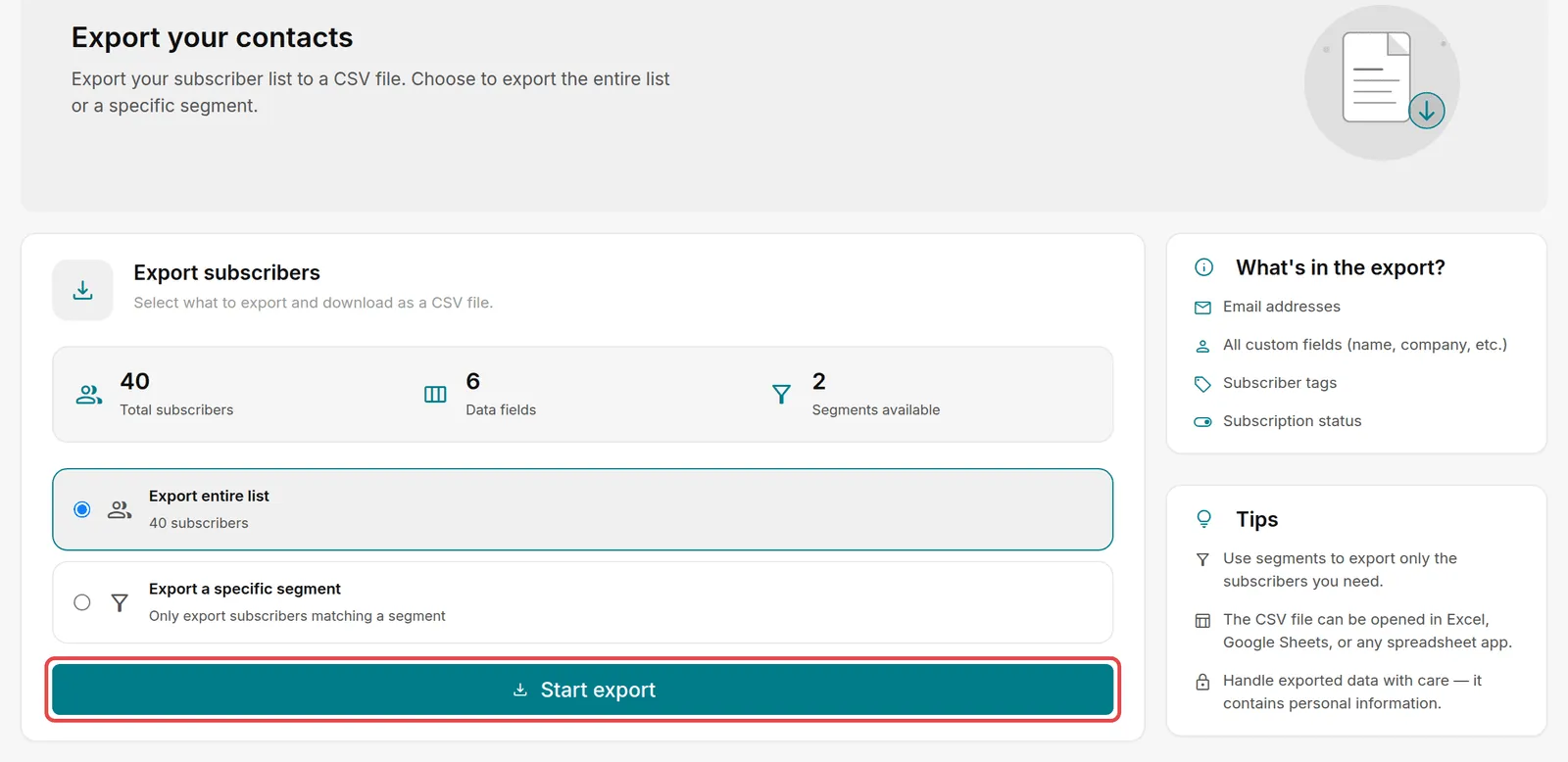
The export page shows the Total subscribers and the Data fields (the number of fields) in the list. If the list has segments, the page also shows Segments available.
Export the subscribers
Section titled “Export the subscribers”Choose the data that you want to export, then start the export.
-
Choose one of these options:
- Export entire list for all the subscribers in the list.
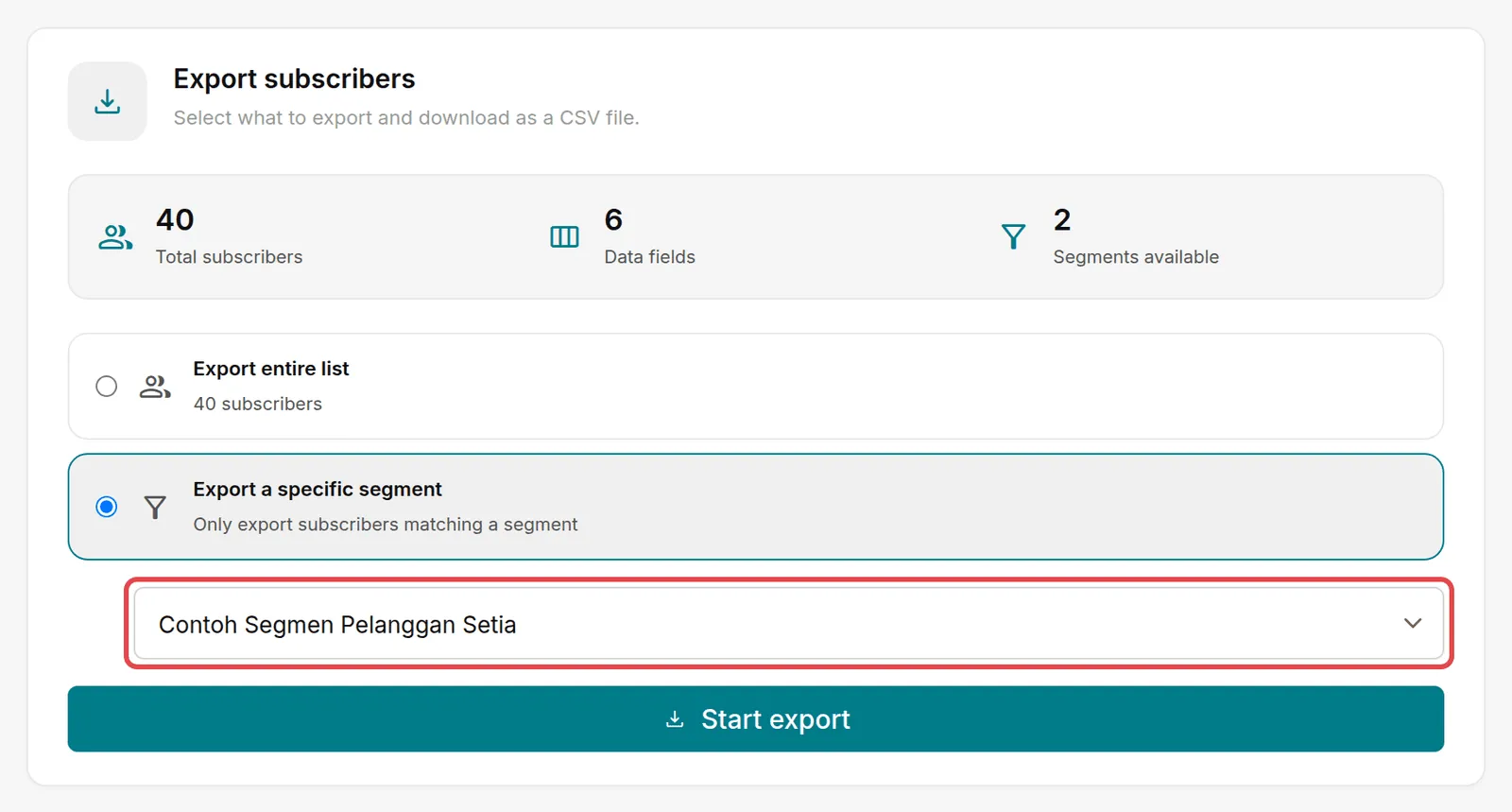
- Export a specific segment for the subscribers in one segment only. This option is available only if the list has segments.
If you choose Export a specific segment, choose the segment in the list below it.
-
Click Start export.
-
Wait until Export completed! shows. A large list takes more time.
-
Click Download CSV file to save the file.
While the export runs, you can click Cancel export to stop it. After the file is ready, click Export again if you want a new file.
The contents of the CSV file
Section titled “The contents of the CSV file”The export file has this data for each subscriber:
| Data | Description |
|---|---|
| Email address | The email address of the subscriber. |
| Custom fields | All the list fields, for example the name and the company. |
| Tags | The tags of the subscriber. |
| Subscription status | For example Subscribed or Unsubscribed. |
You can open this CSV file in Excel, Google Sheets or a different spreadsheet application.
This advice helps you export only the data that you need:
- Use a segment to export only the subscribers that you need. The file is smaller and has no unnecessary data.
- Export the list before a large change. For example, export it before you clean the list or delete many subscribers. Then you have a copy of the data.
Common issues
Why does the Export a specific segment option not show?
This option shows only if the list has one segment or more. Create a segment first, then open the export page again.
Do I lose the export if I close the page during the export?
No. The export runs in the background. When you open the export page again, the page shows the progress of the export.
What is in the CSV file?
The email address, all the custom fields (for example the name and the company), the subscriber tags and the subscription status.
Was this article helpful?
Thanks for your feedback.
Sorry, this page did not help. Chat on Messenger and we will help you fix it.